How to Register a SCALEXIO System with ConfigurationDesk
Objective
To access the hardware resources of your SCALEXIO system, you must register its processing hardware to make the system known to your host PC.
Tutorial video
This video shows you how to register a SCALEXIO processing hardware and update its firmware. The video shows a DS6001 Processor Board. A SCALEXIO Processing Unit is registered in the same way.
Basics on registering a SCALEXIO system
To register a SCALEXIO system, you can use one of the following tools:
AutomationDesk
ConfigurationDesk
ControlDesk
ModelDesk
When registering the SCALEXIO system or managing the registration data, use only one of these tools and close the other tools. The SCALEXIO system is also registered for the other tools and present the next time you start it.
For basics and further details (for example, advanced features) on registering hardware and on managing registered hardware, refer to Basics on Registering Real-Time Hardware.
In this topic, you will learn, how to register a SCALEXIO system with ConfigurationDesk.
Preconditions
The following preconditions must be fulfilled:
ConfigurationDesk is installed on your host PC and ConfigurationDesk must belong to the RCP and HIL installation that is currently active. For instructions, refer to How to Install dSPACE Software.
Your host PC must be connected to the same network as the SCALEXIO system you want to register in ConfigurationDesk.
The SCALEXIO system is switched on.
Method: To register SCALEXIO hardware
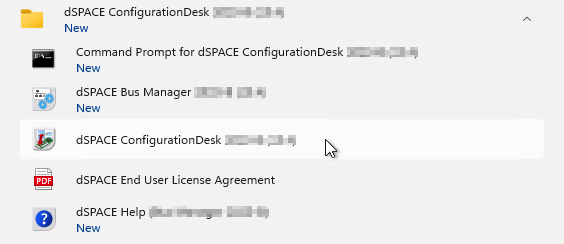
Start ConfigurationDesk.
On the Platforms ribbon, click Platform Management – Register Platforms.
The Register Platforms dialog opens.
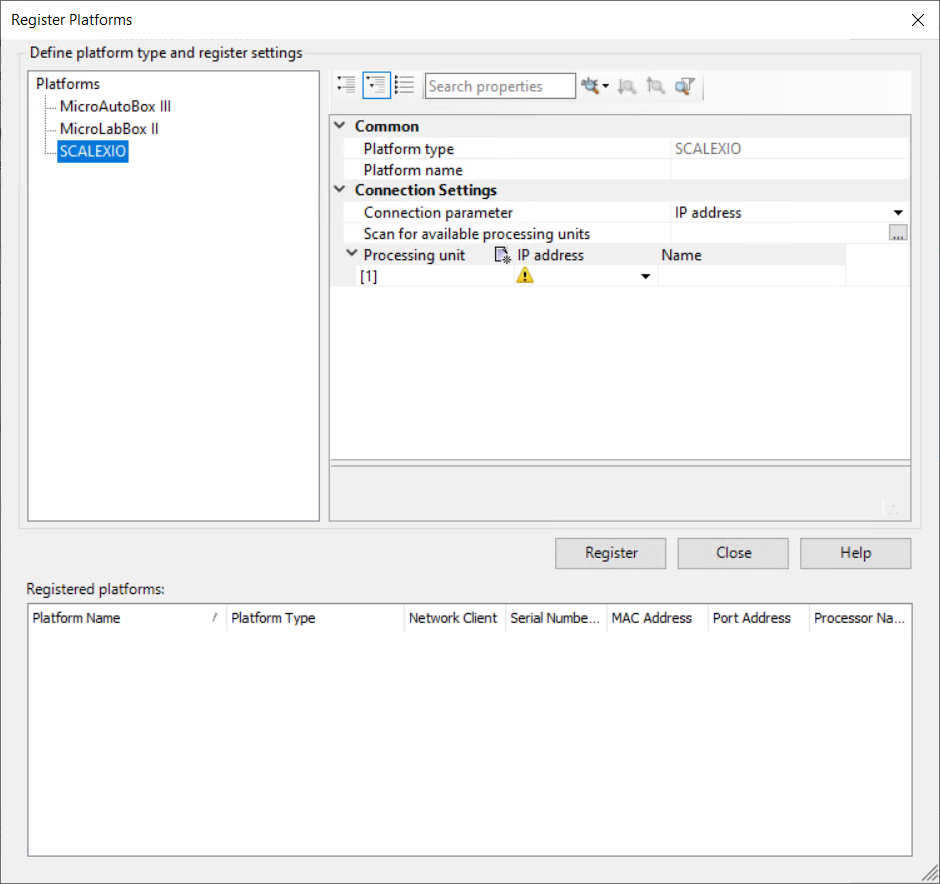
In the Platform name edit field, specify a unique user-defined platform name for the SCALEXIO system if required.
Specify the connection settings for the SCALEXIO system and its processing hardware you want to register: Specify either its IP address, its MAC address, board name, or its alias name.
Tip
You can also scan the local network for connected platform hardware. To do so, select the Scan local network entry from the IP address drop-down list. The scope is limited to the current subnetwork.
Note
If your SCALEXIO system is installed in a different subnetwork connected to your host PC’s network via a router or gateway, you must enter the IP address for registering.
If you want to register a multiprocessor system, click
 to add an new processing hardware and specify either its IP address, its MAC address, board name, or its alias name.
Note
You cannot subsequently add processing hardware to a SCALEXIO system that is already registered.
Click Register to complete the registration of the SCALEXIO system.
The registered processing hardware is displayed with its registration settings in the Registered platforms list.
Click Close to close the Register Platforms dialog.
Result
You have registered the SCALEXIO system independently of ConfigurationDesk projects and applications. ConfigurationDesk created a platform for each item of registered hardware. The registration data is stored in the recent platform configuration.
The Platform Manager displays the hardware topology of all the registered platforms. The hardware topologies are displayed in the order in which the registered hardware systems are detected in the network. Each hardware topology is displayed in a hierarchical structure.
Next steps
When you have started ConfigurationDesk and registered your SCALEXIO system, you can:
Start to work with a demo application as described in Accessing the CfgStartingWithExternalDevices Demo Project and Its Applications
Make yourself familiar with basic concepts of ConfigurationDesk as described in Basic Concepts of ConfigurationDesk or
Make yourself familiar with the workflows in ConfigurationDesk as described in Typical Workflows for Beginners.