How to Change the Network Configuration via a Command Prompt Window
Objective
As an alternative to using the Web interface of the SCALEXIO processing hardware, you can use a Command Prompt window to change the network configuration of the processing hardware. This method is required if you do not know the current IP address of the SCALEXIO processing hardware.
Required information
For changing the network configuration, you need:
Either the current IP address of the SCALEXIO system.
Or the MAC address of the SCALEXIO system.
By default, the Ethernet port for the host PC connection of SCALEXIO processing hardware is preconfigured as follows:
IP address: 192.168.140.10
Network mask: 255.255.255.0
MAC address label of the SCALEXIO processing hardware
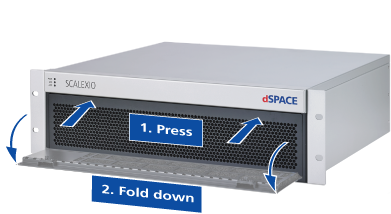
You find the individual MAC address of the SCALEXIO Processing Unit's host PC interface on a label on the front or behind the front flap. (The following illustration shows housing variant 3.)
Preconditions
The SCALEXIO system must be connected to the host PC in a peer-to-peer connection.
The host PC must have a static IP address.
Method: To change the network configuration
Switch on the host PC and the SCALEXIO system.
The SCALEXIO system has booted completely when the SYS LED of the SCALEXIO processing hardware is green or flashes orange and green.
On the Windows Start menu, select dSPACE ConfigurationDesk 20xx-x (xx.y) – Command Prompt for dSPACE ConfigurationDesk 20xx-x to open a Command Prompt window in which the required paths and environment settings are preset.
Enter
DsNetConfig -help.The syntax and all the available commands of the DsNetConfig tool are displayed.
Note
The SCALEXIO system and the Ethernet interface of the host PC must have the same network mask (for example,
255.255.255.0).The IP address of the SCALEXIO system and the IP address of the host PC's Ethernet interface must be part of the same subnet (for example,
192.168.1.x).You can now specify a static IP address or let a DHCP server set the IP address:
To set a static IP address without gateway, enter the new IP address and the network mask:
DsNetConfig <MAC_address> -ip <IP_address> <subnet_mask>(for example,
DsNetConfig 00:03:2D:19:09:3A -ip 192.168.0.2 255.255.255.0)To set a static IP address with gateway, enter the new IP address, the network mask, and the gateway address:
DsNetConfig MAC_address> -ip <IP_address> <subnet_mask> -gw <gateway_address>(for example,
DsNetConfig 00:03:2D:19:09:3A -ip 192.168.0.2 255.255.255.0 -gw 192.168.0.1)To let a DHCP server set the IP address, enter:
DsNetConfig <MAC_address> -dhcp(for example,
DsNetConfig 00:03:2D:19:09:3A -dhcp)Depending on the DHCP configuration, the IP address is fixed or variable and might change each time the SCALEXIO system signs onto the network.
The SYS LED and the APP LED indicate the configuration state.
LED Status
Configuration State
Flashes green (3 times)
The configuration was successful. Continue with step 5.
Flashes red (3 times)
The SCALEXIO system received the configuration command but the configuration was not successful. Make sure that the SCALEXIO system is not being accessed by software, such as ConfigurationDesk or ControlDesk, and that no real-time application is loaded to the SCALEXIO system. Then repeat steps 2 … 4.
No reaction
The SCALEXIO system has not received the configuration command. Check the configuration of the host PC and/or the Ethernet connection between the SCALEXIO system and the host PC. Then repeat steps 2 … 4.
Shut down the SCALEXIO system.
Wait until the SCALEXIO system has shut down completely, then restart it to invoke the new IP address.
In the Command Prompt window, enter
DsNetConfig -scan.The SCALEXIO system is displayed with its MAC address, the specified IP address, the network mask (subnet mask), and the board name.
Tip
If the SCALEXIO system is not displayed:
Check if the subnet masks of the SCALEXIO processing hardware and of the host PC are the same.
Check if the IP address of the SCALEXIO system is part of the subnet of the host PC's Ethernet interface.
Check if the IP address of the SCALEXIO system is within the valid ranges and specified correctly.
Result
You changed the network configuration for the processing hardware of your SCALEXIO system.