Step 4: How to Start RTT Sequences with Sequence Arguments
Objective
In this step, you will learn how to start RTT sequences with sequence arguments. With sequence arguments, you can pass any Python object from the host PC to the RTT sequence.
Basics
- Sequence arguments
You can pass sequence arguments from the host PC to the simulation platform during the creation of an RTT sequence or during the start of an RTT sequence. In this tutorial, you will pass a sequence argument during the start of an RTT sequence using
sequence.Run(<sequence argument>). To do this, you must add an(*args)argument to theMainGenerator()function.
- Functionality of the loader script
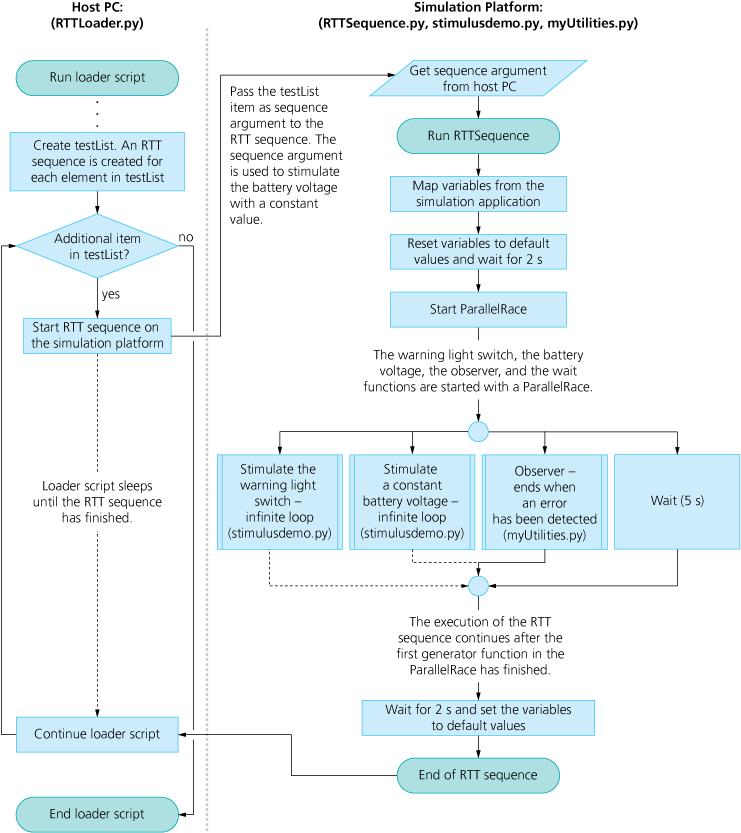
In this step, the loader script will start the RTT sequence three times in a row. After the execution of an RTT sequence, the loader script will download the RTT sequence again. Additionally, the loader script will pass a sequence argument to the RTT sequence.
- Functionality of the RTT sequences
The RTT sequence will be started three times in a row.
A sequence argument will be passed to the RTT sequence. The battery voltage of the simulation application will be set to the value of the sequence argument.
The warning light switch will be stimulated.
Each test ends when the warning light has flashed synchronously for 5 s or when non-synchronous flashing is detected.
The RTT sequence will print the results.
View the following illustration for more details:
- Parts
This step is divided into the following parts:
myUtilities.py: To write the Python module, refer to Part 1.stimulusdemo.py: To write the Python module, refer to Part 2.RTTSequence.py: To write an RTT sequence for this step, refer to Part 3.RTTLoader.py: To write a loader script for this step, refer to Part 4.To start the RTT sequence, refer to Part 5.
Part 1: To write the utilities module
In the File Explorer, navigate to your
Work folderand create the following subfolders:…\Lesson2Step4\SimulationPlatform\…\Lesson2Step4\HostPC\
Copy the Python module from the previous step:
…\Lesson2Step3\SimulationPlatform\myUtilities.py.Paste the Python module into the folder:
…\Lesson2Step4\SimulationPlatform\.
Interim result
You have written the Python module myUtilities.py. Continue with the next part to write the Python module stimulusdemo.py.
Part 2: To write the stimulusdemo module
Copy the Python module from the previous step:
…\Lesson2Step3\SimulationPlatform\stimulusdemo.py.Paste the Python module into the folder:
…\Lesson2Step4\SimulationPlatform\.
Interim result
You have created the Python module stimulusdemo.py, with the same functionality as in the previous step. Continue with the next part to write an RTT sequence.
Part 3: To write an RTT sequence that uses sequence arguments
Create a new Python script.
Copy the following code to the Python editor:
""" File: RTTSequence.py Destination: Simulation platform Description: Stimulation of the warning light switch and the battery voltage with a constant value. The constant value for the battery voltage is sent as sequence argument from the host PC. An observer function checks in parallel the functionality of the warning light. """# Provides functions for common real-time operations. from rttlib import utilities # Import the variable module from the rttlib package. from rttlib import variable # Import scheduler to use ParallelRace(). from rttlib import scheduler # Import your Python modules. import stimulusdemo import myUtilities # Create variable objects for accessing simulation application. WarningLightSwitch = variable.Variable( "Model Root/WarningLightSwitch[0|1]/Value") BatteryVoltage = variable.Variable("Model Root/BatteryVoltage[V]/Value") # To shorten the script only the lights on the left side are investigated. FL = variable.Variable("Model Root/FrontLightEcu/TurnSignalLeft") RL = variable.Variable("Model Root/RearLightEcu/TurnSignalLeft") # Identifier for RTT print messages. rttPrefix = " *RTT:* "# Possible test states: testSuccess = 1 testUndefined = 0 testFailure = -1 # Use deques instead of lists to make the data real-time capable. from collections import deque sequenceResult = deque([testUndefined])#----------------------------------------------------------------------------- # Generator functions #----------------------------------------------------------------------------- def resetGen(): """ Set the variables from the simulation application back to default values. """ WarningLightSwitch.Value = 0 BatteryVoltage.Value = 12.0 sequenceResult[0] = testUndefined yield Nonedef stimulateWarningLightSwitchGen(): """ Stimulates the warning light switch. """ yield stimulusdemo.constGen(WarningLightSwitch, 1)def stimulateBatteryVoltageGen(argument): """ Stimulates the battery voltage with the value passed as sequence argument. """ yield stimulusdemo.constGen(BatteryVoltage, argument) def ObserverGen(): """ Observer function to check if the warning light is flashing synchronously. """ yield myUtilities.frontRearObservatorGen(FL, RL, BatteryVoltage, sequenceResult)# ---------------------------------------------------------------------------- # MainGenerator function # ---------------------------------------------------------------------------- def MainGenerator(*args): """ Main generator function of the RTT sequence. Description: To pass a sequence argument the main generator must be called with *args. """ numberOfSeconds = 5 # Set default values before the test starts. yield resetGen()# Suspend the RTT sequence to avoid malfunctions if the battery voltage # was very low before the reset. yield utilities.Wait(2) print(rttPrefix + "Switch on the Warning Light Switch.") # With args[0] you have access to the passed sequence argument. print(rttPrefix + "Setting U_Battery to %.1f V" % args[0]) yield None # Start all generator functions with ParallelRace(). The ParallelRace will # end if numberOfSeconds is reached or the observer has detected a # failure. yield scheduler.ParallelRace( stimulateWarningLightSwitchGen(), stimulateBatteryVoltageGen(args[0]), ObserverGen(), utilities.Wait(numberOfSeconds))# If the sequenceResult is still testUndefined, the ObserverGen has not # found any errors. if sequenceResult[0] == testUndefined: print(rttPrefix + "----Test passed----") yield resetGen() yield utilities.Wait(2)Save the file as:
…\Lesson2Step4\SimulationPlatform\RTTSequence.py.
Interim result
You have written an RTT sequence, that uses sequence arguments which are sent from the host PC. Continue with the next part to write a loader script.
Part 4: To write a loader script to pass sequence arguments to RTT sequences
Create a new Python script.
Copy the following code to the Python editor:
""" File: RTTLoader.py Destination: Host PC Description: To load and start several RTT sequences subsequently. Each RTT sequence is started with a sequence argument. """ # This Python library is used to handle the test script download. import rttmanagerlib # Use the standard Python built-in libraries for operation-system commands. import pathlib import time # Deques (double-ended queues) are a generalization of stacks and queues. Use # them instead of lists to save computation time and to make the data # real-time capable. from collections import deque# Get the path of your RTT sequence. workingDir = pathlib.Path(__file__).parent.parent.resolve() testScriptName = str(workingDir / "SimulationPlatform" / "RTTSequence.py") # Import real-time testing demo utilities. import rttdemoutilities# ---------------------------------------------------------------------------- # Functions # ---------------------------------------------------------------------------- def createDemoData(): """ Creates a deque. RTT sequences are loaded subsequently for each value in the deque. The values are passed as sequence arguments to the RTT sequence to stimulate the battery voltage with constant values. """ #Initialize testList testList = deque([12.0, 7.3, 10.0]) return testListdef executeDemo(boardName): """ Executes the Real-Time Testing demo. """ # Create new RTTManagerServer instance. rttManager = rttmanagerlib.RealTimeTestManagerServer() # Generate byte code from the test script (RTT sequence). bcgFileName = rttManager.BCGServiceProvider.Generate(testScriptName,[]) # Establish the real-time platform connection. board = rttManager.AccessBoard(boardName) # Connect to the sequences events handle. sequencesEvents = rttdemoutilities.RTTMSequencesEvents(board.Sequences) # Create list with sequence arguments. testList = createDemoData() # Load a sequence to the real-time platform. sequence = board.Sequences.Create(bcgFileName) # Wait for Sequence Events to print messages from RTT sequences. time.sleep(1) print("Sequence %s on real-time platform created." % bcgFileName) # Loop to start the RTT sequences with the arguments in testList. for argument in (testList): # Start the sequence on the real-time platform. sequence.Run(argument) print("Sequence %s started with sequence argument %.1f." % (sequence.Name, argument)) # Check every second if sequence has finished. Timeout = 30s. numberOfSeconds = 1 for i in range(30): # Suspend host script for the execution time of the RTT script time.sleep(numberOfSeconds) if(sequence.State != rttmanagerlib.constants.sesRunning): break# ---------------------------------------------------------------------------- # Main program # ---------------------------------------------------------------------------- """ The executeDemo() function must be started with an argument which depends on your simulation platform. Use the same input as in Lesson 1, Step3. """ boardName = "127.0.0.1/turnlamp" executeDemo(boardName) print("RTT test completed.")Save the file as:
…\Lesson2Step4\HostPC\RTTLoader.py.
Interim result
You have written a loader script, which subsequently starts RTT sequences for each element in a double-ended queue. The element in the double-ended queue is passed while the RTTSequence is downloaded to the simulation platform. Continue with the next part to start the RTT sequences.
Part 5: To start the RTT sequences
Open ControlDesk.
On the Home ribbon, click Status Control – Start Measuring.
ControlDesk globally starts measurement for the platform.
Start your loader script located in:
…\HostPC\RTTLoader.py.You can compare your results with the following animated graphic:
Result
In this step you have learned:
To start RTT sequences subsequently with a loader script.
To pass sequence arguments to RTT sequences.
What’s next
In the next step, you will stimulate variables with data replay.