Step 2: How to Write RTT Messages to the dSPACE Log
Objective
In this step, you will learn how to write RTT messages to the dSPACE Log, so that the RTT messages, can be viewed, for example, in the Messages pane in ControlDesk.
Basics
- dSPACE Log
Real-Time Testing provides the
Loggingclass with the methodsinfo(),warning(), anderror(). You can use these methods instead of theprintcommand to print messages of different severity levels (info, warning, or error) to the standard output or the dSPACE Log file.You can view messages which are printed to the dSPACE Log, for example, in ControlDesk's Messages pane.
- Functionality of the RTT sequence
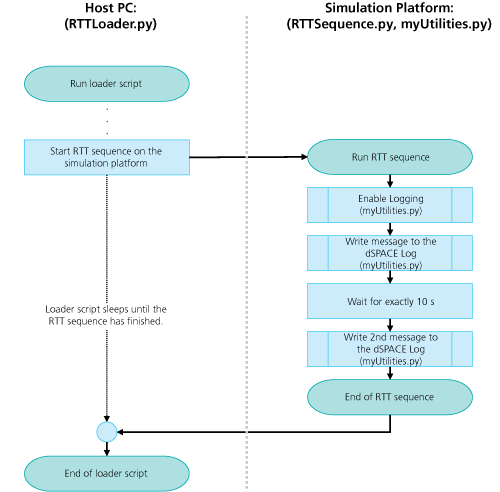
Your RTT sequence will mainly write two messages with a time interval of 10 s. The messages from the RTT sequence are additionally written to the dSPACE Log.
View the following illustration for more details:
Part 1: To extend your utilities module
In the File Explorer, navigate to your
Work folderand create the following subfolders:…\Lesson3Step2\SimulationPlatform\…\Lesson3Step2\HostPC\
Create a new Python script.
Copy the following code to the Python editor:
""" File: myUtilities.py Destination: Simulation platform Description: The logInfo function is added to the utilities module, which enables writing to the dSPACE Log. """ # Module imports from rttlib import utilities # Module global variables currentTime = utilities.currentTime# Use deques instead of lists to make the data real-time capable. from collections import deque # Identifier for RTT print messages. rttPrefix = " *RTT:* " rttLoggedPostfix = " - dSPACE Log." # Possible test states: testSuccess = 1 testUndefined = 0 testFailure = -1 # Enable message printing. utilities.Logging.Enable = 1 # Specify the target for printing. Available options are: # utilities.Logging.TO_ON_WRITE: To use the standard output. # utilities.Logging.TO_LOGFILE : To use the Log file as target. utilities.Logging.Direction = utilities.Logging.TO_LOGFILE# ---------------------------------------------------------------------------- # Functions # ---------------------------------------------------------------------------- def logInfo(message): """ Writes messages to the standard output and to the dSPACE Log. Parameters: message: String to be printed and logged. """ print(rttPrefix + message) utilities.Logging.info(rttPrefix + message + rttLoggedPostfix)# ---------------------------------------------------------------------------- # Generator functions # ---------------------------------------------------------------------------- def frontRearObservatorGen(signalFront, signalRear, UBattery, sequenceResult): """ Checks if the front and rear signals are flashing synchronously. Parameters: signalFront : A model variable for the front signal. signalRear : A model variable for the rear signal. UBattery : A model variable for the battery voltage. sequenceResult: A deque for the test result. Description: Checks if the warning light is flashing synchronously. """# Infinite while loop. Each iteration consists of a complete # watch-detect-validate cycle. while(1): # Check if states of the front and the rear signal are different. signalDifference = signalFront.Value - signalRear.Value if signalDifference: # Wait for the next generator loop. yield None # If the front and rear signals differ, wait for 50 ms. yield utilities.Wait(0.05)# Start a validation loop and check for the next 100 ms # whether all signals have the same value or not. startValidation = currentTime.Value while currentTime.Value < startValidation + 0.1: # Wait for the next generator loop. yield None # Check if states of the front and rear signals are different signalDifference = signalFront.Value - signalRear.Value # If the signal values are different, the test has failed. if signalDifference: print(rttPrefix + "----Test failed----: " + "Signal difference detected") print(rttPrefix + "----Test failed----: " + "at U_Battery = %.1f V" % UBattery.Value) # Write the test result to the sequenceResult deque. sequenceResult[0] = testFailure return yield None yield NoneSave the file as:
…\Lesson3Step2\SimulationPlatform\myUtilities.py.
Interim result
You have extended your Python module myUtilities.py to write messages from the RTT sequence additionally to the dSPACE Log. Continue with the next part to write an RTT sequence.
Part 2: To write an RTT sequence to write to the dSPACE Log
Create a new Python script.
Copy the following code to the Python editor:
""" File: RTTSequence.py Destination: Simulation platform Description: Write two messages with a delay of 10 s to the standard output and to the dSPACE Log. """ # Provides functions for common real-time operations. from rttlib import utilities # Import your utilities module. import myUtilities # Module global variables. currentTime = utilities.currentTime # Identifier for RTT print messages. rttPrefix = " *RTT:* "# ---------------------------------------------------------------------------- # MainGenerator function # ---------------------------------------------------------------------------- def MainGenerator(): """ Main generator function of the RTT sequence. """ # Print commands are replaced by the logInfo function in your # myUtilities.py module. myUtilities.logInfo("Start of real-time test execution on " + "target platform") # Read value from the simulation application. startTime = currentTime.Value # Write current time. myUtilities.logInfo("currentTime.Value = %.3f" % currentTime.Value) myUtilities.logInfo("Wait for 10s.") # Wait for 10 seconds. numberOfSeconds = 10 yield utilities.Wait(numberOfSeconds) # Write current time again at the end of the while loop. myUtilities.logInfo("currentTime.Value = %.3f" % currentTime.Value) myUtilities.logInfo("End of real-time test execution.")Save the file as:
…\Lesson3Step2\SimulationPlatform\RTTSequence.py.
Interim result
You have written an RTT sequence to write messages additionally to the dSPACE Log. Continue with the next part to write a loader script.
Part 3: To write a loader script
Create a new Python script.
Copy the following code to the Python editor:
""" File: RTTLoader.py Destination: Host PC Description: To load and start the RTT sequence. """ # This Python library is used to handle the test script download. import rttmanagerlib # Use the standard Python built-in libraries for operation-system commands. import pathlib import time# Get the path of your RTT sequence. workingDir = pathlib.Path(__file__).parent.parent.resolve() testScriptName = str(workingDir / "SimulationPlatform" / "RTTSequence.py") # Import real-time testing demo utilities. import rttdemoutilitiesdef executeDemo(boardName): """ Executes the Real-Time Testing demo. """ # Create new RTTManagerServer instance. rttManager = rttmanagerlib.RealTimeTestManagerServer() # Convert the RTT sequence into a signed byte code generator (BCG) file bcgFileName = rttManager.BCGServiceProvider.Generate(testScriptName,[]) # Establish the real-time platform connection board = rttManager.AccessBoard(boardName) # Connect to the sequences events handle sequencesEvents = rttdemoutilities.RTTMSequencesEvents(board.Sequences) # Load a sequence to the real-time platform sequence = board.Sequences.Create(bcgFileName) # Start the sequence on the real-time platform sequence.Run() # Suspend host script for the execution time of the RTT script numberOfSeconds = 11 time.sleep(numberOfSeconds)# ---------------------------------------------------------------------------- # Main program # ---------------------------------------------------------------------------- """ The executeDemo() function must be started with an argument which depends on your simulation platform. Use the same input as in Lesson 1, Step3. """ boardName = "127.0.0.1/turnlamp" executeDemo(boardName)Save the file as:
…\Lesson3Step2\HostPC\RTTLoader.py.
Interim result
You have written a loader script. Continue with the next part to start the RTT sequence.
Part 4: To start the RTT sequence
In ControlDesk, open the Messages pane.
Start your loader script located in:
…\HostPC\RTTLoader.py.You can compare your results with the illustration below.
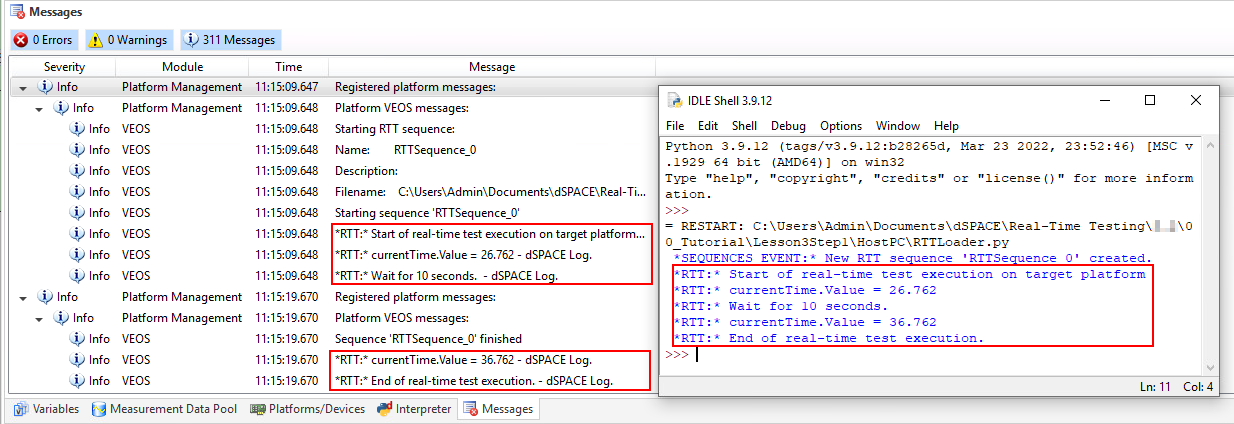
Result
In this step, you have learned to write messages from an RTT sequence to the dSPACE Log. Messages in the dSPACE Log are directly visible in ControlDesk's Messages pane.
What’s next
In the next step, you will implement exception handling.