Step 5: How to Stimulate Variables with Data Replay of MAT Files
Objective
In this step, you will learn how to pass a MAT file to an RTT sequence. You will also learn how to use MAT files for data replay to stimulate variables from the simulation application.
Basics
- Passing larger files
In the previous step, you have learned how to pass sequence arguments from a loader script to an RTT sequence. In this step, you will learn how to pass larger files to an RTT sequence. To handle larger files you can use the
Create()method of your loader script instead of passing the file as an argument insequence.Run(). The advantage of this method is that the file can be read in the initialization phase of the RTT sequence withGetSequenceArgument().
- MAT files / ASAM MDF (MF4)
Even large files can be used to stream data from the host PC to the RTT sequence.
The following preconditions must be fulfilled for MAT files:
MAT files must contain at least two one-dimensional arrays (vectors):
A time vector.
Data vectors to stimulate variables of the simulation application.
Data must be of 'double' type.
MAT files can be used only if they do not contain a substructure.
The following preconditions must be fulfilled for ASAM MDF (MF4) files:
MDF files must include at least one data channel that a master channel is assigned to.
The synchronization type of the channels to be streamed must be time.
The MDF files must have 6 strings to identify the channels: group name, group source, group path, channel name, channel source, and channel path.
All channels to be streamed in one data stream must be in the same group of the MDF file.
The MDF file must contain only 1:1 conversion, linear conversion, or rational conversion (if it can be traced back into a linear conversion).
- Replay mode
When signals are replayed using data streaming, only one value of a signal can be used in a simulation step. As time stamps of signals are normally not recorded in the same time period as the model is calculated (simulation step), algorithms are used to select the signal value to be used.
Real-Time Testing provides four different modes for data replay:
RM_STRICT: Data values are always used as soon as possible (this mode is used by default).If one of the following statements is true, an exception is thrown:
Several data values are within one simulation step.
The time between a data value and the previous data value is less then the simulation step size.
A timestamp is negative.
RM_SAMPLED: Data values are used in the model step which are next to the time stamp of the value (the following or previous model step).RM_LINEAR: The replayed values are interpolated from the data values directly before and after the model step.RM_BACKWARD: Data values are always used as soon as possible.But in comparison to
RM_STRICTexceptions are avoided in the following cases:If several data values are within one model step, only the nearest data value to the model step is used, all other data values are discarded.
If time stamps are negative, the replay starts in the first model step at t = 0 using the data value of the previous negative time stamp. All other data values which have negative time stamps are discarded.
- Variable Map
A variable map object is the mapping of MAT file/ASAM MDF (MF4) data to variable objects, which is required as input for data streaming. Each variable map refers to a unique time vector, which is passed to the constructor of the variable map object. Afterwards a variable object and its associated MAT file vector or MDF file channels can be added to the map object.
- Functionality of the RTT sequence
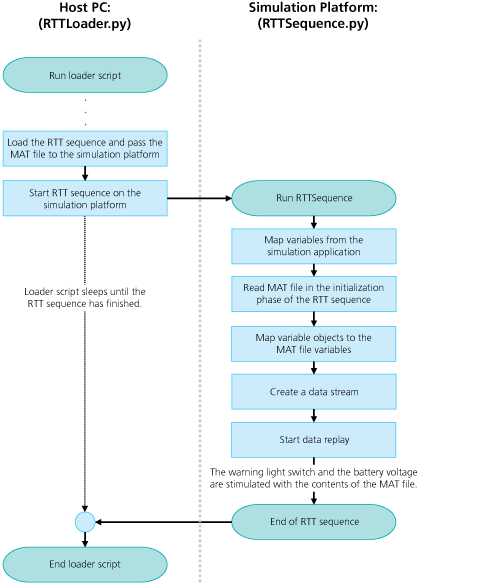
In this step, your RTT sequence will have the following functionality:
Reading a MAT file in the initialization phase of the RTT sequence.
Stimulating the warning light switch and the battery voltage with the contents of the MAT file.
View the following illustration for more details:
Part 1: To get a MAT file
In the File Explorer, navigate to your
Work folderand create the following subfolders:…\Lesson2Step5\SimulationPlatform\…\Lesson2Step5\HostPC\
Navigate to the folder:
<Documents folder>\10_DataStreaming\RTTSequences\and copy the fileDataStreaming.mat.Paste the MAT file into the folder:
…\Lesson2Step5\SimulationPlatform\.
Interim result
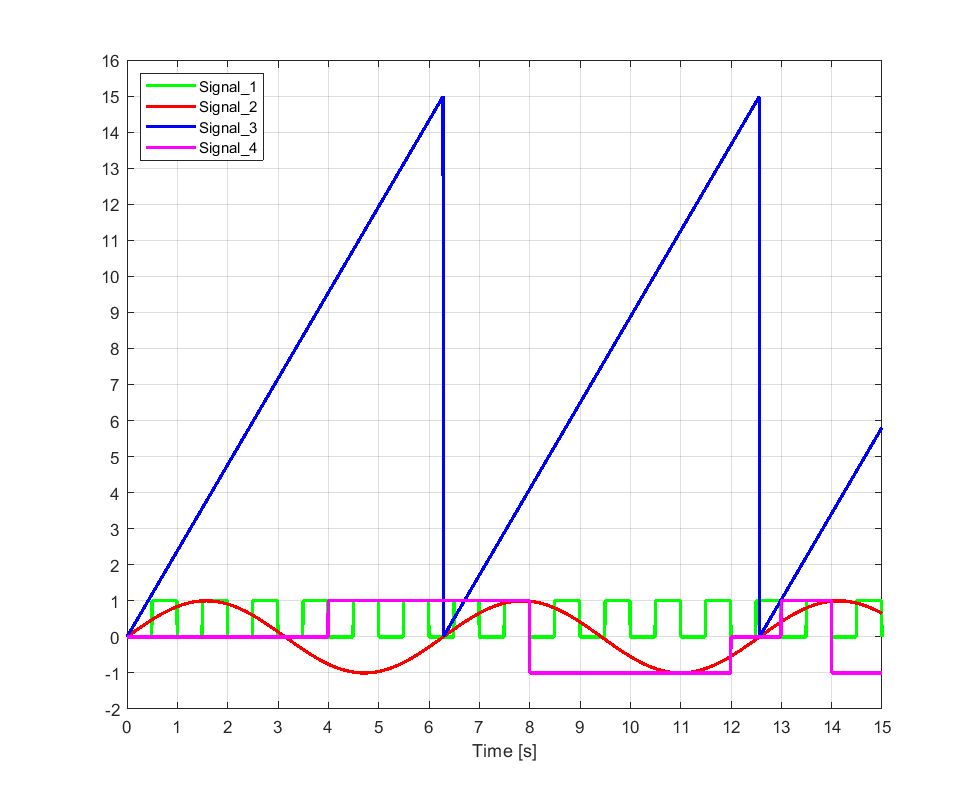
You have copied a MAT file. You can view the contents of the MAT file in the illustration below. Signal_1 to Signal_4 of the MAT file are plotted over the time vector.
Continue with the next part to write an RTT sequence.
Part 2: To write an RTT sequence to stimulate variables with data replay
Create a new Python script.
Copy the following code to the Python editor:
""" File: RTTSequence.py Destination: Simulation platform Description: To stimulate variables from a simulation application with data from a MAT file. """ # Provides functions for common real-time operations. from rttlib import utilities # Import the variable module from the rttlib package. from rttlib import variable # Import datastream from the rttlib package. from rttlib import datastream # Create variable objects for accessing the simulation application WarningLightSwitch = variable.Variable( "Model Root/WarningLightSwitch[0|1]/Value") BatteryVoltage = variable.Variable("Model Root/BatteryVoltage[V]/Value")# Read sequence argument passed to sequences.Create() in the initializing # phase of the RTT sequence. matFileName = utilities.GetSequenceArgument() # Map variable objects to the MAT file variables # Each variable map refers to a unique time vector, whose name is passed to # the constructor of the variable map object. variablesToStimulate = datastream.CreateVariableMap("Time") # All variable objects must be mapped to a MAT file variable name. variablesToStimulate.AddVariable("Signal_1", WarningLightSwitch) variablesToStimulate.AddVariable("Signal_3", BatteryVoltage) # Create a data stream object. myStream = datastream.MatFile(matFileName, variablesToStimulate) # Identifier for RTT print messages. rttPrefix = " *RTT:* "# ---------------------------------------------------------------------------- # MainGenerator function # ---------------------------------------------------------------------------- def MainGenerator(): """ Main generator function of the RTT sequence. """ print(rttPrefix + "Start of real-time test execution on target platform") print(rttPrefix + "Start of data streaming. " "Variables are stimulated by vectors of the MAT file.") yield None # Start the data replay. yield myStream.Replay() print(rttPrefix + "End of real-time test execution.")Save the file as:
…\Lesson2Step5\SimulationPlatform\RTTSequence.py.
Interim result
You have written an RTT sequence to stimulate variables from the simulation application with data replay. Continue with the next part to write a loader script.
Part 3: To write a loader script that passes a MAT file to an RTT sequence
Create a new Python script.
Copy the following code to the Python editor:
""" File: RTTLoader.py Destination: Host PC Description: To pass a MAT file to an RTT sequence. """ # This Python library is used to handle the test script download. import rttmanagerlib # Use the standard Python built-in libraries for operation-system commands. import pathlib import time# Get the path of your RTT sequence. workingDir = pathlib.Path(__file__).parent.parent.resolve() testScriptName = str(workingDir / "SimulationPlatform" / "RTTSequence.py") # Add the path to your MAT file matFilename = str(workingDir / "SimulationPlatform" / "DataStreaming.mat") # Import real-time testing demo utilities. import rttdemoutilitiesdef executeDemo(boardName): """ Executes the Real-Time Testing demo. """ # Create new RTTManagerServer instance rttManager = rttmanagerlib.RealTimeTestManagerServer() # Generate byte code from the test script (RTT sequence) bcgFileName = rttManager.BCGServiceProvider.Generate(testScriptName,[]) # Establish the real-time platform connection board = rttManager.AccessBoard(boardName) # Connect to the sequences events handle sequencesEvents = rttdemoutilities.RTTMSequencesEvents(board.Sequences) # Load a sequence to the simulation platform and pass the MAT file to # your RTT sequence by adding it as pPickleData parameter to the # Create() method. sequence = board.Sequences.Create(bcgFileName, matFilename) # Start the sequence on the simulation platform. sequence.Run() # Check every second if sequence has finished. Timeout = 30s. numberOfSeconds = 1 for i in range(30): # Suspend host script for the execution time of the RTT script time.sleep(numberOfSeconds) if(sequence.State != rttmanagerlib.constants.sesRunning): break# ---------------------------------------------------------------------------- # Main program # ---------------------------------------------------------------------------- """ The executeDemo() function must be started with an argument which depends on your simulation platform. Use the same input as in Lesson 1, Step3. """ boardName = "127.0.0.1/turnlamp" executeDemo(boardName)Save the file as:
…\Lesson2Step5\HostPC\RTTLoader.py.
Interim result
You have written a loader script to pass a MAT file to an RTT sequence.
Part 4: To start the RTT sequence
Open ControlDesk.
On the Home ribbon, click Status Control – Start Measuring.
ControlDesk globally starts measurement for the platform in the current experiment.
Start your loader script located in:
…\HostPC\RTTLoader.py.You can compare your results with the following animated graphic:
Result
In this step you have learned:
To pass a MAT file to an RTT sequence.
To stimulate variables from the simulation application with vectors of a MAT file.
What’s next
With this step, you finished the second lesson of this tutorial and you have learned how to interact with the simulation application. For a summary of your working results and for further information, refer to the result of this lesson.