Step 3: How to Transmit and Receive CAN Messages via RTT
Objective
In this step, you will write an RTT sequence to transmit and receive CAN messages on your SCALEXIO system using the rttlib.canlib module.
Basics
- CAN communication
On a SCALEXIO system, you can use the rttlib.canlib module or the rttlib.dscanapilib module to implement CAN communication via Real‑Time Testing.
In this lesson, the rttlib.canlib module is used to transmit and receive CAN messages.
- Functionality of the RTT sequence
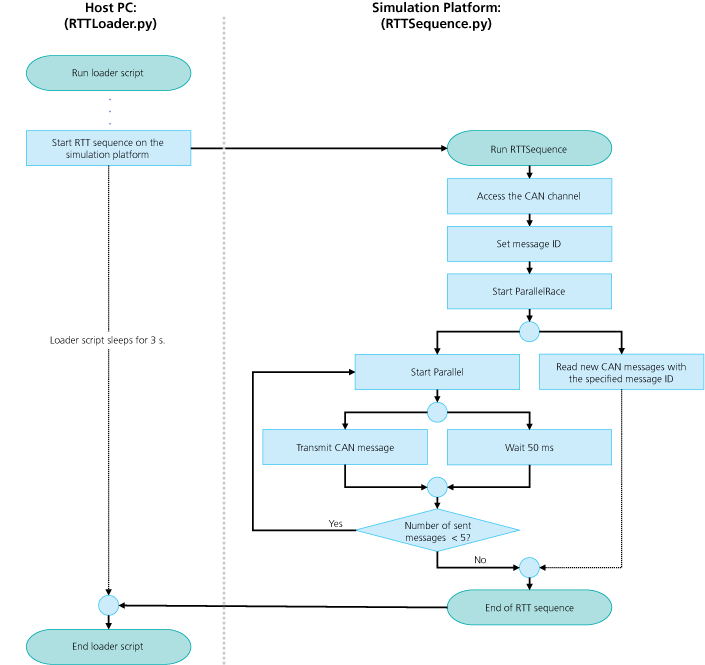
Your RTT sequence has the following functionality:
Initializing CAN channels.
Starting the transmission of CAN messages.
Receiving CAN messages and writing information to the standard output.
View the following illustration for more details:
- Parts
This step is divided into the following parts:
To load and start the real-time application for CAN communication to your SCALEXIO system, refer to Part 1.
RTTSequence.py: To write an RTT sequence for this step, refer to Part 2.RTTLoader.py: To write a loader script for this step, refer to Part 3.To start the RTT sequence, refer to Part 4.
Part 1: To load and start the real-time application on your SCALEXIO system
In ControlDesk, click Status Control – Go Online on the Home ribbon.
ControlDesk connects itself to the registered platform and the real‑time application is loaded to the platform. The loaded application starts automatically.
On the View ribbon, click Pane – Show Panes – Bus Navigator.
ControlDesk opens the Bus Navigator.
In the tree, open the context menu of RT-CANHW and click Add Monitor.
The Add Monitor dialog opens.
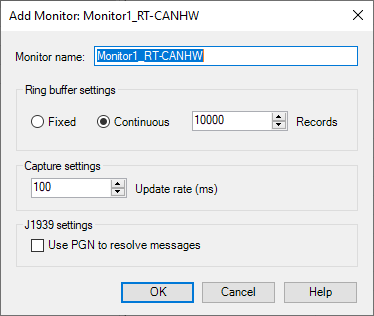
Click OK.
The CAN monitor is added to your CAN bus system.
In the monitoring list, click Play.
ControlDesk starts monitoring the CAN communication.
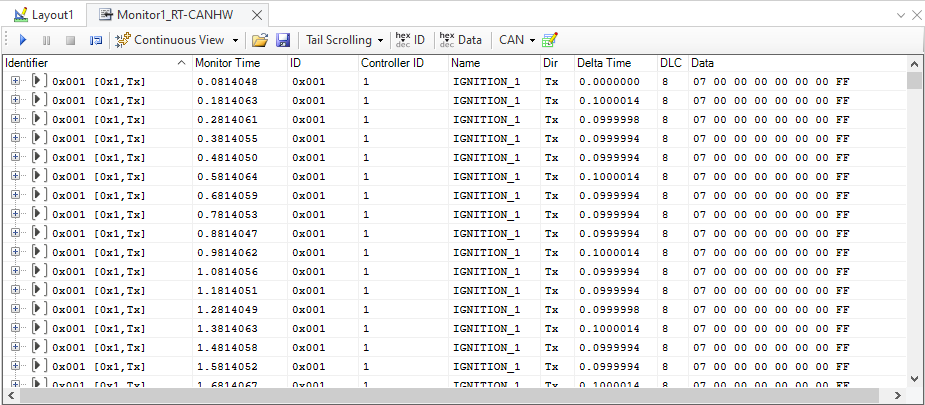
Interim result
You have loaded and started the real-time application on your SCALEXIO system. You have also monitored the CAN communication. In the next part, you will write an RTT sequence to transmit and receive your own CAN messages.
Part 2: To write an RTT sequence to send and receive CAN messages
In the File Explorer, navigate to your
Work folderand create the following subfolders:…\Lesson6Step3\SimulationPlatform\…\Lesson6Step3\HostPC\
Create a new Python script.
Copy the following code to the Python editor:
""" File: RTTSequence.py Destination: Simulation platform Description: Transmitting and receiving CAN messages using the rttlib.canlib module. """ # Import classes from the rttlib module. from rttlib.canlib.controllers import canmmlib from rttlib import utilities from rttlib import scheduler # Identifier for RTT print messages. rttPrefix = " *RTT:* " # Access the CAN controller named Chassis_M1 and get the channel. controller = None controllerTRCPathName = "BusSystems/CAN/Chassis_M1" controller = canmmlib.GetController(controllerTRCPathName) channel = controller.GetChannel()#----------------------------------------------------------------------------- # Generator functions #----------------------------------------------------------------------------- def TransmitGen(ID, numberOfMessages): """ To transmit CAN messages. """ print(rttPrefix + "Start transmission of CAN messages.") try: # Create a raw message with: # Standard identifier format # CAN ID: 0x123 # Message data length: 4 bytes (maximum length: 8 bytes) message = channel.GetRawMessage() message.Format = canmmlib.canmmbaselib.ftSTD message.ID = ID message.DLC = 4 message.TX.Data = 0x10203040 # Transmit numberOfMessages CAN messages for i in range(numberOfMessages): # Trigger the message transmission and wait exactly 50 ms. # Only generator functions can be used within Parallel. yield scheduler.Parallel(message.TransmitGen(), utilities.Wait(0.05))finally: # Clean up message = None print(rttPrefix + "Finished transmission of CAN messages.") yield Nonedef ReceiveGen(ID): """ To read new CAN messages. """ try: # Create a raw message message = channel.GetRawMessage() # Initialize the message data message.Format = canmmlib.canmmbaselib.ftSTD message.ID = ID # Remember the receive message counter rxCounter = message.RX.Counter # The infinite loop for receiving CAN messages is terminated # externally by a ParallelRace generator function. while(1): message.Receive() # Check whether the receive message counter was incremented. if rxCounter < message.RX.Counter: # New CAN message received: rxCounter = message.RX.Counter print(rttPrefix + "Received CAN message: Timestamp:" + "%.3f s, CAN ID: %s, data: %s" % (message.RX.TimeStamp, hex(message.ID), hex(message.RX.Data))) yield Nonefinally: # Clean up message = None print(rttPrefix + "Finished receiving CAN messages.") yield None# ---------------------------------------------------------------------------- # MainGenerator function # ---------------------------------------------------------------------------- def MainGenerator(): """ Main generator function of the RTT sequence. """ print(rttPrefix + "Start of real-time test execution on target platform.") # Set a number of CAN messages to be sent. numberOfMessages = 5 # Set an identifier for CAN messages to be sent. ID = 0x123 # Start parallel transmission and reception of CAN messages. yield scheduler.ParallelRace(TransmitGen(ID, numberOfMessages), \ ReceiveGen(ID)) print(rttPrefix + "End of real-time test execution.")Save the file as:
…\Lesson6Step3\SimulationPlatform\RTTSequence.py.
Interim result
You have written an RTT sequence to transmit and receive CAN messages with the rttlib.canlib module.
Continue with the next part to write a loader script.
Part 3: To write a loader script for CAN communication
Create a new Python script.
Copy the following code to the Python editor:
""" File: RTTLoader.py Destination: Host PC Description: To load and start the RTT sequence. """ # This Python library is used to handle the test script download. import rttmanagerlib # Use the standard Python built-in libraries for operation-system commands. import pathlib import time# Get the path of your RTT sequence. workingDir = pathlib.Path(__file__).parent.parent.resolve() testScriptName = str(workingDir / "SimulationPlatform" / "RTTSequence.py") # Import RTT demo utilities. import rttdemoutilitiesdef executeDemo(boardName, sequenceName): """ Executes the Real-Time Testing demo. """ # Create new RTTManagerServer instance rttManager = rttmanagerlib.RealTimeTestManagerServer() # Generate byte code from the test script (RTT sequence) bcgFileName = rttManager.BCGServiceProvider.Generate(sequenceName,[]) # Establish the real-time platform connection. board = rttManager.AccessBoard(boardName) # Connect to the sequences events handle sequencesEvents = rttdemoutilities.RTTMSequencesEvents(board.Sequences) # Load a sequence to the real-time platform sequence = board.Sequences.Create(bcgFileName) # Start the sequence on the real-time platform sequence.Run() # Suspend host script for the execution time of the real-time testing # script numberOfSeconds = 3 time.sleep(numberOfSeconds)# ---------------------------------------------------------------------------- # Main Program # ---------------------------------------------------------------------------- """ To transmit and receive CAN messages with the rttlib.canlib module, invoke boardName with IP address/TutorialModel instead of IP address/turnsignal. """ boardName = "<IP address>/TutorialModel" print("\nThe RTT demonstration for CAN communication on a " + "SCALEXIO system is starting...") try: executeDemo(boardName, testScriptName) except: print("The 'executeDemo(boardName, testScriptName)' function cannot be " + "started.") print("Check the 'boardName' and 'testScriptName' arguments.") print("\nThe real-time testing demonstration was successfully completed.")Save the file as:
…\Lesson6Step3\HostPC\RTTLoader.py.
Interim result
You have written a loader script for this step. Make sure that you invoke boardName with the IP address of your SCALEXIO system. Continue with the next part to start the RTT sequence.
Part 4: To start the RTT sequence
Start your loader script located in:
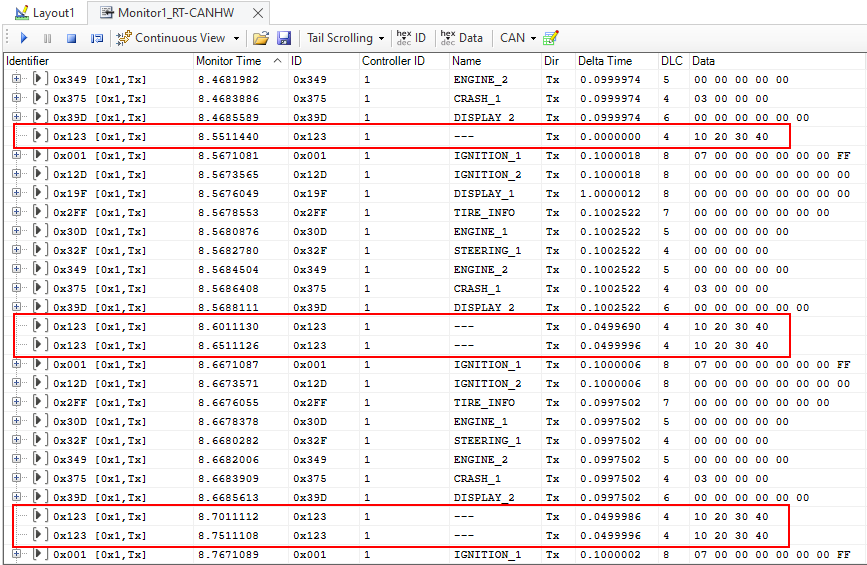
…\HostPC\RTTLoader.py.You can compare your results with the illustration below.
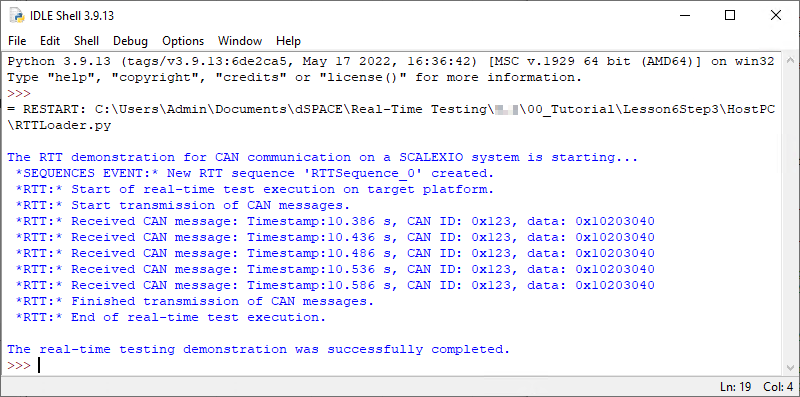
You can also use ControlDesk for monitoring the CAN communication.
Result
In this step, you have learned how to transmit and receive CAN messages via Real‑Time Testing on a SCALEXIO system using the rttlib.canlib module. For a summary of your working results and for further information, refer to the result of this lesson.