Step 3: How to Load and Start an RTT Demo Application
Objective
In this step, you will learn how to use ControlDesk to load and start a simulation application on your simulation platform.
Basics
- Simulation application
A running simulation application is mandatory for Real-Time Testing. You can execute RTT sequences only interleaved to a simulation application. To download a simulation application to a simulation platform, you require a dSPACE product with Platform Manager, for example, ControlDesk. It is not possible to download a simulation application with the Real-Time Test Manager.
- Demo files for ControlDesk
You can use ControlDesk to load and start a simulation application on a simulation platform. The required files are included in the ready-to-use demos:
File
Description
TurnSignal_<platform>.CDPControlDesk project file, which contains links to all experiments and documents related to the project.
turnlamp.CDEControlDesk experiment file, which contains links to all documents related to the experiment.
turnlamp.slxSimulink model file.
turnlamp.sdfFolder, which contains the simulation application and the variable description.
turnlamp.layLayout file for ControlDesk to visualize the simulation application.
Preconditions
ControlDesk must be installed for managing and controlling the simulation application.
Part 1: To open a project in ControlDesk
Start ControlDesk. On the Start menu, select dSPACE ControlDesk <product version> – dSPACE ControlDesk <product version>.
ControlDesk opens.
On the File ribbon, click Open – Project + Experiment from Backup.
The Open dialog opens.
Navigate to your RTT Documents folder and select the file:
…\SampleExperiments\TurnSignal_<your platform>\TurnSignal_<your platform>.ZIP.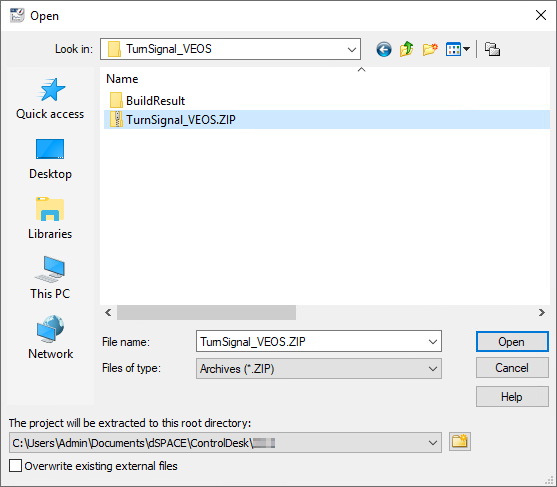
Click Open.
ControlDesk opens the TurnSignal_<your platform> project with the turnlamp experiment.
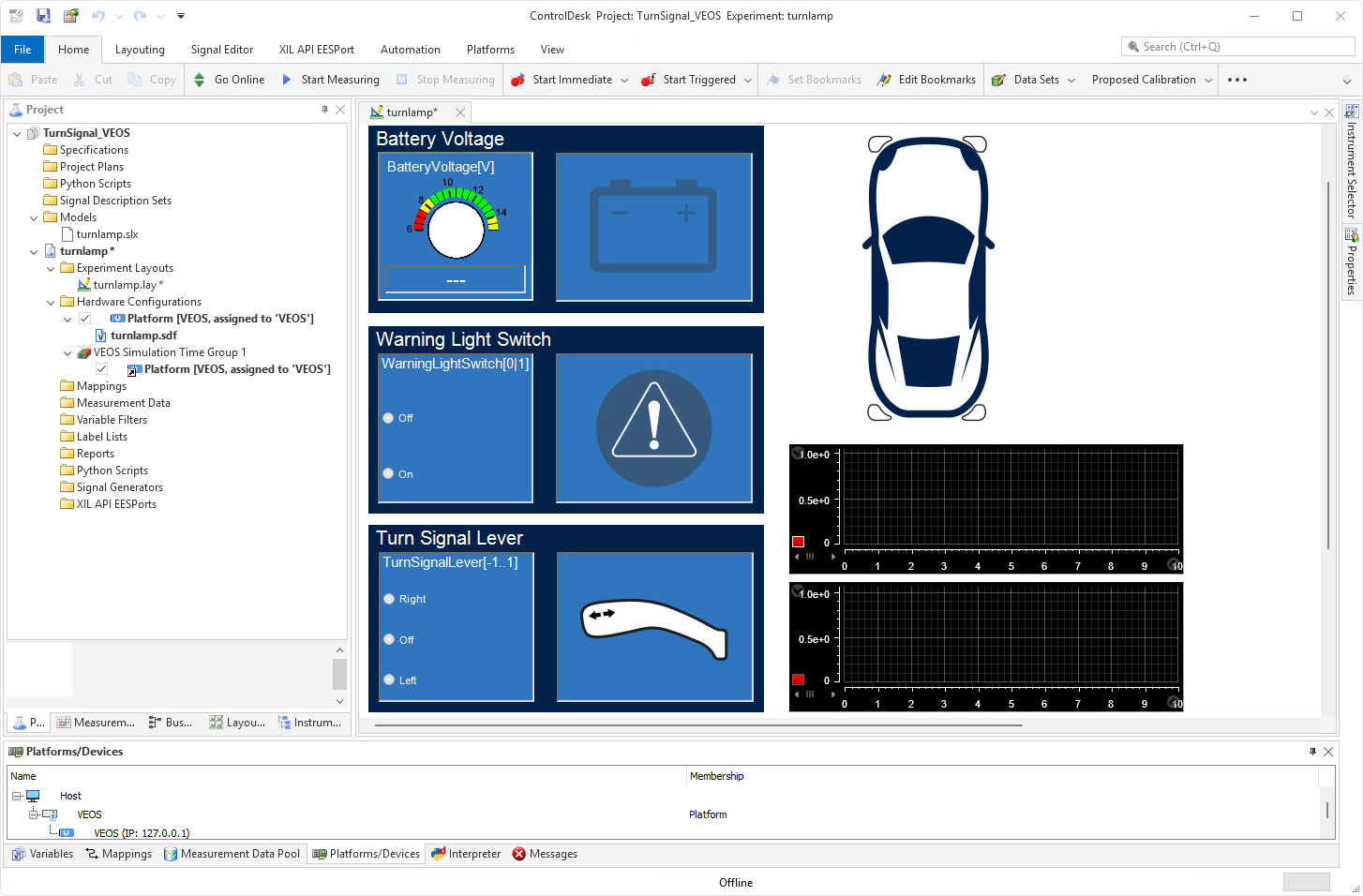
Interim result
You have opened the RTT demo project in ControlDesk. Continue with the next part to load and start the simulation application.
Part 2: To load and start an RTT simulation application
On the Home ribbon, click Status Control – Go Online.
ControlDesk connects itself to the registered platform and the simulation application is loaded to the platform. The loaded application starts automatically.
Check the Online status in the ControlDesk status bar and in the Platforms/Devices pane.
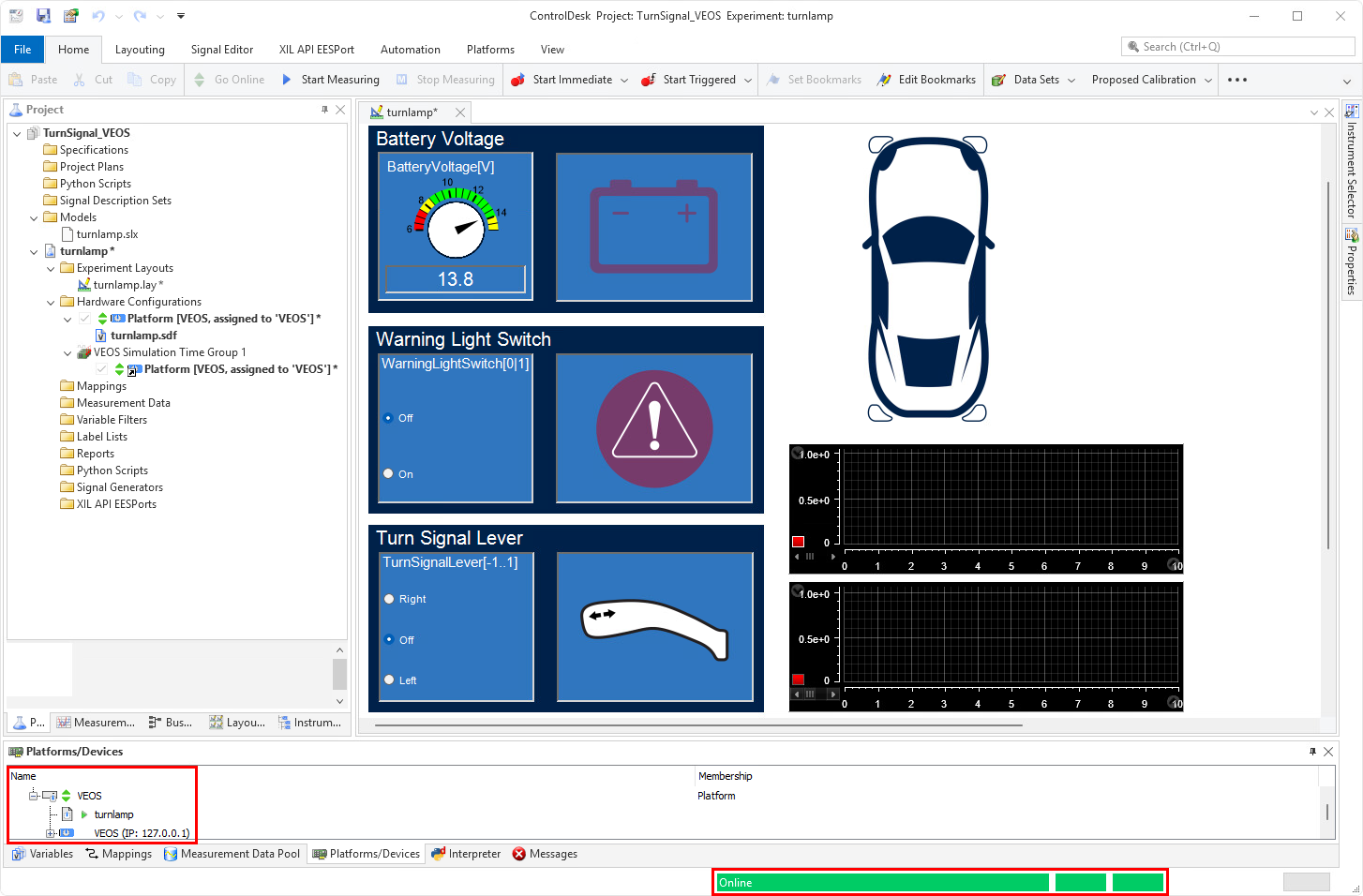
Interim result
You have loaded and started an RTT simulation application on your simulation platform. Continue with the next part to experiment with the simulation application.
Part 3: To experiment with the demo application
On the Home ribbon, click Status Control – Start Measuring.
ControlDesk starts measuring. The status bar becomes blue.
Switch on the Warning Light Switch.
The warning light starts flashing.
You can compare your results with the following animated graphic:
Result
You have connected ControlDesk to the simulation platform.
You have loaded a simulation application to the simulation platform.
You have started the simulation application on the simulation platform.
You have started a measurement in ControlDesk.
You have experimented with the simulation application.
What’s next
With this step, you finished the required preparations to start with the Real-Time Testing Tutorial.