Step 1: How to Load an Offline Simulation Application for CAN Communication on VEOS
Objective
In this step, you will learn how to load an offline simulation application (OSA) that can be used for CAN communication on VEOS.
Basics
- Simulation application
Real-Time Testing provides no ready-to-use simulation application for CAN communication. Instead, you can use a demo file provided with the VEOS installation.
Preconditions
VEOS must be installed on your host PC.
VEOS must be registered. If VEOS is not registered, refer to Step 2: How to Register a Platform.
Part 1: To copy the VEOS demo applications
Start the VEOS Player. On the Start menu, select dSPACE VEOS <product version> – dSPACE VEOS Player <product version>.
The VEOS Player opens.
On the File ribbon, select Copy Demo Files.
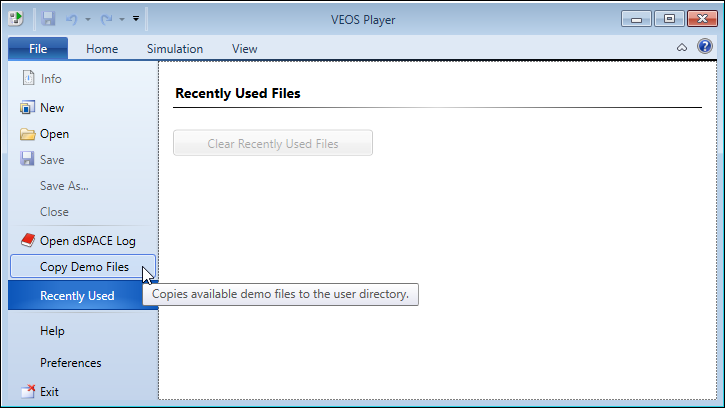
The demo files are copied to the VEOS Documents folder:
%USERPROFILE%\Documents\dSPACE\VEOS\<product version>\.
Interim result
You have copied the VEOS demo files to your VEOS Documents folder. The folder contains several demos that you can use with VEOS. In one demo, CAN communication is implemented. Continue with the next part to load and start this demo on VEOS.
Part 2: To load and start a simulation application for CAN communication
Open ControlDesk.
In the Platforms/Devices pane, open the context menu of the simulation platform and select Offline Simulation Application – Load and Start.
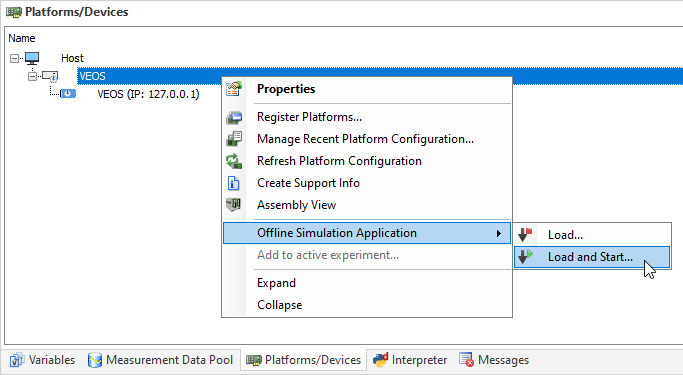
The Select Offline Simulation Application dialog opens.
Navigate to the VEOS Documents folder and select the file:
…\2Ecu_CanBusSimulation\AR_PosControl_2Ecus_Can.osa.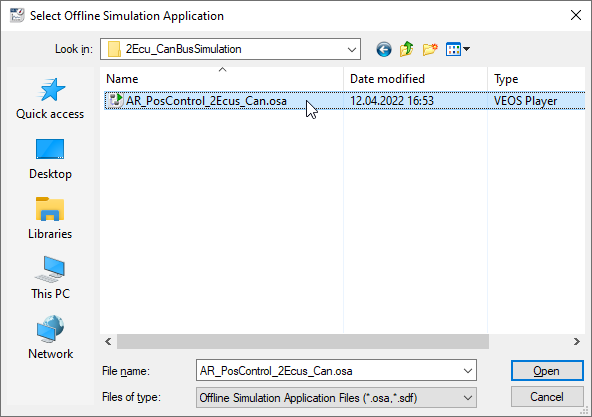
Click Open.
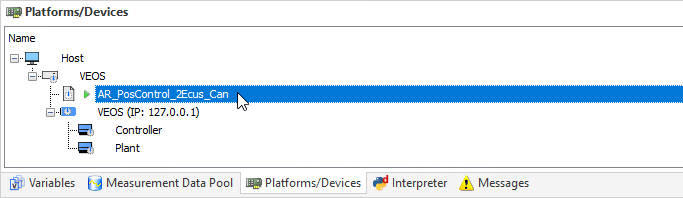
The offline simulation application is downloaded to VEOS. After downloading, the application is started automatically.
Result
In this step, you have learned:
To copy the VEOS demo applications.
To load and start an offline simulation application.
What’s next
In the next step, you will write an RTT sequence to transmit and receive CAN messages on VEOS using the rttlib.dscanapilib module.