Step 1: How to Start RTT Sequences Using the Real-Time Test Manager
Objective
In this step, you will use the Real-Time Test Manager to start an RTT sequence from the ready-to-use demos.
Basics
- RTT sequences
RTT sequences are implemented in the Python programming language. They are executed together, interleaved with a simulation application on a simulation platform.
- Real-Time Test Manager
The Real-Time Test Manager is a graphical user interface for Real-Time Testing. You can use the Real-Time Test Manager to create and run RTT sequences on a simulation platform.
If you create an RTT sequence with the Real-Time Test Manager, the following steps are executed automatically:
Creating an instance of the Real-Time Test Manager Server interface.
Converting the RTT sequence into a signed byte code generator (BCG) file.
Establishing a connection to the simulation platform.
Loading the signed BCG file to the simulation platform.
- RTT demos
You can find all RTT demos in your RTT Documents folder.
Tip
You can open your RTT Documents folder quickly with the Real-Time Test Manager. On the menu bar, select Tools – Explore Demos.
- Functionality of the RTT sequence
In this step, you will start the first RTT demo located in
<Documents folder>\01_GettingStarted. The main functionality of this RTT sequence is:Writing a message with the current time of the simulation platform.
Waiting for 10 s.
Writing a second message with the current time of the simulation platform.
Method: To start an RTT sequence using the Real-Time Test Manager
Open the Real-Time Test Manager.
In the Platform view, open the node of your simulation platform.
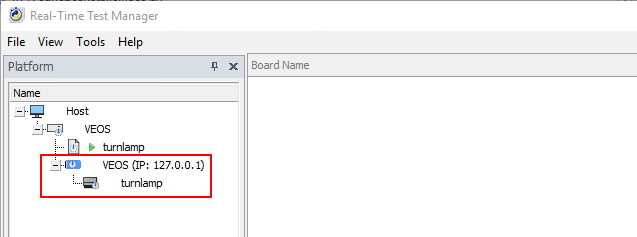
Open the context menu of the turnlamp simulation application and select Create Sequence.
The Create Sequence dialog opens.
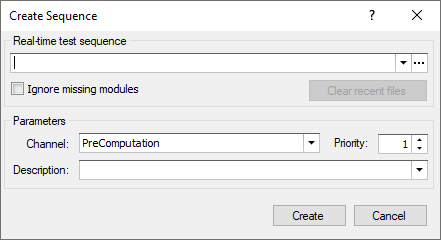
Click
 .
The Open dialog opens.
In the dialog, select
<Documents folder>\01_GettingStarted\RTTSequences\RTTSequence.pyand click Open.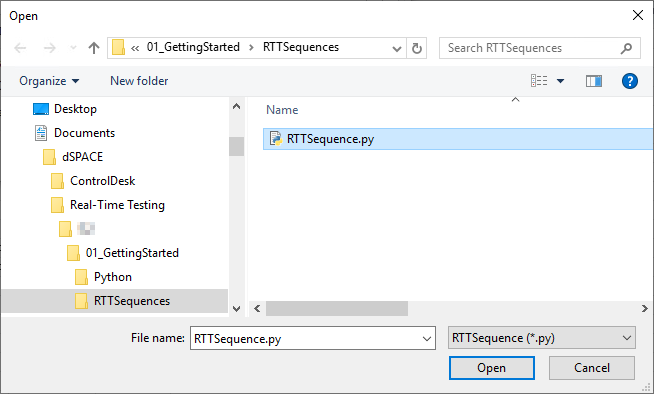
The Create sequence dialog displays the selected RTT sequence.
In the Create Sequence dialog, type in a short description for the RTT sequence. Leave all other settings on their default values and click Create.
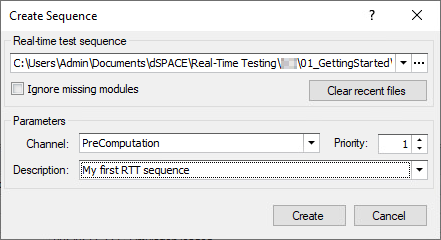
You have created your first RTT sequence on your simulation platform. The RTT sequence is now accessible in the Board Name view of the Real-Time Test Manager and it remains in the New state until you choose one of the other states.
To start the RTT sequence on your simulation platform, open the context menu of the created sequence and click Run.
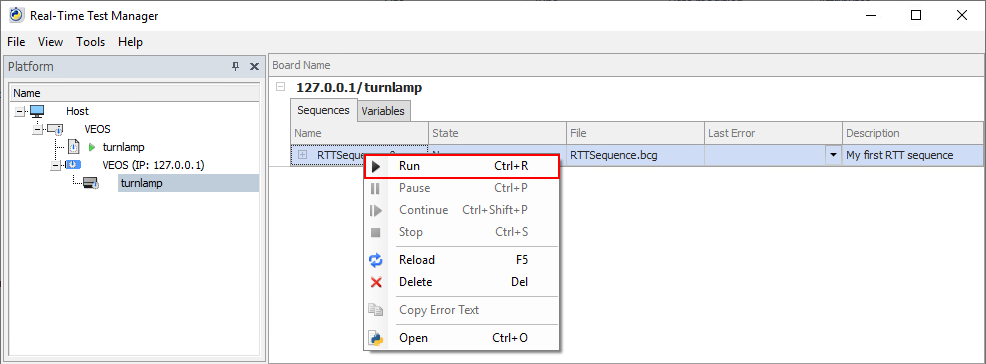
The RTT sequence is executed.
Result
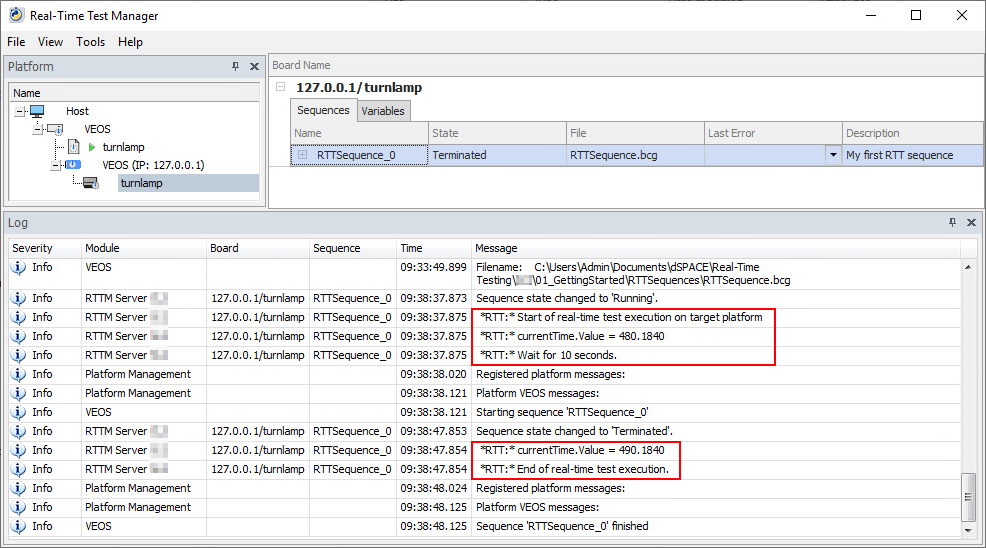
You have started your first RTT sequence. You can find the results in the Log Viewer of the Real-Time Test Manager. Messages from the RTT sequence are marked with *RTT:*. The main purpose of this first RTT sequence is to send two messages with a time interval of 10 s. Keep in mind that the time resolution is only restricted by the step size on the simulation platform.
What’s next
In the next step, you will manage multiple RTT sequences with the Real-Time Test Manager.