Step 2: How to Register a Platform
Objective
In this step, you will learn how to register a platform with the Real-Time Test Manager.
Basics
Before you can use the Real-Time Test Manager for creating and handling RTT sequences, you must register a platform. Only registered platforms can be connected to the the Real-Time Test Manager. The configuration is stored, so that you must register a platform only once. The next time you start the Real-Time Test Manager, it can be connected to registered platforms automatically.
Preconditions
To access dSPACE real-time hardware, the hardware must be connected to the host PC.
To access MicroAutoBox II, you should first configure it using the DS1401ConfigGUI.exe utility, for example, to change the default IP address.
To access VEOS, VEOS must be installed on the host PC.
Method: To register a platform
On the menu bar of the Real-Time Test Manager, select Tools – Register Platform.
The Register Platforms dialog opens.
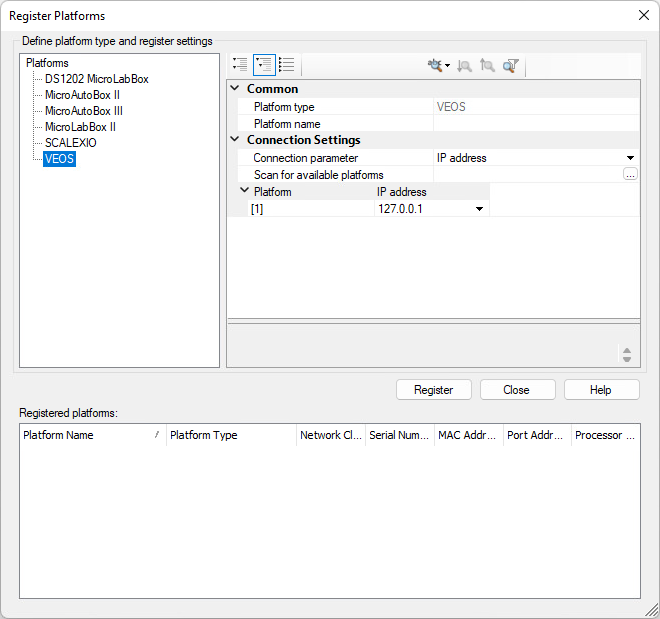
From the Platforms list, select the type of your platform.
In the Connection Settings category, specify the connection settings. For details of the properties, refer to Register Platforms.
Click Register.
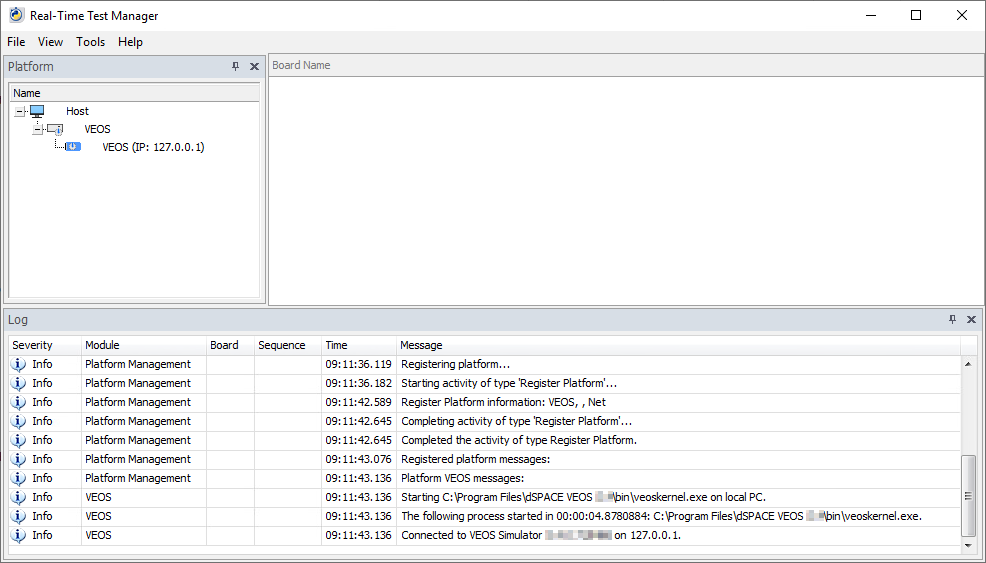
The platform is added to the Registered platforms list. If registration fails, check the communication settings or the connection from the host PC to the platform.
In the Register Platforms dialog, click Close.
Result
You have registered a platform in the Real-Time Test Manager.
What’s next
In the next step, you will start a simulation application.