Step 2: How to Transmit and Receive CAN Messages via RTT on VEOS
Objective
In this step, you will learn how to write an RTT sequence to transmit and receive CAN messages on VEOS using the rttlib.dscanapilib module.
Basics
- rttlib.dscanapilib module
You can use the
rttlib.dscanapilibmodule to transmit and receive CAN messages via Real‑Time Testing using VEOS as a simulation platform.
- Functionality of the RTT sequence
Your RTT sequence has the following functionality:
Initializing CAN channels.
Starting the transmission of CAN messages.
Receiving CAN messages and writing information to the standard output.
View the following illustration for more details:
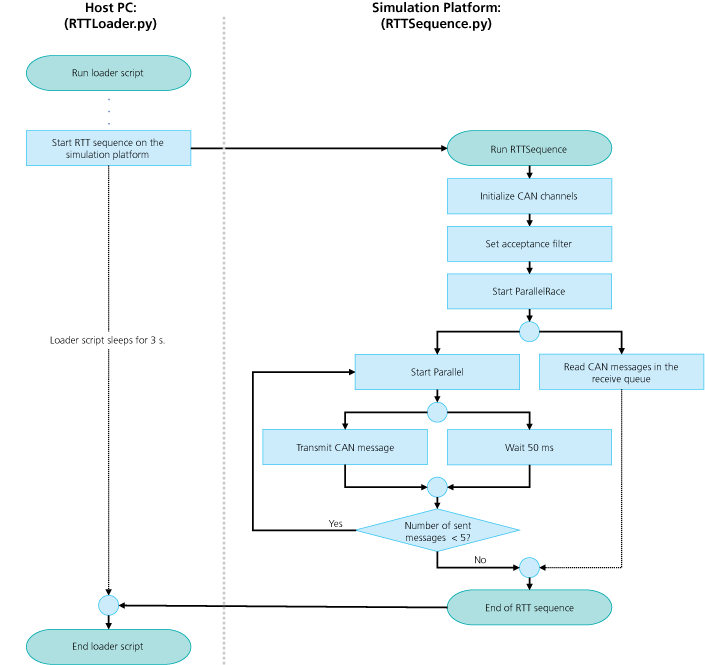
Part 1: To write an RTT sequence to send and receive CAN messages
In the File Explorer, navigate to your
Work folderand create the following subfolders:…\Lesson5Step2\SimulationPlatform\…\Lesson5Step2\HostPC\
Create a new Python script.
Copy the following code to the Python editor:
""" File: RTTSequence.py Destination: Simulation platform Description: Transmitting and receiving CAN messages using the rttlib.dscanapilib module. """ # Import classes from the rttlib module. from rttlib import utilities from rttlib import dscanapilib from rttlib import scheduler # Identifier for RTT print messages. rttPrefix = " *RTT:* " # Global dscanapilib objects ChannelInfoObjects = [] ChannelHandles = []#----------------------------------------------------------------------------- # Generator functions #----------------------------------------------------------------------------- def initCAN(TimeOutSteps = 60): """ Function to initialize the CAN channels with the rttlib.dscanapilib module. """ # Global dscanapilib objects global ChannelInfoObjects global ChannelHandles # Retrieve the information about available CAN channels. ChannelInfoObjects = dscanapilib.GetAvailableChannels() yield None # Initialize all available CAN channels. for channel in ChannelInfoObjects: ChannelHandle = dscanapilib.RegisterChannel( channel.VendorName, channel.InterfaceName, \ channel.InterfaceSerialNumber, channel.ChannelIdentifier) # Add a channel handle to the global list. ChannelHandles.append(ChannelHandle) # The initialization of a CAN channel might last several model steps. # A successful initialization is signaled by a return value of True # or False, which depicts the access permission of the initialized # channel. # As long as the return value of InitChannel() is None, the channel # is not initialized. A timeout is useful to avoid waiting too long # for a channel initialization that might not be possible. AccessPermission = None # Specifies how many CAN messages can be stored in the receive queue. RxQueueSize = 10while(AccessPermission == None): if (channel.ChannelCapabilities & dscanapilib.ccFD) == True or \ (channel.ChannelCapabilities & dscanapilib.ccFDNONISO) == True: AccessPermission = dscanapilib.InitChannel(ChannelHandle, dscanapilib.ctSTDXTD, RxQueueSize, True) else: AccessPermission = dscanapilib.InitChannel(ChannelHandle, dscanapilib.ctSTDXTD, RxQueueSize, False) TimeOutSteps -= 1 if(TimeOutSteps <= 0): raise Exception("Could not initialize CAN channels.") yield None yield None# Activate valid CAN channel dscanapilib.ActivateChannel(ChannelHandle) yield None # Set an acceptance filter to receive only CAN messages that have # been sent by the RTT sequence. dscanapilib.SetAcceptance(ChannelHandle, 0x123, 0x1ff, 0x123, 0x1ff) yield None # Clear receive queue dscanapilib.FlushReceiveQueue(ChannelHandle) yield None # Clear transmit queue dscanapilib.FlushTransmitQueue(ChannelHandle) yield Nonedef TransmitMessagesGen(ChannelHandle, MessageList): """ Generator function to use dscanapilib.TransmitMessages within Parallel. """ dscanapilib.TransmitMessages(ChannelHandle, MessageList) yield Nonedef TransmitGen(ID, numberOfMessages): """ To transmit CAN messages. """ print(rttPrefix + "Start transmission of CAN messages.") try: # Create a raw message with: # Standard identifier format # CAN ID: 0x123 # Message data length: 4 bytes (maximum length: 8 bytes) message = dscanapilib.CanMessage() message.CanIdentifierType = dscanapilib.ctSTD message.CanIdentifier = ID message.DLC = 4 message.Data = [0x10, 0x20, 0x30, 0x40] # Transmit numberOfMessages CAN messages. for i in range(numberOfMessages): # Trigger the message transmission and wait exactly 50 ms. # Only generator functions can be used within Parallel. yield scheduler.Parallel( TransmitMessagesGen(ChannelHandles[0], [message]), utilities.Wait(0.05)) finally: # Clean up message = None print(rttPrefix + "Finished transmission of CAN messages.") yield Nonedef ReceiveGen(): """ To read CAN messages from the receive queue. """ try: # The infinite loop for receiving CAN messages is terminated # externally by a ParallelRace generator function. while(1): # Read all messages in the receive queue rxList = dscanapilib.ReadReceiveQueue(ChannelHandles[0]) # Check whether the list of received messages is not empty. if len(rxList) > 0: for msg in rxList: # New CAN message received: print(rttPrefix + "Received CAN message: Timestamp: " + " %.3f s, CAN ID: %s, data: %s, %s, %s, %s" % (msg.Timestamp/1000000000, hex(msg.CanIdentifier), hex(msg.Data[0]), hex(msg.Data[1]), hex(msg.Data[2]), hex(msg.Data[3]))) yield None finally: # Nothing left to clean up. pass print(rttPrefix + "Finished receiving CAN messages.") yield Nonedef unregisterCAN(): """ To unregister CAN channels. If CAN channels remain registered, the dependencies in the driver cannot be cleared so subsequent calls might fail. """ # Global dscanapilib objects global ChannelHandles # Unregister all previously registered CAN channels. for channels in ChannelHandles: dscanapilib.UnregisterChannel(channels) yield None# ---------------------------------------------------------------------------- # MainGenerator function # ---------------------------------------------------------------------------- def MainGenerator(): """ Main generator function of the RTT sequence. """ print(rttPrefix + "Start of real-time test execution on target platform.") # Initialize CAN channels yield initCAN() # Set a number of CAN messages to be sent. numberOfMessages = 5 # Set an identifier for CAN messages to be sent. ID = 0x123 # Start parallel transmission and reception of CAN messages. yield scheduler.ParallelRace(TransmitGen(ID, numberOfMessages), \ ReceiveGen()) # Uninitialize all CAN channels yield unregisterCAN() print(rttPrefix + "End of real-time test execution.")Save the file as:
…\Lesson5Step2\SimulationPlatform\RTTSequence.py.
Interim result
You have written an RTT sequence to transmit and receive CAN messages. Continue with the next part to write a loader script.
Part 2: To write a loader script for CAN communication
Create a new Python script.
Copy the following code to the Python editor:
""" File: RTTLoader.py Destination: Host PC Description: To load and start the RTT sequence. """ # This Python library is used to handle the test script download. import rttmanagerlib # Use the standard Python built-in libraries for operation-system commands. import pathlib import time # Get the path of your RTT sequence. workingDir = pathlib.Path(__file__).parent.parent.resolve() testScriptName = str(workingDir / "SimulationPlatform" / "RTTSequence.py") # Import real-time testing demo utilities. import rttdemoutilitiesdef executeDemo(boardName, sequenceName): """ Executes the Real-Time Testing demo. """ # Create new RTTManagerServer instance rttManager = rttmanagerlib.RealTimeTestManagerServer() # Generate byte code from the test script (RTT sequence) bcgFileName = rttManager.BCGServiceProvider.Generate(sequenceName,[]) # Establish the real-time platform connection. board = rttManager.AccessBoard(boardName) # Connect to the sequences events handle sequencesEvents = rttdemoutilities.RTTMSequencesEvents(board.Sequences) # Load a sequence to the real-time platform sequence = board.Sequences.Create(bcgFileName) # Start the sequence on the real-time platform sequence.Run() # Suspend host script for the execution time of the RTT script numberOfSeconds = 3 time.sleep(numberOfSeconds)# ---------------------------------------------------------------------------- # Main Program # ---------------------------------------------------------------------------- """ The rttlib.dscanapilib module accesses the CAN controller to transmit and receive CAN messages. Invoke boardName with IP address/Controller instead of IP address/turnsignal to ensure that the CAN controller can be accessed. """ boardName = "127.0.0.1/Controller" print("\nThe RTT demonstration for CAN communication on VEOS is starting...") try: executeDemo(boardName, testScriptName) except: print("The 'executeDemo(boardName, testScriptName)' function cannot be " + "started.") print("Check the 'boardName' and 'testScriptName' arguments.") print("\nThe real-time testing demonstration was successfully completed.")Save the file as:
…\Lesson5Step2\HostPC\RTTLoader.py.
Interim result
You have written a loader script for this step. Continue with the next part to start the RTT sequence.
Part 3: To start the RTT sequence
Start your loader script located in:
…\HostPC\RTTLoader.py.You can compare your results with the illustration below.
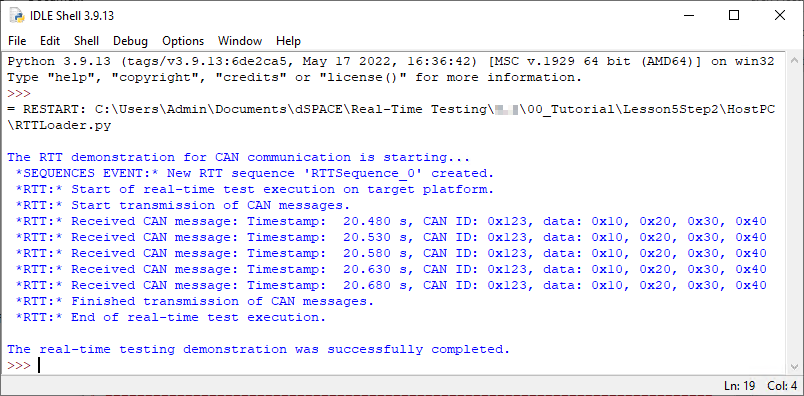
Result
In this step, you have learned how to write an RTT sequence to transmit and receive CAN messages on VEOS as simulation platform.
What’s next
With this step, you finished the fifth lesson of this tutorial. For a summary of your working results and for further information, refer to the result of this lesson.