Step 1: How to Copy the Real-Time Testing Demos
Objective
In this step, you will copy the RTT demos to your RTT Documents folder.
Basics
- Ready-to-use demos
Real-Time Testing is delivered with ready-to-use demos. You can unzip the demos to your RTT Documents folder with the Real-Time Test Manager. The demos contain all files that are required to execute simple real-time testing tasks, such as RTT sequences, loader scripts, a ControlDesk project, and a ready-to-use simulation application for all supported simulation platforms.
Preconditions
Real-Time Testing must be installed on your host PC.
Method 1: To copy the RTT demos using the Real-Time Test Manager for the first time
Start the Real-Time Test Manager. On the Start menu, select dSPACE Real-Time Testing – dSPACE Real-Time Test Manager <product version>.
The Real-Time Test Manager opens.
Because you have started the Real-Time Test Manager for the first time, the following dialog opens:
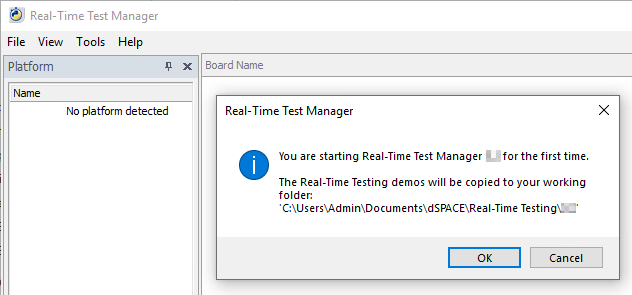
In the dialog, click OK to copy the RTT demos.
Method 2: To copy the RTT demos after the first start of the Real-Time Test Manager
Start the Real-Time Test Manager. On the Start menu, select dSPACE Real-Time Testing – dSPACE Real-Time Test Manager <product version>.
The Real-Time Test Manager opens.
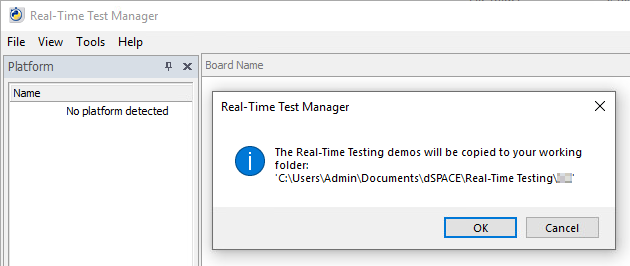
On the menu bar, select Tools – Unzip Demos.
In the dialog, click OK to copy the RTT demos.
Result
You have created a Documents folder for Real-Time Testing:
%USERPROFILE%\Documents\dSPACE\Real-Time Testing\<product version>\.You have copied the RTT demos to the RTT Documents folder.
What’s next
In the next step, you will register a platform.