Step 2: How to Stimulate Variables with Different Generator Functions
Objective
In this step, you will extend your scripts. You will stimulate two variables from the simulation application with different generator functions. Additionally, you will use ParallelRace() to start the stimulation of both variables in the same simulation step.
Basics
- Functionality of the RTT sequence
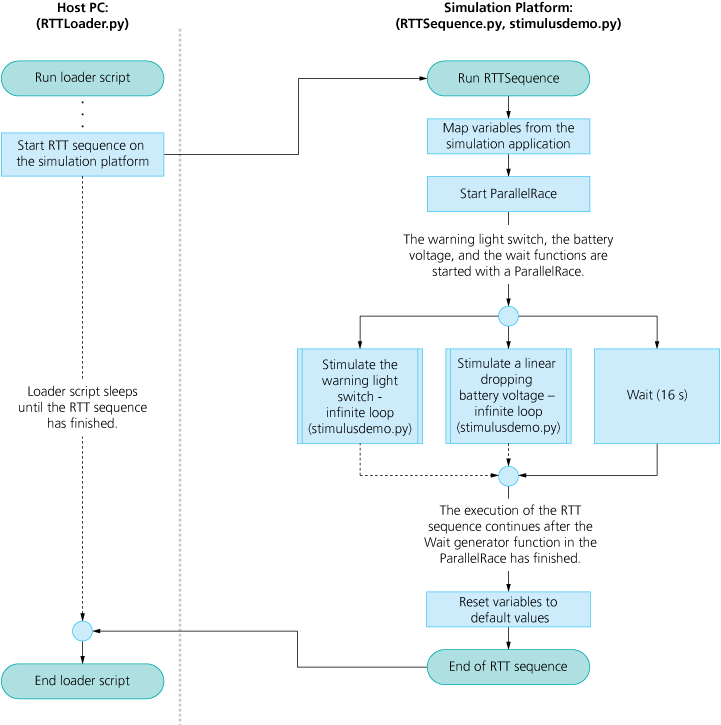
The RTT sequence will access the
WarningLightSwitchandBatteryVoltagevariables from the simulation application. TheWarningLightSwitchvariable will be stimulated for 16 s and in parallel, the battery voltage drops linearly from 12 V to 7 V.View the following illustration for more details:
- Parts
This step is divided into the following parts:
Part 1: To extend your Python module
In the File Explorer, navigate to your
Work folderand create the following subfolders:…\Lesson2Step2\SimulationPlatform\…\Lesson2Step2\HostPC\
Create a new Python script.
Copy the following code to the Python editor:
""" File: stimulusdemo.py Destination: Simulation platform Description: Generator functions to stimulate variables from the simulation application """ # Provides functions for common real-time operations. from rttlib import utilities # Module global variables. stepSize = utilities.modelStepSize# ---------------------------------------------------------------------------- # Generator functions to stimulate variables from the simulation application. # ---------------------------------------------------------------------------- def constGen(var, constValue): """ Stimulate a variable with a constant value. Parameters: var : Variable to be stimulated. constValue: Constant value of the signal. """ # This generator function runs until it is terminated externally, for # example, by a ParallelRace generator function. while(1): # Start the stimulation of the variable. var.Value = constValue yield Nonedef rampGen(var, offset, slope, limit): """ Stimulates a variable with a linear equation. Description: The function generates a signal according to the equation: var(t) = offset + slope * t Parameters: var : Variable to be stimulated. offset: Initial value of the signal. slope : Signal change per second. limit : Saturation value. """ # Initialize local variables. time = 0.0 # Get model step size. timeToAdd = stepSize.Value# This generator function runs until it is terminated externally, for # example, by a ParallelRace generator function. while (1): # Linear equation to get the ramp value. value = offset + (slope * time) # Check limits if ( (slope > 0) and (value > limit)\ or (slope < 0) and (value < limit)): # Overwrite calculated value value = limit # Start the stimulation of the variable. var.Value = value # Increase the time by one sampling step. time += timeToAdd yield NoneSave the file as:
…\Lesson2Step2\SimulationPlatform\stimulusdemo.py.
Interim result
You have extended your Python module with a second generator function. You can use the ramp generator function to stimulate variables with a linear function. Continue with the next part to write an RTT sequence.
Part 2: To write an RTT sequence to stimulate variables with different generator functions
Create a new Python script.
Copy the following code to the Python editor:
""" File: RTTSequence.py Destination: Simulation platform Description: To stimulate the warning light switch and the battery voltage. """ # Provides functions for common real-time operations. from rttlib import utilities # Import the variable module from the rttlib package. from rttlib import variable # Import scheduler to use ParallelRace() from rttlib import scheduler# Import your Python module import stimulusdemo # Create variable objects for accessing the simulation application. WarningLightSwitch = variable.Variable( r'Model Root/WarningLightSwitch[0|1]/Value') BatteryVoltage = variable.Variable(r'Model Root/BatteryVoltage[V]/Value') # Identifier for RTT print messages. rttPrefix = r" *RTT:* "# ---------------------------------------------------------------------------- # Generator functions # ---------------------------------------------------------------------------- def resetGen(): """ Set the variables from the simulation application back to default values. """ WarningLightSwitch.Value = 0 BatteryVoltage.Value = 12.0 yield Nonedef stimulateWarningLightSwitchGen(): """ Stimulates the warning light switch. Infinite nesting levels of generator functions are supported by the dSPACE scheduler. """ yield stimulusdemo.constGen(WarningLightSwitch, 1)def stimulateBatteryVoltageGen(): """ Stimulates the battery voltage with a linear equation. """ # Battery voltage at the start of the generator function startVoltage = 12.0 # Battery voltage at the end endVoltage = 7.0 # Voltage change per second slope = -0.334 yield stimulusdemo.rampGen(BatteryVoltage, startVoltage, slope, endVoltage)# ---------------------------------------------------------------------------- # MainGenerator function # ---------------------------------------------------------------------------- def MainGenerator(): """ Main generator function of the RTT sequence. """ print(rttPrefix + "Start of real-time test execution on target platform") numberOfSeconds = 16 # Setting default values before the test starts. yield resetGen() print(rttPrefix + ("Switch on the WarningLightSwitch for %d s \n" + "in parallel the Battery Voltage drops") % numberOfSeconds)# Start the generator functions with ParallelRace(). The ParallelRace # ends after numberOfSeconds is reached. yield scheduler.ParallelRace(stimulateWarningLightSwitchGen(), stimulateBatteryVoltageGen(), utilities.Wait(numberOfSeconds)) print(rttPrefix + "Stimulation of WarningLightSwitch finished.") print(rttPrefix + "BatteryVoltage = %.1f V" % BatteryVoltage.Value) print(rttPrefix + "End of real-time test execution.") yield resetGen() yield NoneSave the file as:
…\Lesson2Step2\SimulationPlatform\RTTSequence.py.
Interim result
You have written an RTT sequence to stimulate two variables from the simulation application with ParallelRace(). Continue with the next part to write a loader script.
Part 3: To write a loader script
Copy the loader script from the previous step:
…\Lesson2Step1\HostPC\RTTLoader.py.Paste the loader script into the folder:
…\Lesson2Step2\HostPC\.
Interim result
You have created a loader script for this step. Continue with the next part to start your RTT sequence.
Part 4: To start the RTT sequence
Open ControlDesk.
In the Variables pane, select the Model Root node in the tree view.
In the variable list, select the battery voltage and drag it onto the lower time plotter.
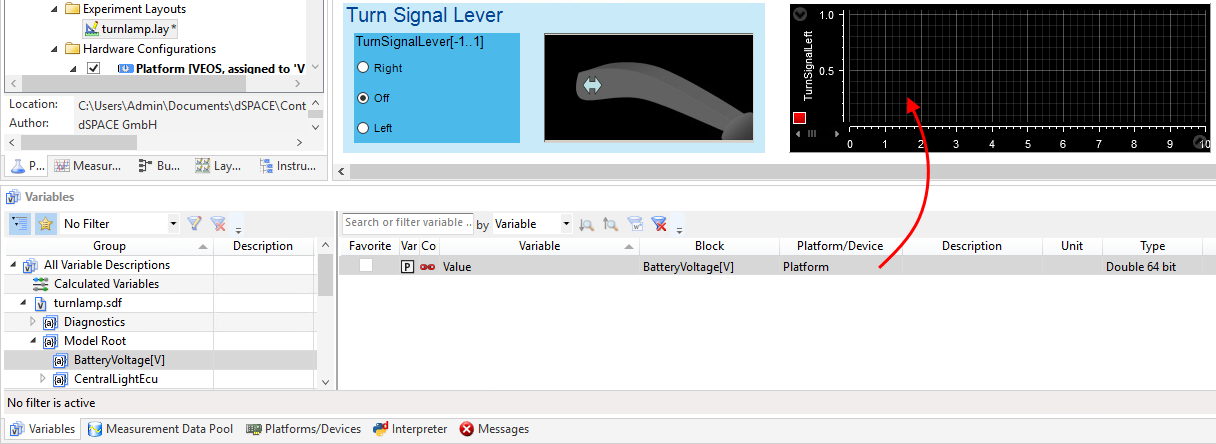
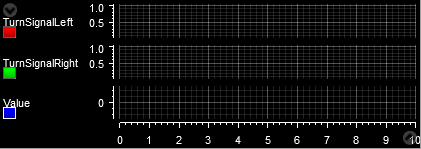
In the context menu of the y-axes, select YAxes view – Horizontal stacked to arrange the y-axes horizontally one below the other.
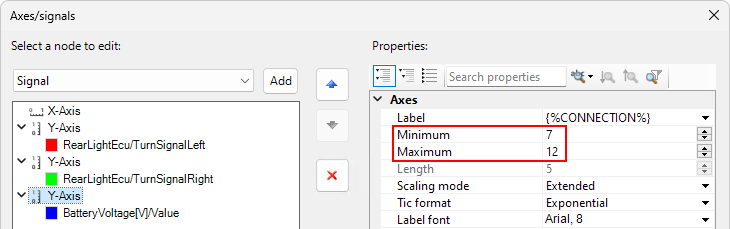
In the Properties pane, go to Axes/signals and click the Browse button.
The Axes/signals dialog opens.
Select the Y-Axis of BatteryVoltage[V]/Value and edit the following values:
Set Maximum to
12.Set Minimum to
7.
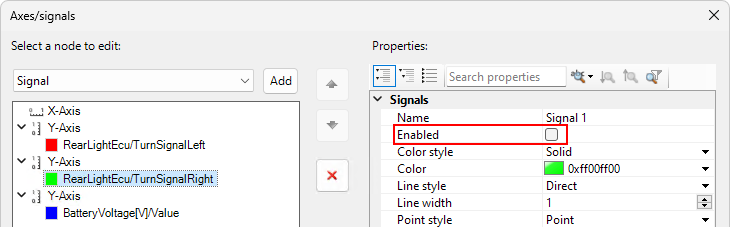
Select RearLightECU/TurnSignalRight:
Clear the Enabled checkbox.
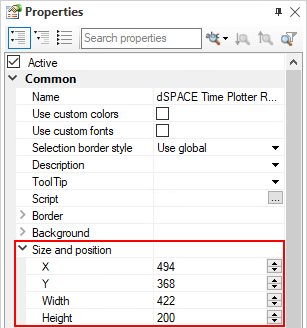
In the Properties pane, adjust the values in Size and position if required.
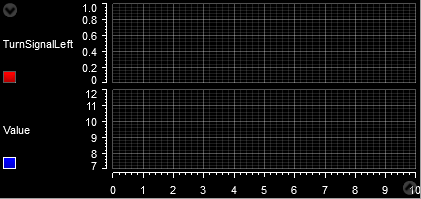
You have customized the layout in ControlDesk and you have added the battery voltage to the time plotter.
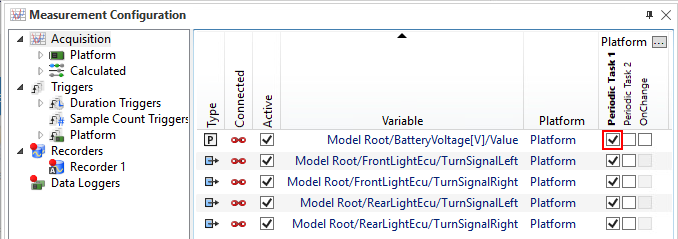
In the Measurement Configuration pane, select the Periodic Task 1 checkbox for the battery voltage variable.
On the Home ribbon, click Status Control – Start Measuring.
ControlDesk globally starts measurement for the platform.
Start your loader script located in:
…\HostPC\RTTLoader.py.You can compare your results with the following animated graphic:
Result
In this step, you have learned:
To access and stimulate variables with different generator functions.
To stimulate multiple variables at once using
ParallelRace().
What’s next
In the next step, you will implement an observer function.