How to Migrate RTI Models of the MicroLabBox
Objective
Reusing RTI models of the MicroLabBox for the MicroLabBox II.
Behavior model contains only Simulink blocks
If a model does not contain any RTI blocks, you can use the model in ConfigurationDesk without any modifications. You implement the interface to the function blocks in ConfigurationDesk via the Model Interface Package for Simulink. Refer to Creating the Interface of Behavior Models.
When you start the build process in ConfigurationDesk, all the required configuration parameters in the behavior model are set automatically.
Model migration utility
A model migration utility can support certain migration steps during the migration process.
The model migration utility is still under development. For more information on the model migration utility, scan the code on top of the MicroLabBox II or enter https://www.dspace.com/go/microlabbox.
Preconditions
The following preconditions must be fulfilled:
ConfigurationDesk is installed.
Model Interface Package for Simulink is installed.
You familiarized yourself with ConfigurationDesk. Refer to Creating a Logical Signal Chain and Creating a Real-Time Application: Starting with a Simulink Behavior Model.
MATLAB®/Simulink® is installed.
Method: To migrate models of MicroLabBox
Replace the I/O functionality that is implemented via RTI blocks in the Simulink model with function blocks in ConfigurationDesk:
For comparable function blocks, refer to MicroLabBox RTI Blocks vs. ConfigurationDesk Function Blocks.
For instructions on adding function blocks, refer to Creating Signal Chains via the Model‑Function Mapping Browser.
The remaining Simulink model without I/O functionality is called behavior model.
Configure the function blocks, for example, assign the channels of MicroLabBox II to the function blocks. Refer to Configuring Function Blocks.
Replace the interrupts by I/O events. Refer to Modeling Asynchronous Tasks.
Extend the signal chain in ConfigurationDesk by adding model port blocks. For instructions, refer to How to Add Model Port Blocks to the Signal Chain via Function Blocks.
Transfer the model port blocks of the ConfigurationDesk model interface to the Simulink behavior model.
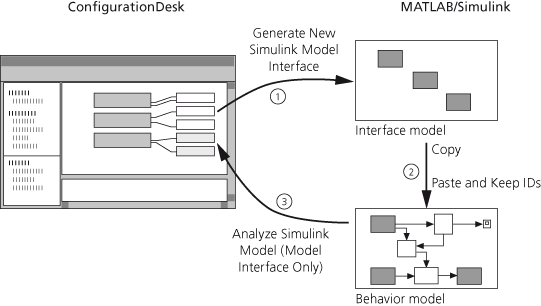
The following workflow steps are required:
Generating interfaces for the Simulink behavior model
The unresolved model port blocks in your ConfigurationDesk application must be generated as model port blocks in a new Simulink model called the interface model. You can do so by using the Generate New Simulink Model Interface command in ConfigurationDesk.
Copying model port blocks from the interface model to the Simulink behavior model
You can copy the generated model port blocks from the interface model and paste them to the Simulink behavior model. For this purpose, you must use the standard Copy command as well as the Paste and Keep IDs command from the Model Port Blocks menu.
Analyzing interfaces of the Simulink behavior model
To make the changes in the Simulink behavior model known to ConfigurationDesk, you must analyze the model interface by executing the Analyze Simulink Model (Model Interface Only) command in ConfigurationDesk. During model analysis, the model topology of the active ConfigurationDesk application is updated with the model port block data of the Simulink behavior model.
For more information on the steps described above, refer to the following topics:
Result
You replaced the RTI blocks with function blocks and implemented a new model interface with model port blocks. The new model port blocks in ConfigurationDesk are resolved and used for code generation from now on.