How to Register the MicroLabBox II
Objective
Accessing the MicroLabBox II with the dSPACE software.
Preconditions
The following preconditions must be fulfilled:
ControlDesk is installed. Refer to How to Prepare the Host PC.
The host PC is directly connected to the MicroLabBox II.
The MicroLabBox II is switched on.
Method: To register the MicroLabBox II
Start ControlDesk.
Use only one dSPACE software product during the registration process. Close all other dSPACE software products.
On the Platforms ribbon, click Platform Management – Register Platforms.
The Register Platforms dialog opens.
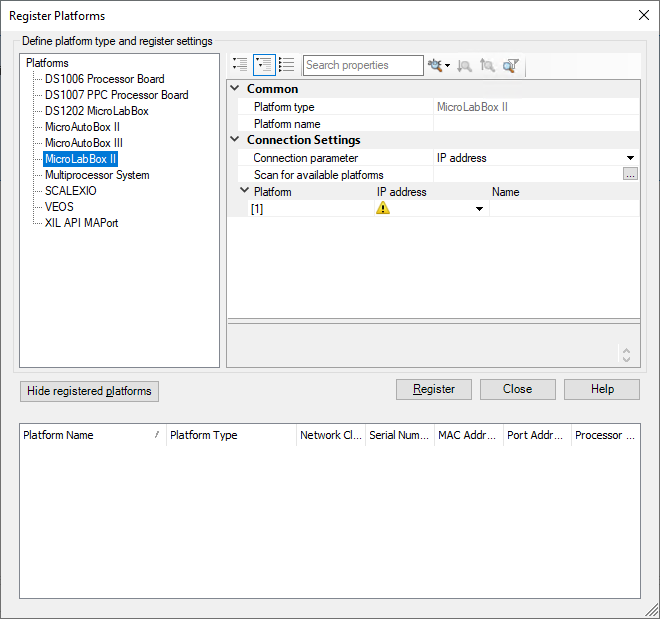
Select the MicroLabBox II platform.
Make sure that the Connection parameter is set to IP address.
Enter the IP address of the MicroLabBox II. The default IP address of the MicroLabBox II is
192.168.140.10.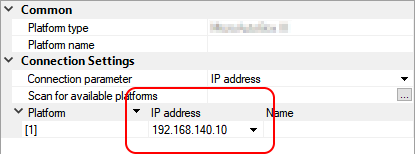
Click Register to complete the registration of the MicroLabBox II.
The registered MicroLabBox II is displayed with its registration settings in the Registered platforms list.
Click Close to close the Register Platforms dialog.
Result
You have registered the MicroLabBox II for all dSPACE software products. The registration data is stored in the recent platform configuration.
The Platform Manager displays the hardware topology of all the registered platforms. The hardware topologies are displayed in the order in which the registered hardware systems are detected in the network. Each hardware topology is displayed in a hierarchical structure.

Next step
Make yourself familiar with the MicroLabBox II and experiment with a real-time application in ControlDesk. Refer to How to Experiment with a Real-Time Application in ControlDesk.