How to Experiment with a Real-Time Application in ControlDesk
Objective
To experiment with the real‑time application, you can open a platform‑specific ControlDesk demo.
Experimenting with a real-time application
The real‑time application demos provided by ControlDesk let you quickly start experimenting with a real-time application. They also let you familiarize yourself with the ControlDesk instruments for measuring signals and changing parameter values.
Preconditions
The following preconditions must be fulfilled:
ControlDesk is installed on the host PC. Refer to How to Prepare the Host PC.
TheMicroAutoBox III is connected to the host PC. Refer to How to Connect the MicroAutoBox III Directly to the Host PC.
The MicroAutoBox III is registered. Refer to How to Register the MicroAutoBox III.
Workflow
This workflow consists of the following parts:
Part 1: To copy the ControlDesk demo
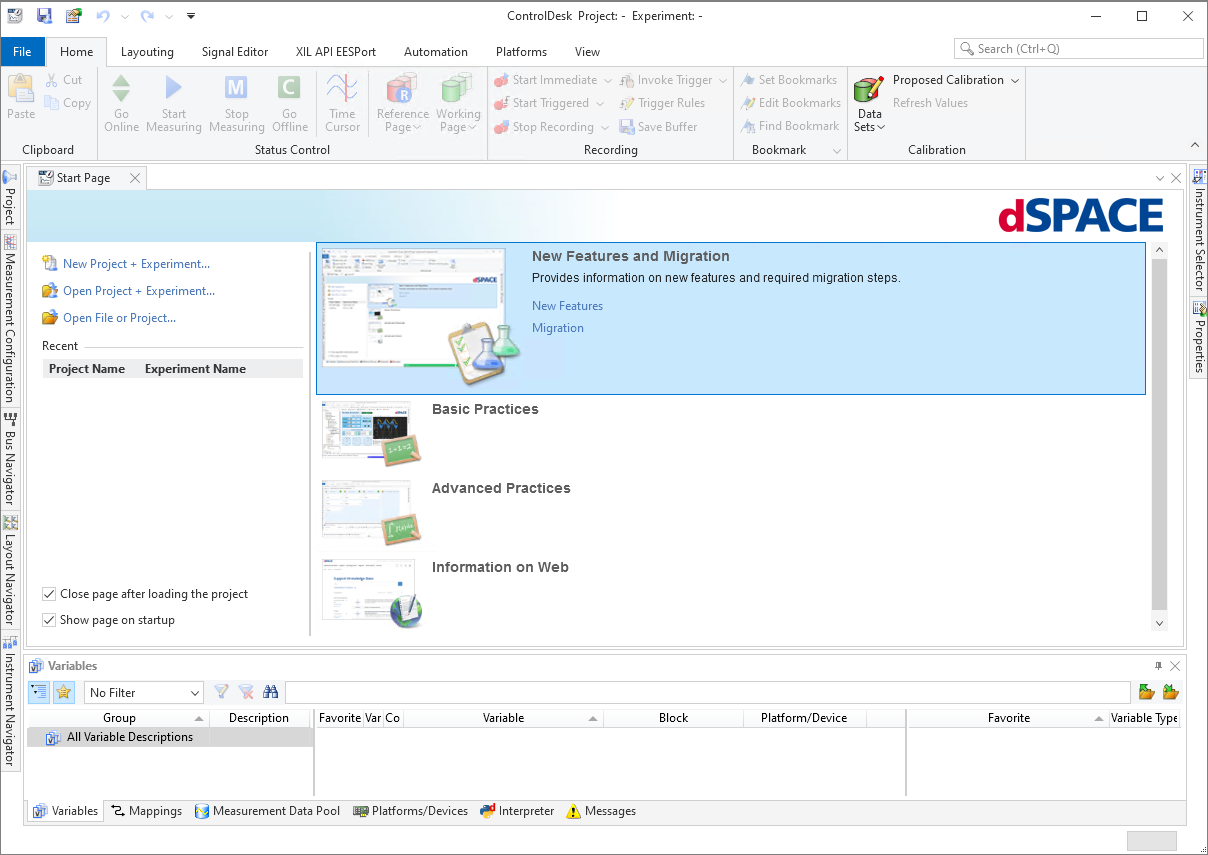
Start ControlDesk.
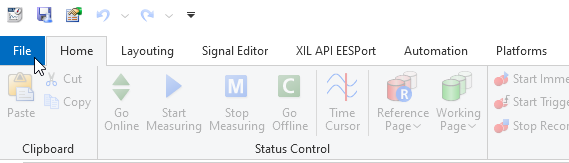
Click File to open the Backstage View.
Click Options and open the User Settings page.
Click Copy Demos.
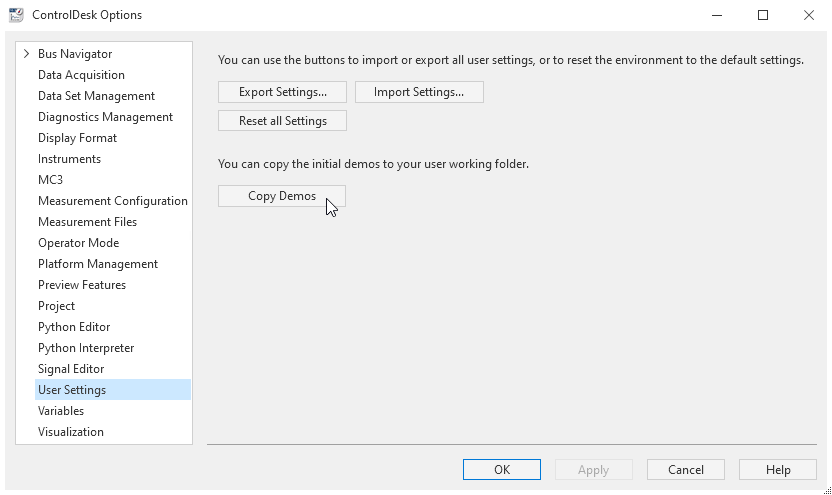
Confirm the confirmation prompt.
ControlDesk copies the demos to the user-specific Documents folder.
Click OK to close the ControlDesk Options dialog.
Interim result
The demos are available for ControlDesk.
Part 2: To experiment with a real-time application in ControlDesk
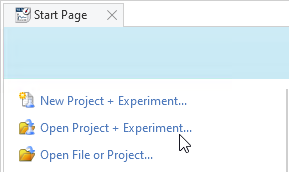
On the Start Page of ControlDesk, click Open Project + Experiment to open the demo experiment.
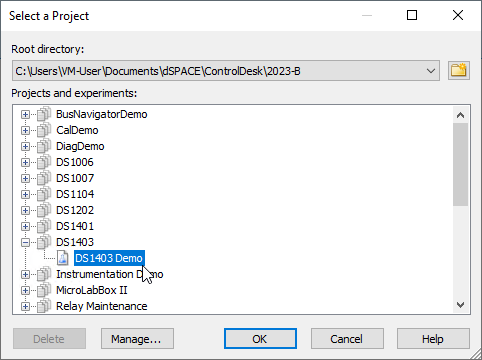
In the Select a Project dialog, select DS1403 - DS1403 Demo.
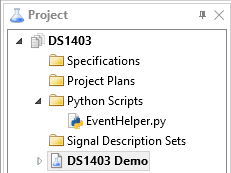
ControlDesk opens the experiment and displays it in the Project Manager.
On the Home ribbon, click Status Control – Start Measuring.
ControlDesk automatically downloads the experiment's application to the MicroAutoBox III.
Open the throttle controller layout.
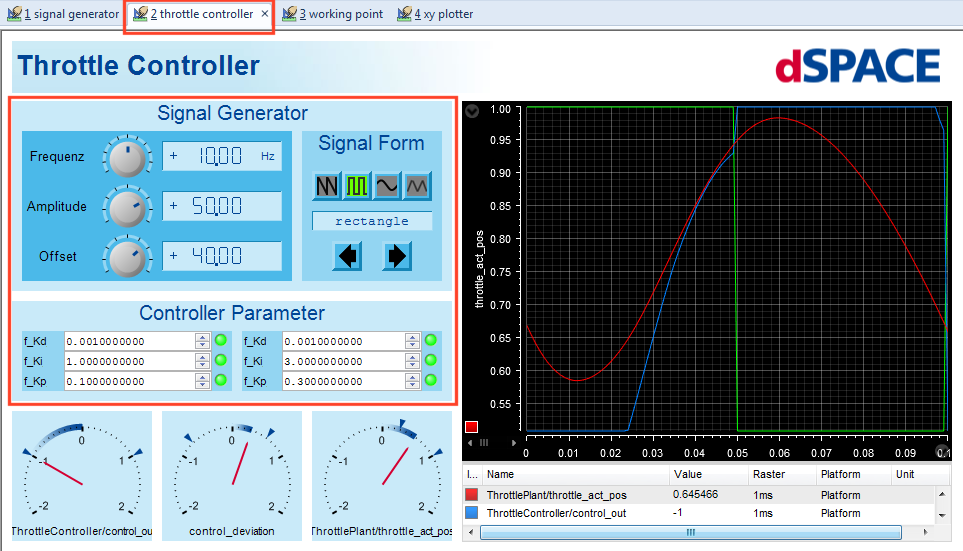
Experiment with the real-time application, e.g., by changing parameter values on the layouts.
Result
You experimented with the real-time application in ControlDesk. For more information on ControlDesk, refer to Introduction and Overview.
Next steps
Now you can create a real-time application that runs on the MicroAutoBox III. For a workflow to create a real-time application, refer to Typical Workflow for Creating a Real-Time Application.