Step 1: How to Select the Framework for the dSPACE Platform
Objective
Selecting the correct FPGA framework for the dSPACE platform you are using.
Method: To select the framework for the dSPACE platform
In the MATLAB Command Window, enter
rtifpga.The FPGA Programming Blockset opens.
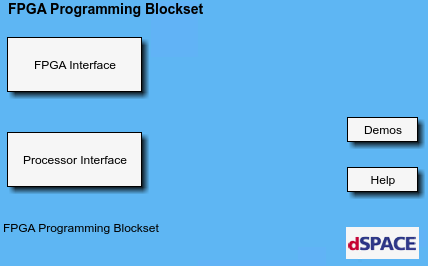
If the FPGA Interface is not available, the FPGA license is not activated. Refer to Step 1: How to Install the Required Software.
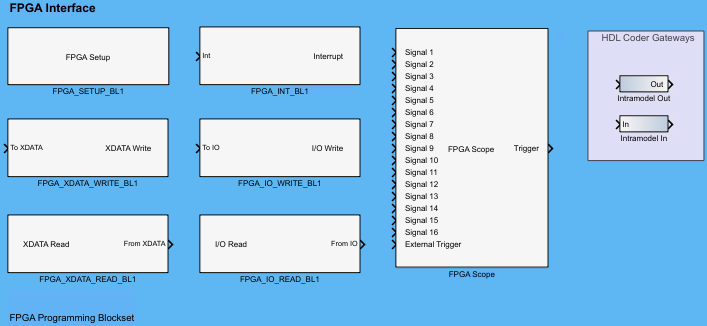
Open the FPGA Interface sublibrary.
Create a new Simulink model.
Drag an FPGA_SETUP_BL block from the FPGA Interface sublibrary to the Simulink model.
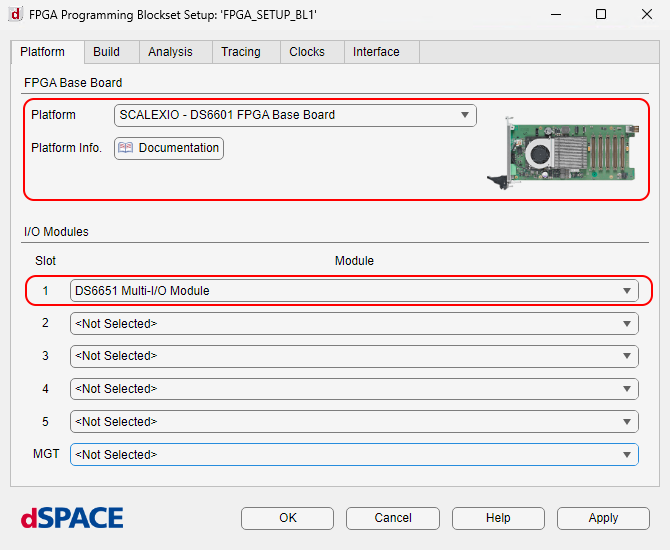
In the Simulink model, double-click the FPGA Setup block to open its dialog.
On the Platform tab, select the following settings for the platform:
Note
The tutorial uses the framework for the DS6601 FPGA Base Board. Complete the tutorial using the DS6601 FPGA Base Board framework before using the framework that matches your dSPACE hardware. The framework you use does not affect the steps for programming a dSPACE FPGA board.
Click OK.
Save the Simulink model as
FPGAGettingStarted_Lesson01.slx.
Result
You selected the FPGA framework for the DS6601 FPGA Base Board with an DS6651 Multi-I/O Module inserted to module slot 1.
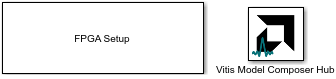
The System Generator block is added next to the FPGA Setup block.
Next step
For the next step, refer to Step 2: How to Specify the FPGA Functionality.