Step 1: How to Install the Required Software
Objective
Installing the software products required to model and execute an FPGA application on a MicroLabBox II, a MicroAutoBox III, or a SCALEXIO system.
Supported software versions
The FPGA Programming Blockset supports the following versions of the third-party software products:
Design Tool Version | MATLAB® Version | Operating System |
|---|---|---|
AMD® VivadoTM 2025.11) |
| Windows operating system that is supported by the RCP and HIL software of the current Release. For a list of supported operating systems, refer to Operating System. The listed Windows Server operating systems are not supported by AMD® VivadoTM. |
More information on the dSPACE Installation Manager
For more information on the dSPACE Installation Manager, refer to What Do You Want To Do?.
Preconditions
The following preconditions must be fulfilled:
Your host PC meets specific requirements. Refer to Appendix: System Requirements.
Your host PC has Internet access during installation of the software.
If you want to install dSPACE software on a PC without an Internet connection, you have to manually install specific root certificates on the PC before installing the dSPACE software. Refer to Installing Root Certificates Required for Using dSPACE Software.
You have unrestricted administrator rights. For other required rights, refer to Required User Rights.
The installation process is not blocked. Refer to Protecting the Installation Process Against Blocking.
You have access to the source media, e.g., dSPACE DVDs or downloaded installation files.
Method: To install the required software
Install MATLAB and Simulink. For instruction, refer to https://www.mathworks.com/help/install/install-products.html.
Install the Vivado ML Enterprise edition and the AMD Vitis Model Composer from AMD.
During the installation, select the following content on the Select Extra Content page of the Vivado Installer dialog:
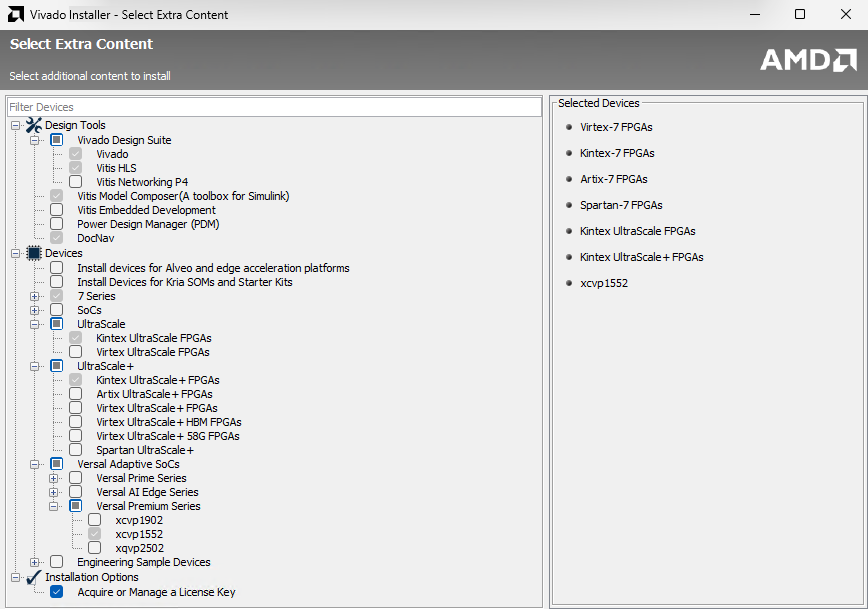
For instructions, refer to https://adaptivesupport.amd.com/s/article/60117.
Install the dSPACE Release software:
Start dSPACE Setup (
Install_Release.exe).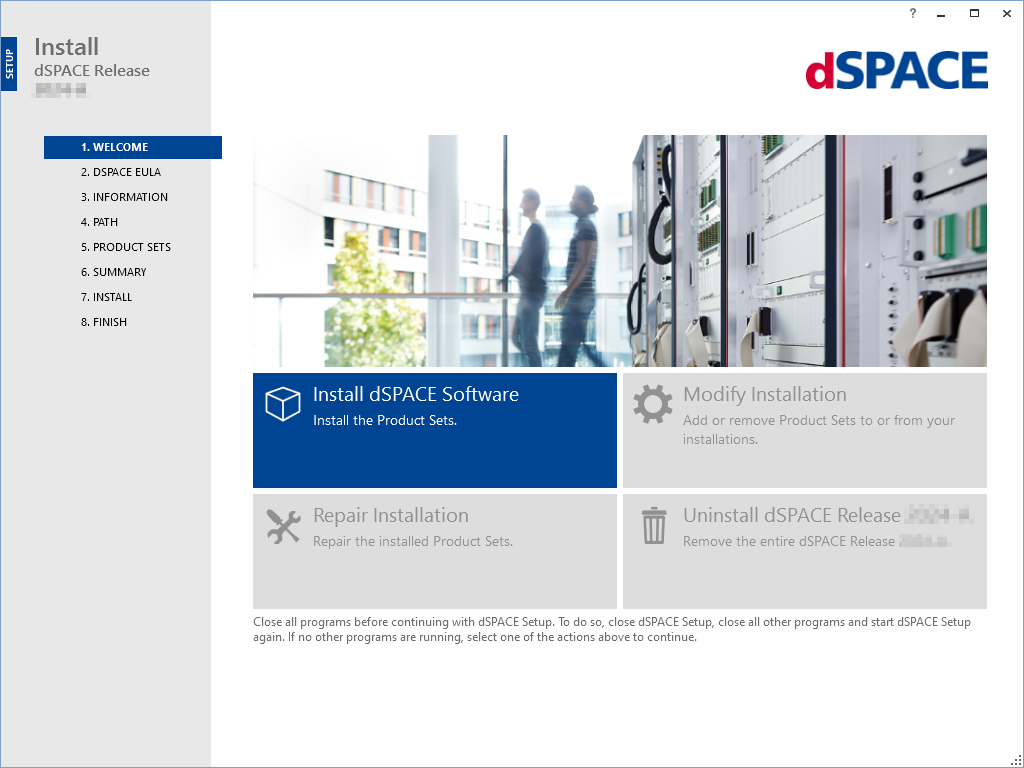
Follow the dialog to install the dSPACE software.
Select the ConfigurationDesk and Bus Manager and ConfigurationDesk Related Products product sets.
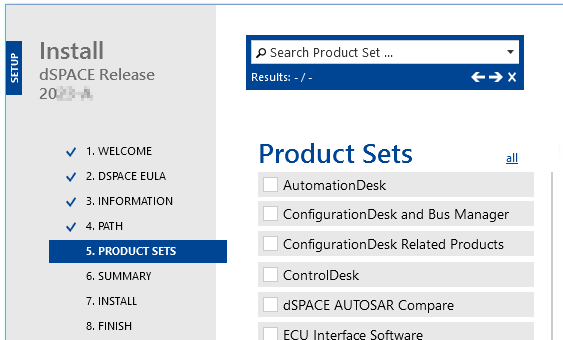
The FPGA Programming Blockset and the Model Interface Package for Simulink are part of the ConfigurationDesk Related Products product set.
For instructions, refer to How to Install dSPACE Software.
For an overview on the product sets, refer to Information About Product Sets.
Open the dSPACE Installation Manager and activate the following licenses:
FPGA Programming Blockset
ConfigurationDesk
Model Interface Package for Simulink
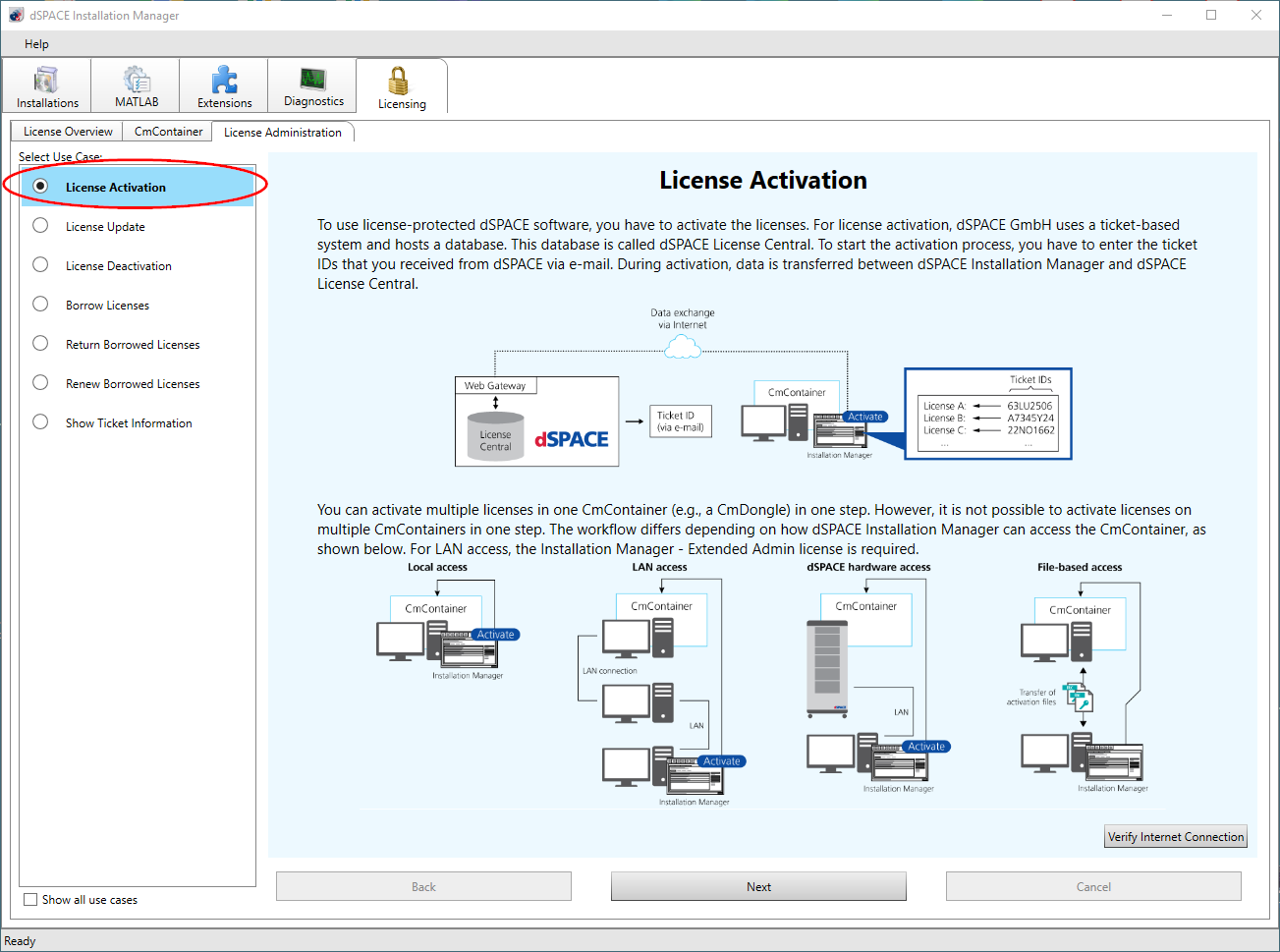
For instructions, refer to License Activation.
Decrypt software archives of your dSPACE installation with the dSPACE Installation Manager.
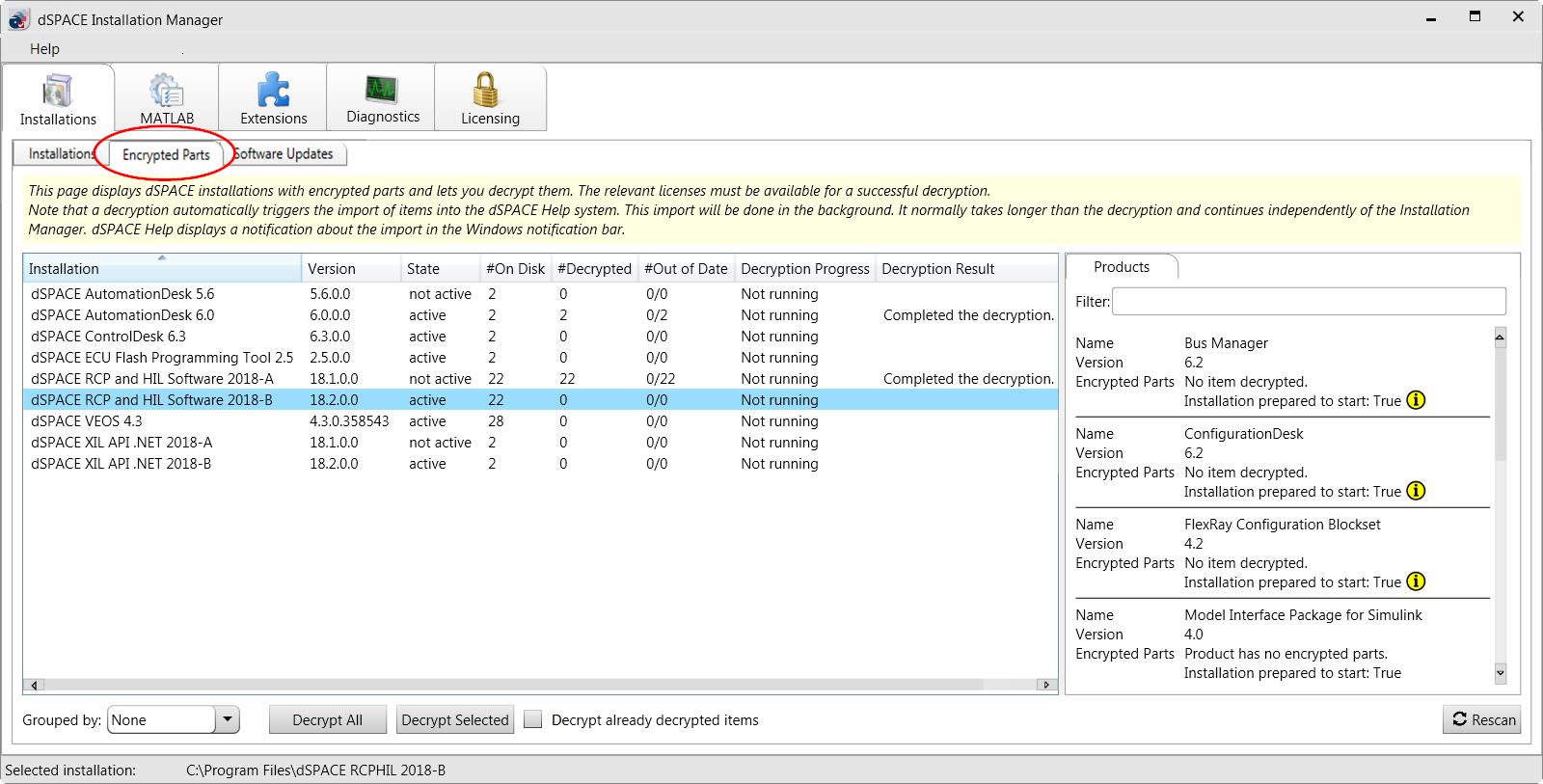
For instructions, refer to How to Decrypt Encrypted Archives of dSPACE Software Installations.
Result
You installed the software required to model and execute an FPGA application on dSPACE hardware.
Next step
For the next step, refer to Step 2: How to Open the Demo Model.