Step 2: How to Configure the Signal List of a Recorder
Objective
You can configure the settings of a signal list, for example, by specifying the measurement raster settings of the signals to be recorded.
In this step, you will add signals to the signal list of a recorder via drag & drop and then change the measurement raster settings of the signals.
Video
Watch the video or follow the written instructions below.
Method: To configure the signal list of a recorder
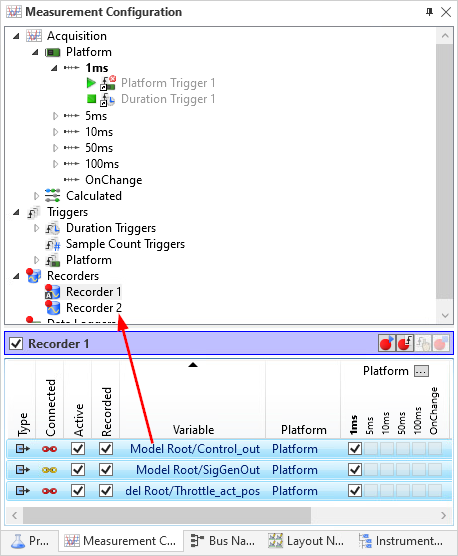
In the Measurement Configuration pane, click Recorder 1.
From the signal list of Recorder 1, drag all the variables onto the Recorder 2 item.
Click Recorder 2 to check its signal list.
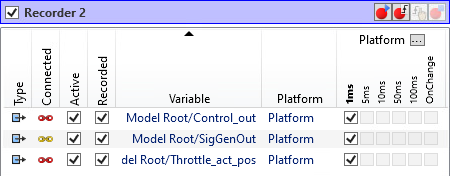
The signal list of Recorder 2 now contains the same signals as that of Recorder 1.
All the signals will be recorded in the 1 ms measurement raster.
Note
You cannot select another measurement raster here. Only measurement rasters that are selected in the measurement signal list are available in the signal list of a recorder. For example, to select a 5 ms raster for signals, you must enable this raster in the measurement signal list first.
For this reason, you will now change the configuration of the measurement signal list.
Click Acquisition – Platform.
In the configuration area, select the 5 ms raster in addition to the 1 ms raster: Press the Ctrl key and select the 5 ms checkbox for each variable in the signal list.
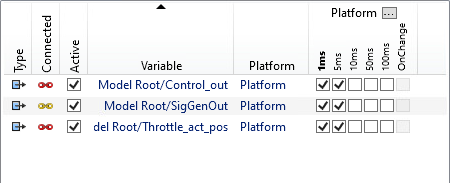
The measurement signal list now specifies two signals to be measured for each variable: one in a 1 ms raster and one in a 5 ms raster.
Check the signal list of Recorder 1 and Recorder 2.
Recorder 1 has automatically used the additional measurement raster for its variables. The 1 ms raster and the 5 ms raster are both selected for recording.
Recorder 2 has not changed its configuration, but it now lets you select the 5 ms raster for a variable manually.
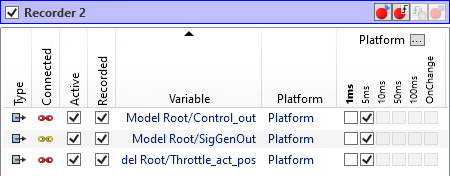
Set the raster settings for all the variables of Recorder 1 to 1 ms and for Recorder 2 to 5 ms. The illustration shows the settings for Recorder 2.
Result
You have configured the signal lists of both recorders.
The signals of Recorder 1 will be recorded in a 1 ms raster.
The signals of Recorder 2 will be recorded in a 5 ms raster.
What’s next
In the next step, you will perform an immediate recording.