Concepts of Building and Loading a Real-Time Application
Objective
The main concepts for building and loading a real-time application are described, using a Simulink® model as a behavior model. For specifics in other use scenarios such as integrating Functional Mock-up Units (FMUs), refer to the relevant documentation.
Controlling the build process
You can start the build process in ConfigurationDesk or in the Simulink behavior model to generate the real-time application. The build process is completely controlled in ConfigurationDesk. This also includes the make process (for example, compiling and linking the sources, generating the object file, and the variable description file).
Code generation
The illustration below shows the code generation for the I/O functionality in ConfigurationDesk and the behavior model:
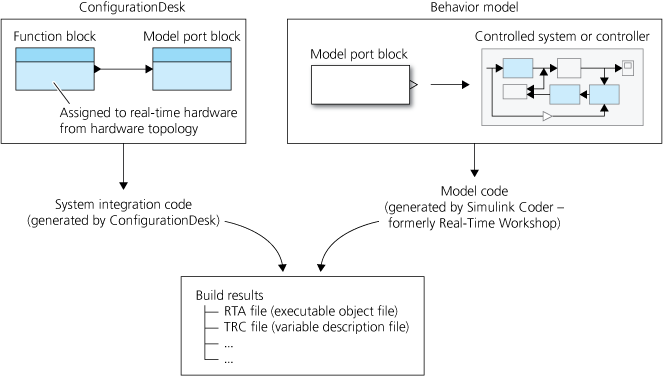
The C or C++ code for the behavior model is called model code. It is generated by Simulink® CoderTM.
The C++ code for the I/O functionality, including the port mapping, the hardware resource assignment, and the task handling is called system integration code. It is generated by ConfigurationDesk.
The build results are copied to the Build Results folder of the ConfigurationDesk application.
The interface to your external devices (represented by the device topology and device blocks) is not required and thus ignored in code generation.
Build process without model code generation
ConfigurationDesk allows you to skip model code generation when building a real-time application. This reduces the time needed for the build process and is particularly useful if the model has not been changed since the last build process. Note that a build process without model code generation can only be performed successfully if model code of a prior build process exists.
Build options
All the required build options can be manually set via:
The Build Configuration table in ConfigurationDesk
Simulink® CoderTM
However, some Simulink® CoderTM settings of the behavior model are overwritten by ConfigurationDesk if they are not suitable for model code generation.
The MATLAB Command Window displays all the build option changes which were automatically made by ConfigurationDesk with their old and new settings.
Handling errors during the build process
The build process is aborted only for serious errors. Most problems which occur during the build process are categorized as warnings. They are displayed in the Build Log Viewer in ConfigurationDesk.
While implementing the signal chain, ConfigurationDesk detects all conflicts which will affect the build process and code generation. The Conflicts Viewer displays these conflicts and provides information on the effects, for example, if they abort a build, a warning is generated during build, or no code or default code is generated.
Error messages which are generated by MATLAB®, Simulink® and Simulink® CoderTM are only displayed in the MATLAB Command Window and not in ConfigurationDesk.
Simulation of I/O access
If there is a function block without hardware assigned to it, the build process is not aborted. In this case, the I/O access is simulated, i.e., initial values configured at the function block are input to the behavior model.
This concept allows you to implement and build an executable real-time application without having access to a complete real-time hardware system.
Compatibility check during the load process
During the load process, ConfigurationDesk checks if the hardware resources used during the build process match the platform to which the real-time application is loaded. The Message Viewer displays all inconsistencies, and in several cases, ConfigurationDesk generates a message box which allows you to abort the load process.
If there are inconsistencies, ConfigurationDesk tries to continue the load process as follows:
If at least one channel used by the application is missing on the platform, the function assigned to the channel is simulated by using user-configured initial values.
If the signal available at a hardware resource is different to the one assigned to it, you can either accept or reject this reassignment. If you reject it, the corresponding functionality is missing in your real-time application.
In both cases, you can continue the load process if you accept the conflicts.
This concept allows you to execute a real-time application although the platform does not exactly match the hardware topology of the application used during the build process. For example, you can perform tests without starting a new build process although several I/O boards are temporarily missing.
Building a multicore real-time application
You can build a multicore real-time application and load it to the dSPACE real-time hardware, where different application processes (each containing one behavior model) are executed in parallel on single processor cores. The maximum number of application processes is number of processor cores - 1, since one core is reserved for the execution of system services.
You can configure several build options for each real-time model separately. However, ConfigurationDesk automatically assigns application processes to cores for execution. The maximum number of application processes running on a SCALEXIO Processing Unit is number of processor cores - 1, since one core is reserved for the execution of system services. For a DS6001 Processor Board, the maximum number of application processes is number of processor cores.
Building a multi-processing unit (multi-PU) application
You can build a multi-PU application and load it to the dSPACE real-time hardware, where different processing unit applications (each containing at least one application process with one behavior model) are executed in parallel on several SCALEXIO Processing Units. The processing units are connected via IOCNET and can be accessed from the same host PC.
You can configure several build options for each real-time model separately. Via processing unit assignment, you have to assign a processing unit application to a specific processing unit for execution.