Overview of the User Interface of ConfigurationDesk
Switching between view sets for specific purposes
The user interface of ConfigurationDesk consists of different panes that are arranged in view sets. You can switch between view sets by using the navigation bar. The available panes of each view set serve a specific purpose. For example, the Project view set contains the Project Manager to perform project and application management tasks.
The order of view sets from left to right on the navigation bar represents the workflow for implementing a real-time application. The Project and Build view sets are the start and end points for all use scenarios. The other view sets are suitable for specific use scenarios.
The basic structure of view sets is similar. For example, the Signal Chain view set is structured as shown in the following illustration:
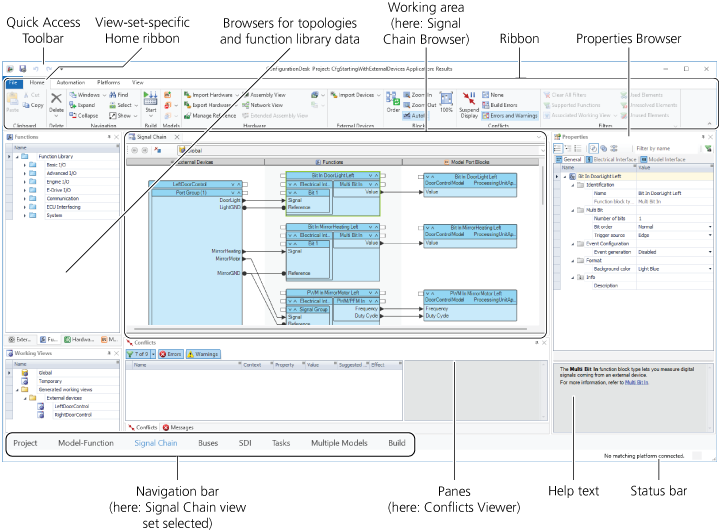
Permanent interface elements
Some interface elements are permanently available irrespective of the currently active view set.
- Ribbon and Quick Access Toolbar
The ribbon and the Quick Access Toolbar are always available at the top of the user interface. But for each view set, the Home ribbon contains specific commands suitable for the purpose of the view set. For more information on handling ribbons and the Quick Access Toolbar, refer to Basics on Ribbons.
- Status bar
The status bar displays the state of an active application in relation to registered hardware platforms. For details on the application states, refer to Handling ConfigurationDesk Projects and Applications.
Available view sets and their purposes
View Set | Purpose | Panes1) | Further Information |
|---|---|---|---|
Project | To manage ConfigurationDesk projects and applications. You need a project with application data to perform any task in ConfigurationDesk. For some project management tasks, you are automatically referred to the backstage view (File ribbon). |
| |
Model-Function | To implement the connection between a behavior model and ConfigurationDesk's I/O functionality. |
| User-Friendly Connection of ConfigurationDesk and Simulink Models |
Signal Chain | To implement the complete logical signal chain between an external device and a behavior model. |
| |
Buses | To implement bus communication based on communication matrices. |
| |
SDI | To visualize and analyze communication based on shared data interfaces (SDIs). |
| |
Tasks | To model and configure the tasks and application processes of your executable application. |
| |
Multiple Models | To configure the communication between multiple behavior models. |
| |
Build |
|
| |
Hardware2) |
|
|
Common panes available in most view sets
Some panes are available and required in most view sets.
- Properties Browser
Lets you configure the properties of selected elements. Refer to Configuring Elements with the Properties Browser.
- Conflicts Viewer
Displays configuration conflicts in your ConfigurationDesk application. You can resolve most of the conflicts here. Refer to Resolving Conflicts.
- Message Viewer
Provides a history of all the info, advice, error, and warning messages, and all the questions that occur when you work with the product. Refer to Message Viewer.
Additional panes for specific purposes
Some panes are part of no view sets but may still be required for specific purposes.
- Find Results Viewer
Displays the results of searches you performed by using the Find command. Refer to How to Find Elements of a ConfigurationDesk Application.
- Interpreter
Handles Python commands and scripts for automating ConfigurationDesk. Refer to Automating Tool Handling.
Customizing view sets
If the available view sets do not meet your requirements, you can customize them or create additional view sets with the panes of your choice. Refer to Customizing View Sets.