Step 1: How to Import a Hardware Topology
Objective
To connect a ConfigurationDesk application to real-time hardware, you need a hardware topology. To load a real-time application to real-time hardware, the hardware topology must match the real-time hardware.
Note
In this step, you will work with a predefined hardware topology that might not match your real-time hardware. Therefore, it is unlikely that you can use the real-time application of this lesson on your real-time hardware.
Method: To import a hardware topology
Switch to the Buses view set, if necessary.
Select the Hardware Resource Browser.
Right-click an empty area in the Hardware Resource Browser and select Import Hardware from File or Platform - Replace on the context menu.
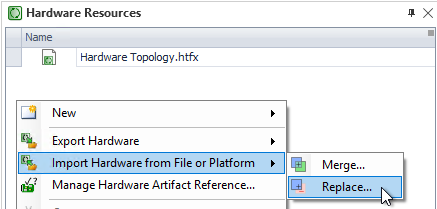
The Replace Hardware Topology dialog opens.
In the dialog, click Select hardware — Predefined hardware — dSPACE SCALEXIO Example HIL System - 9 Units.
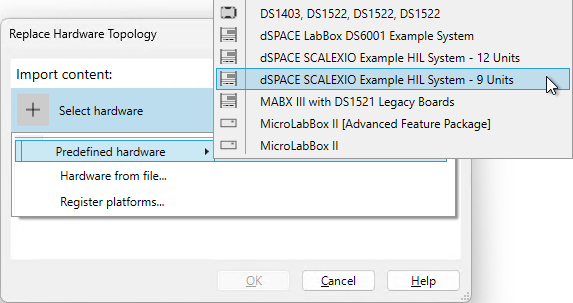
The hardware topology is displayed in the dialog.
In the dialog, click OK.
The hardware topology is imported to the ConfigurationDesk application. This might take a while. When finished, the Hardware Resource Browser displays the hardware topology.
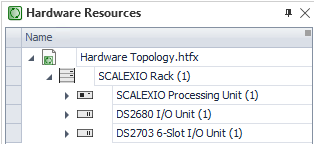
Result
You imported a hardware topology to the ConfigurationDesk application.
What's next
In the next step, you will specify the hardware access for the Restbus_BusConfiguration.