How to Open the BusManagerTutorial Project
Objective
To work through the Bus Manager tutorial, you have to open the BusManagerTutorial project.
Method: To open the BusManagerTutorial project
Depending on your Bus Manager variant, choose one of the following:
Bus Manager in ConfigurationDesk:
From the Start menu, choose dSPACE ConfigurationDesk <ReleaseVersion> (<ProductVersion>) — dSPACE ConfigurationDesk <ReleaseVersion> (<ProductVersion>).
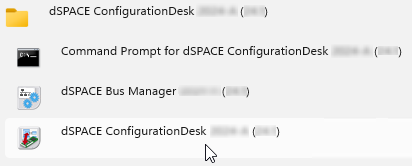
Bus Manager (stand-alone):
From the Start menu, choose dSPACE ConfigurationDesk <ReleaseVersion> (<ProductVersion>) — dSPACE Bus Manager <ReleaseVersion> (<ProductVersion>).
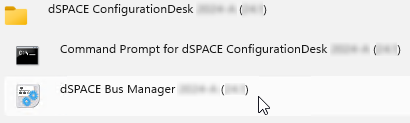
ConfigurationDesk or the Bus Manager (stand-alone) opens.
On the Start Page, click Open Project + Application.
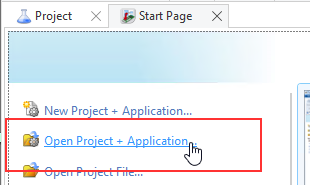
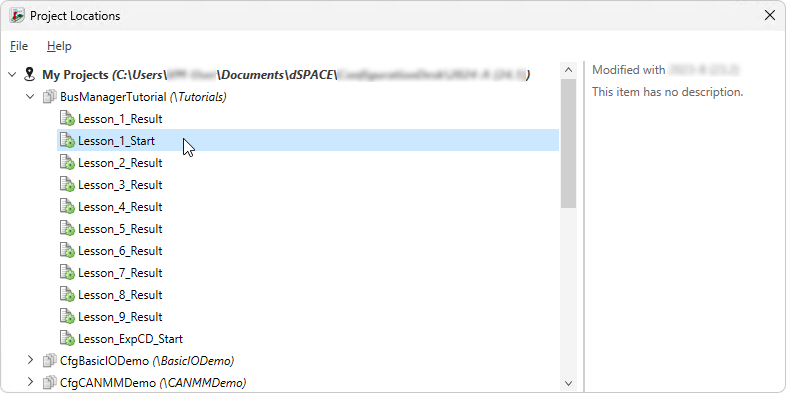
The Project Location Manager opens.
In the Project Location Manager, expand the BusManagerTutorial (\Tutorials\BusManagerTutorial) node and double‑click Lesson_1_Start.
Tip
If you work with the Bus Manager (stand-alone), only the BusManagerTutorial project is displayed in the dialog.
The BusManagerTutorial project is loaded. If you work with the Bus Manager in ConfigurationDesk, the Model-Function view set is displayed after loading the project has finished.
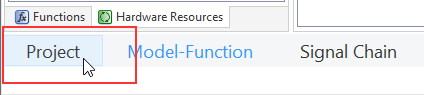
Only if you work with the Bus Manager in ConfigurationDesk: Switch to the Project view set.
In the Project Manager, click the expand arrow of BusManagerTutorial.
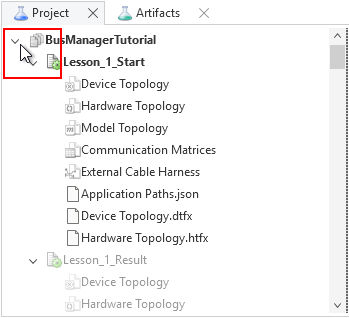
The BusManagerTutorial project node is expanded and all its applications are displayed.
Result
You opened the BusManagerTutorial project and the Project Manager displays the project and its applications. The Lesson_1_Start application is displayed in bold letters, i.e., this is the active application. You can now prepare the bus configuration tables for working with the Bus Manager tutorial. Refer to How to Prepare Bus Configuration Tables for Working with the Tutorial.