How to Activate an Application in the BusManagerTutorial Project
Objective
To work with a specific application of the BusManagerTutorial project, you have to activate it. The active application is displayed in bold letters.
Precondition
The BusManagerTutorial project is open.
Method: To activate an application in the BusManagerTutorial project
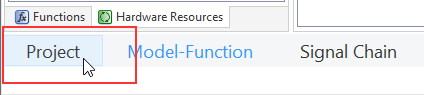
Switch to the Project view set.

Tip
If you use the Bus Manager (stand-alone), not all of the displayed view sets are available.
The Project Manager is open.
In the Project Manager, right-click the inactive application you want to activate.
On the context menu, select Activate Application.
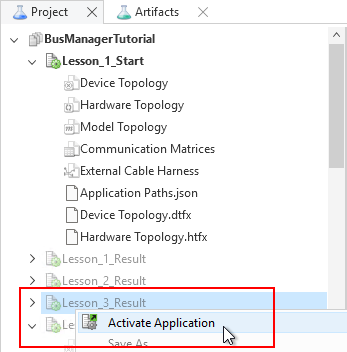
In the following cases, a dialog opens, asking you whether to save the currently active application before closing it:
The application contains unsaved changes.
The application was last saved with an older version of ConfigurationDesk or the Bus Manager (stand‑alone).
If such a dialog opens: Click Save.
The currently active application is saved and the selected application is activated. If you work with the Bus Manager in ConfigurationDesk, the Model-Function view set is displayed after activating the application has finished.
Only if you work with the Bus Manager in ConfigurationDesk: Switch to the Project view set.
Result
You activated the selected application. In the Project Manager, this application is displayed as the first node below the BusManagerTutorial project node. The previously active application is automatically deactivated. You can now use the active application, for example, as the starting point for a related subsequent lesson.
Note
Depending on the activated application, specific licenses are required. These licenses must be available and accessible.
For an overview of the required licenses, refer to Overview of Lessons.
For an instruction to identify the accessible licenses, refer to How to Identify Accessible Licenses.