Step 3: How to Build a Real-Time Application
Objective
To build a real-time application, first check the Conflicts Viewer for conflicts that affect the build process and/or the code generation for bus configurations. If no such conflicts exist, you can start the build process.
Part 1: To check the Conflicts Viewer for conflicts
In the Conflicts Viewer, click the expand arrow of the context set filter.
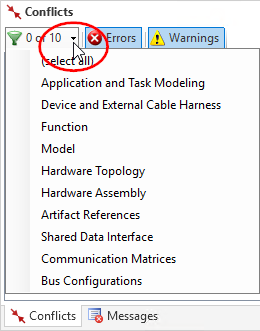
The context sets are displayed. In the illustration above, no context sets are selected.
Tip
The selection of context sets is stored locally on the host PC and applies to all ConfigurationDesk applications. The selection is preserved even when you close ConfigurationDesk or the Bus Manager (stand-alone). Therefore, the selected context sets in your ConfigurationDesk application might differ.
The Shared Data Interface context set is available only as of Bus Manager 26.3.
Make sure that at least the Application and Task Modeling, Function, Model, Hardware Topology, and Bus Configurations context sets are selected.
Make sure that the Errors and Warnings filters are selected.
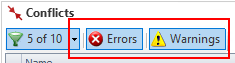
The Conflicts Viewer displays all conflicts of the selected context sets and filters. However, by specifying the hardware access, you automatically resolved the last conflicts of the active ConfigurationDesk application. Therefore, the Conflicts Viewer does not display any conflicts.
Click the context set filter.
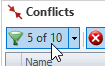
All context sets are cleared and the display of all ConfigurationDesk conflicts is disabled.
Note
For optimum performance, it is recommended to display conflicts only when and as long as required.
Interim result
You checked the Conflicts Viewer for conflicts that affect the build process and/or the code generation for bus configurations. Because no such conflicts exist, you can now build a real-time application. Continue with the next part.
Part 2: To build a real-time application
On the Home ribbon, click
 .
The build process starts. The Build view set is selected and the Build Log Viewer displays the progress of the build process in chronological order.
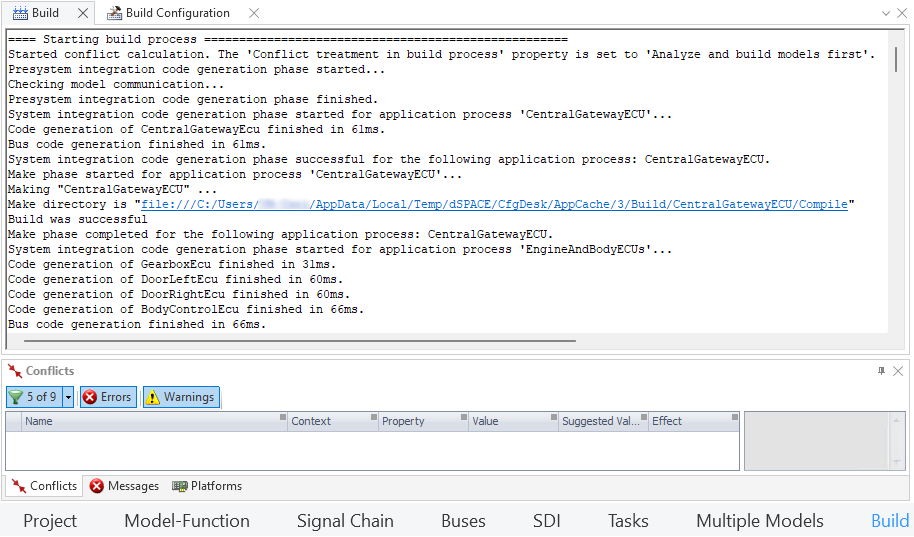
The Build Log Viewer informs you whether the build process finished successfully.
After the build process has finished, select the Project view set.
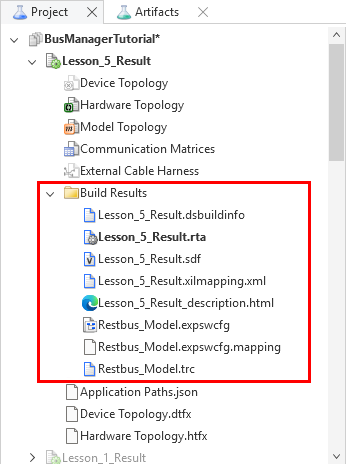
The Project Manager displays the BusManagerTutorial project and the active application. For this application, a Build Results folder is available, containing the files that were generated during the build process.
Result
You built a real-time application that includes the bus communication configured in the Restbus_BusConfiguration. The real‑time application can be used with SCALEXIO systems that match the hardware topology you used to specify the access to the real‑time hardware.
What's next
With this step, you finished the lesson. For a summary of the lesson and for more information, refer to Result of Lesson 5.