Step 1: How to Add a Communication Matrix to the ConfigurationDesk Application
Objective
To configure bus communication with the Bus Manager, you have to add one or more communication matrices to the ConfigurationDesk application.
Method: To add a communication matrix to the ConfigurationDesk application
Switch to the Buses view set.

Tip
If you use the Bus Manager (stand-alone), not all of the displayed view sets are available.
Right-click in the Buses Browser and select Add Communication Matrix on the context menu.
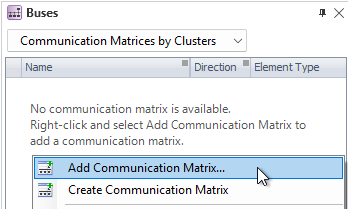
The Add Communication Matrix dialog opens.
In the dialog, navigate to the Communication Matrices folder of the BusManagerTutorial project. The path to the folder depends on your Bus Manager variant:
Bus Manager in ConfigurationDesk:
%USERPROFILE%\Documents\dSPACE\ConfigurationDesk\
<ReleaseVersion> (<ProductVersion>)\Tutorials\BusManagerTutorial\Communication Matrices
Bus Manager (stand-alone):
%USERPROFILE%\Documents\dSPACE\BusManager\
<ReleaseVersion> (<ProductVersion>)\Tutorials\BusManagerTutorial\Communication Matrices
Select
BusManager_Base_V1_0.arxmland click Open.The communication matrix is added to the ConfigurationDesk application and displayed in the Buses Browser.
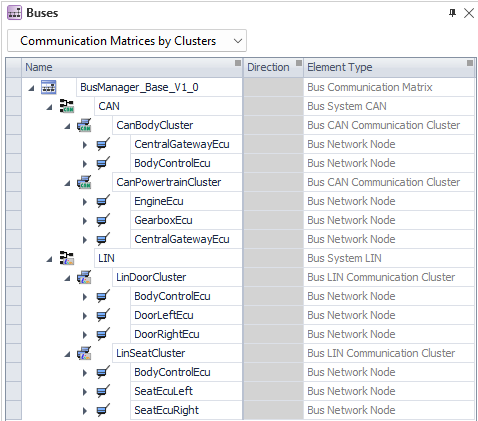
The Buses Browser displays the communication matrix elements sorted by communication clusters. The displayed network nodes let you access the bus communication of each ECU for only one cluster.
In the Buses Browser, explore the displayed communication matrix elements:
Click the expand arrow (
 ) of the elements to display their lower-level elements.
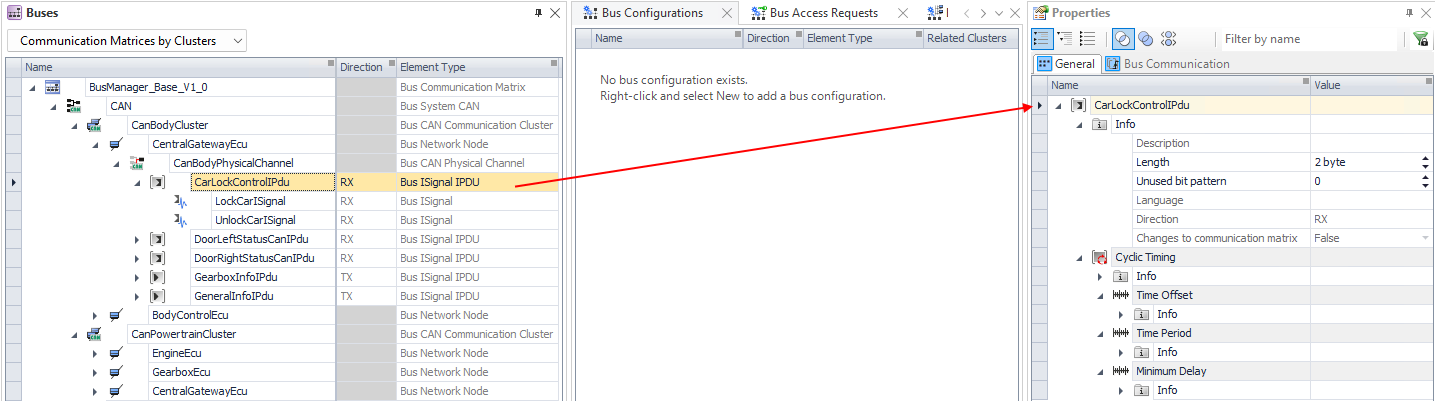
Select elements to display their properties in the Properties Browser.
In the Buses Browser, select Communication Matrices by ECUs.
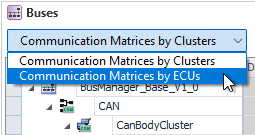
The Buses Browser displays the communication matrix elements sorted by ECUs. The displayed ECU nodes let you access the complete bus communication of each ECU, regardless of the involved communication clusters.
Result
You added the BusManager_Base_V1_0.arxml communication matrix from the Communication Matrices folder of the BusManagerTutorial project to the ConfigurationDesk application. Additionally, you explored the communication matrix elements and the different views of the elements in the Buses Browser.
Tip
You can back up ConfigurationDesk projects. When you do this, all files that are located in the respective project folder and its subfolders are automatically included in the generated ZIP archive.
What's next
In the next step, you will check the communication matrix for conflicts.