Step 1: How to Create a Project and an Experiment in ControlDesk
Objective
To start working with ControlDesk, you need a project and an experiment.
Part 1: To create a project and an experiment in ControlDesk
Start ControlDesk.
On the Start Page, click New Project + Experiment.
A dialog opens, displaying the Define a Project page.
On the Define a Project page, name the project CD_BusManagerTutorial.
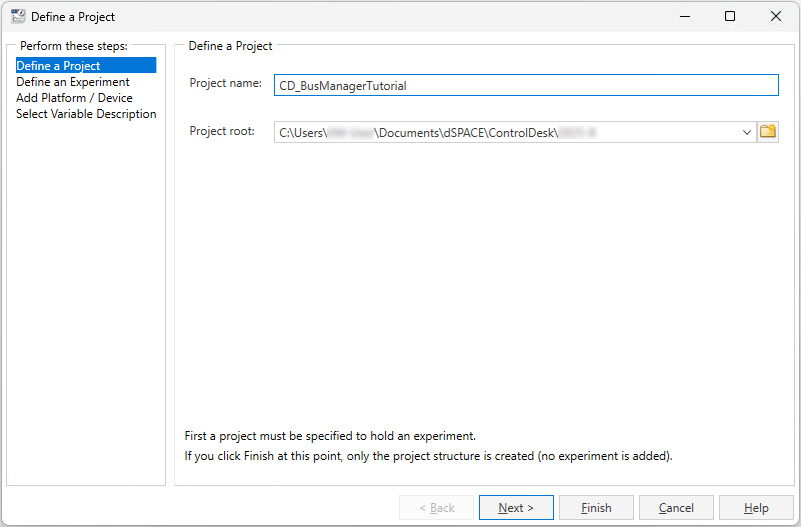
Click Next.
The Define an Experiment page opens.
On the Define an Experiment page, name the experiment Experiment_BusManagerTutorial.
Click Next.
The Add Platform / Device page opens.
On the Add Platform / Device page, select the registered platform, i.e., MicroAutoBox III, MicroLabBox II, SCALEXIO, or VEOS.
Click Next.
The Select Variable Description page opens.
On the Select Variable Description page, click Browse.
The Select Variable Description dialog opens.
In the dialog, navigate to the folder where you saved the real-time application or offline simulation application, i.e.:
Real-time application:
<ConfigurationDesk Documents folder>/Tutorials/BusManagerTutorial/Lesson_ExpCD_Start/Build ResultsOffline simulation application:
VEOS on Windows:
<VEOS Documents folder>VEOS on Linux:
~/BusManagerTutorial
In the folder, a Lesson_ExpCD_Start.sdf file is available.
Select the Lesson_ExpCD_Start.sdf file and click Open.
The dialog closes and the SDF file is displayed on the Select Variable Description page.
Click Finish.
The dialog closes and the project and experiment are created. The Project Manager displays the experiment and the selected platform, as shown in the following example.
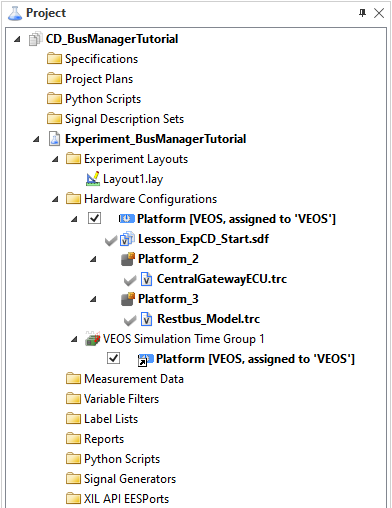
Interim result
You created a project and an experiment in ControlDesk. For an easier identification in the following steps of this lesson, you can now rename the platforms. Continue with the next part.
Part 2: To rename the platforms
Right-click the platform to which the CentralGatewayECU.trc file is loaded and select Rename Platform/Device on the context menu.
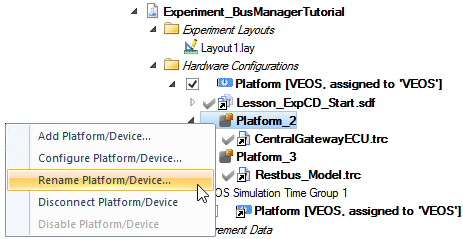
The Rename Platform/Device dialog opens.
In the dialog, specify CentralGateway_Platform as the platform name.
Click OK.
The dialog closes and the platform is renamed.
Rename the platform to which the Restbus_Model.trc file is loaded to Restbus_Platform.
Result
You created an experiment in ControlDesk and renamed the used platforms.
What's next
In the next step, you will prepare a layout for simulating LIN communication.