Step 2: How to Access AutomationDesk Data Objects in Python
Introduction
To parameterize sequences and automation blocks, you must use AutomationDesk data objects.
To access AutomationDesk data objects in Python, you can apply the _AD_ alias to a data object's name. This lets you address all data objects within the current object hierarchy path of the Exec block that contains the Python script. The name of a data object is resolved from lower to higher hierarchy level.
You can structure data objects by using data containers.
Your task
The task in this step is to calculate the radius of a circle specified by its area. The formula is:
The calculated result could be needed in the following automation tasks, so it must be written to a project‑specific data object.
Method: To access AutomationDesk data objects in Python
Add a new folder to the IntegratingPython project and rename it to AccessingDataObjects.
Click Home - Insert - DataContainer to add a data container to the folder and rename the data container to
CircleData.Select the CircleData data container and add two Float data objects to it. Rename them to
AreaInputandRadiusOutput.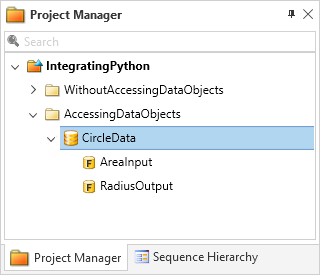
In the Data Object Editor, specify
160.0as the value of the AreaInput Float data object.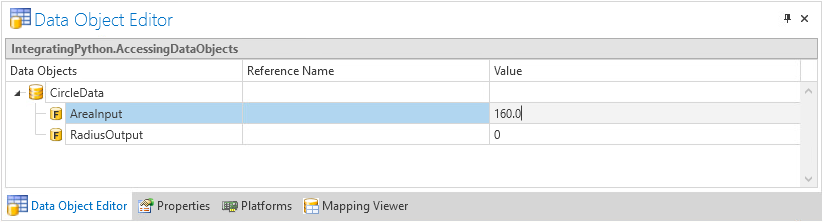
Optionally, you can specify
mas the unit of measure in the Description edit field.Add a new sequence to the AccessingDataObjects folder and rename it to Using_AD_.
Double-click the Using_AD_ sequence to open it in the Sequence Builder.
Click Home - Insert - Exec to add an Exec block to the sequence and rename the block to
CalculateRadius.From the block's context menu, select Set Python Namespace – Local.
The block icon changes to indicate that for its script execution the local namespace is used.
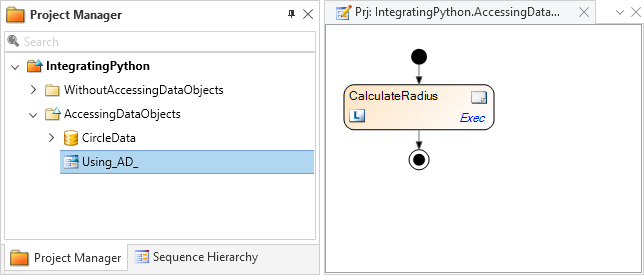
In the Sequence Builder, double-click the CalculateRadius block.
The CalculateRadius Python script is opened in AutomationDesk's Python Editor.
In the Python Editor, enter the following Python code:
_AD_.CircleData.RadiusOutput = math.sqrt(_AD_.CircleData.AreaInput / math.pi)
print("Area of circle     : ", _AD_.CircleData.AreaInput)
print("=> Radius of circle: ", _AD_.CircleData.RadiusOutput)
This script uses the
_AD_alias to access the AutomationDesk data objects. Within a structure of data containers, the data objects are addressed via their path.Tip
When you enter
_AD_.in the Python Editor you can select the data object name from the list of the currently available names.Alternatively, you can drag the data object's element from the Project Manager to the Python Editor to insert the related expression to the script.
Close the Python Editor to apply your input and save your project.
Executing the sequence
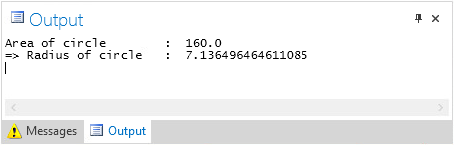
When you execute this sequence, the Exec block reads the values of the AreaInput project-specific data object. It calculates the related radius and writes it to the RadiusOutput project-specific data object. Then the RadiusOutput is printed to the Output Viewer.
Note
Using the _AD_ alias in Python is equivalent to referencing an data object in AutomtionDesk.
In the example above, the data objects in the CircleData data container could be used by other sequences that you add to the AccessingDataObjects folder. They cannot be used in sequences in the WithoutDataObjects folder.
The current values of the AutomationDesk data objects are saved together with their projects. When you reopen the projects, the last saved values are set.
The highest level of the object hierarchy path is always the current project. You cannot share data objects among projects.
What's next
In the next step you will learn how to integrate an existing Python library in AutomationDesk.