Step 1: How to Use Python Without Accessing Data Objects
Introduction
The task in this step is to print a header with information about the current test run to the Output Viewer. For this, no access to a project-specific data object is required. AutomationDesk provides the automation blocks Exec and ExecFile.
For each Exec block and ExecFile block, you can specify which Python namespace is used for name resolution, for example, for variable names:
If the local namespace is used, variables are accessible only in their specific blocks.
It is recommended to use the local namespace whenever possible. This avoids unwanted impact on other elements of your project.
The memory of allocated local variables is freed automatically when the block's execution is finished.
If the global namespace is used, variables are accessible across blocks and projects in the AutomationDesk session.
Once a global variable is set, you can access it in all currently opened AutomationDesk projects. Ensure that you have initialized the variable before you use its value.
To avoid memory shortage in large projects, you must free the memory of allocated global variables that are no longer required by setting them to None. For more information on what to consider when working with objects in the global namespace, refer to UsingCOMInAutomationDeskApplicationNote.pdf.
Unlike AutomationDesk data objects, the values of the global variables are not stored when you save a project.
Using an Exec block
An Exec block lets you specify Python code internally in AutomationDesk.
Method 1: To use Python code via an Exec block
In the Project Manager, create a new AutomationDesk project named
IntegratingPython.Add a new folder to the project and rename it to WithoutAccessingDataObjects.
Add a new sequence to the folder and rename it to UsingInternalScripting.
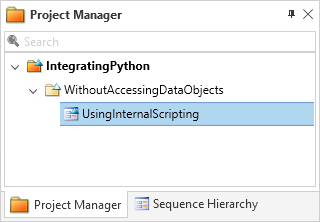
Double-click the UsingInternalScripting sequence to open it in the Sequence Builder.
On the Home ribbon, click Insert - Exec to add an Exec block to the sequence and rename the block
PrintHeader.From the block's context menu, select Set Python Namespace – Local.
The block icon changes to indicate that for its script execution the local namespace is used.
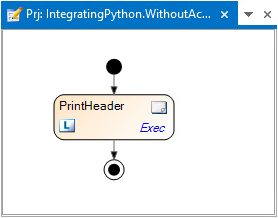
In the Sequence Builder, double-click the PrintHeader block.
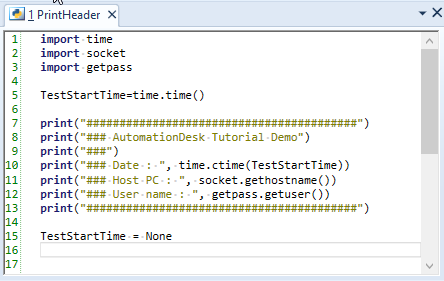
In the working area, AutomationDesk's Python Editor opens.
The default script contains a
passstatement that represents the Python code.In the Python Editor, replace the
passstatement with the following Python code:import time import socket import getpassTestStartTime=time.time() print("#########################################") print("### AutomationDesk Tutorial Demo") print("###") print("### Date : ", time.ctime(TestStartTime)) print("### Host PC : ", socket.gethostname()) print("### User name : ", getpass.getuser()) print("#########################################")TestStartTime = NoneThis script first imports the Python modules that are used later to determine the current time, the PC host name, and the login name of the user that executes the script. Then, a time stamp is assigned to a variable and a header is printed to the output. Finally, the variable set to
None.The Python Editor provides syntax highlighting as shown below:
Tip
AutomationDesk provides the Python Editor ribbon that contains commands that support you when scripting Python.
Close the Python Editor to apply your input and save your project.
Executing the sequence
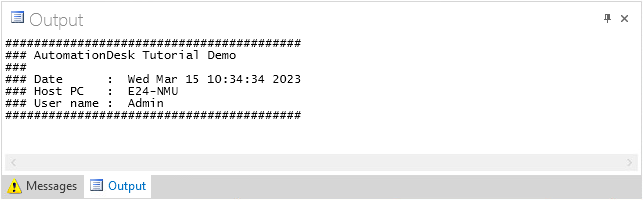
When you execute this sequence, AutomationDesk performs the Exec block's Python code. The specified header that contains a time stamp, the host PC name and the name of the current user is displayed in the Output Viewer.
Note
The Exec block's namespace contains Python built-in modules such as time. The modules' definitions can be used without explicitly importing them.
Python variables, such as TestStartTime in the previous example, are added to the local namespace that is valid until the block's execution terminates.
Using an ExecFile block
An ExecFile block lets you specify a PY file that is executed in AutomationDesk's namespace.
Prerequisites
Create a text file with the Python source code described above and save it as PrintHeader.py in your working folder
Method 2: To use an external Python file via an ExecFile block
In the Project Manager, add a new sequence to the WithoutAccessingDataObjects folder and rename it to ExecutingAnExternalPythonFile.
Double-click the ExecutingAnExternalPythonFile sequence to open it in the Sequence Builder.
From the Main Library in the Library Browser, drag a Basic Elements - ExecFile block to the sequence and rename the block to CallPrintHeaderScript.
From the block's context menu, select Set Python Namespace – Local.
The block icon changes to indicate that for its script execution the local namespace is used.
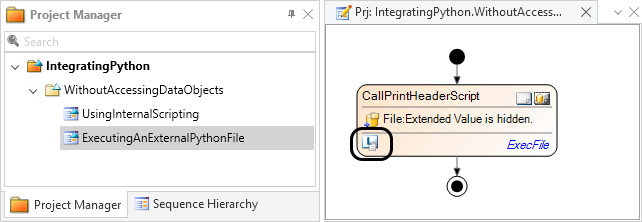
Select the ExecFile block in the Sequence Builder to show its data objects in the Data Object Editor.
Click the ... button in the Value column to open the File dialog.
Tip
You can choose how the Python file is referenced in this dialog. This can be useful if you want to export your AutomationDesk project to another PC.
Absolute Path means that the complete path of the Python file including the drive letter is stored.
Relative Path means that the path of the Python file relative to the location of your AutomationDesk project is stored.
Select
PrintHeader.pyfrom your working folder and click OK to close the dialog.Save the project.
Executing the sequence
When you execute this sequence, AutomationDesk executes the source code of the specified Python file. The same header as for the previous method is displayed in the Output Viewer.
Note
Dependencies on environment variables can be avoided if you include Python functions to get environment variables. Then you can, for example, create the string for the local file name of the Python script dynamically using an Exec block.
If you store the file name in a project‑specific File data object, you can reference it from the ExecFile block.
The Python file is not included in the AutomationDesk project. If you want the content of a Python script to be managed by AutomationDesk, you have to use Exec blocks or you integrate your Python module in a custom library as shown later.
To make the test execution reproducible, you can add the Python file to the generated report by inserting an AddURL block from the Report library in your sequence. You can decide whether the link in the report refers to the original file location or to a copy of it. The copied file is created in the corresponding result folder of the AutomationDesk project.
What's next
Now you know how to use Exec and ExecFile blocks to execute Python source code without accessing AutomationDesk data objects. In the next step you will learn how to realize data exchange.