Step 4: How to Synchronize a Sequence Created With Custom Library Elements
Introduction
By default, the linked instances of templates that you use in your project are dynamically linked to the related templates in the custom library. Modifications in the templates' control flows take effect immediately. Synchronization is necessary only if a template's interface was modified.
In larger projects, it can be helpful to locate the linked template in its custom library.
Synchronization ranges
Synchronization can be started on different hierarchy levels in the Project Manager. For example, if you execute the Synchronize command on a folder element, all subordinated sequences update their custom templates according to their library links.
The Synchronize command is also available in the Sequence Hierarchy Browser and in the Sequence Builder.
Part 1: To locate the linked template of an element
Open the UsingBlockTemplates sequence in the Sequence Builder.
Select the StartOfTest block.
The block is marked with a red frame.
From the block's context menu, select Locate Element in Library.
The StartOfTest_Template is highlighted in the Library Browser.
Continue with next part
You located the linked template of the StartOfTest block.
To show the effects of the synchronization mechanism, you can edit the subsequence template in the next part.
A Color data object is added to the subsequence's interface to parameterize the color of the message that is printed to the Output Viewer.
Part 2: To modify the interface of the subsequence template
In the Library Browser, double-click the StartOfTest_Template element.
The template is opened in the Sequence Builder. To indicate that this is a template and not a sequence, the background of the Sequence Builder is colored.
In the Library Browser, select a Color data object from the Report library and drag it to the Sequence Builder.
A Color data object with the default value of
(0, 0, 0)is added to the template. It is displayed in the Sequence Builder and in the Library Browser.If the Color data object isn't displayed in the Sequence Builder, click Sequence Builder - Show all on the View ribbon.
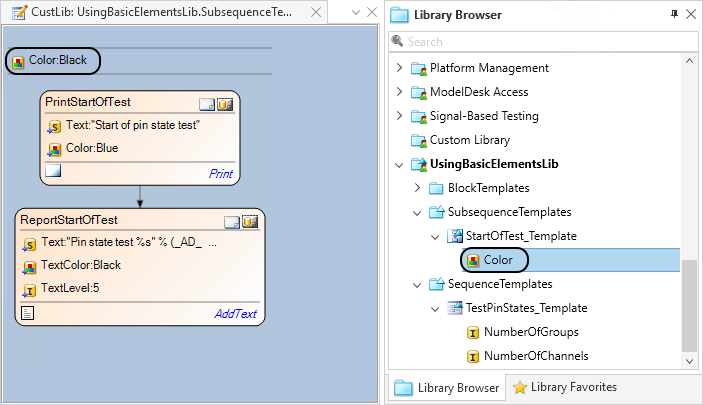
The template's parameterization is displayed in the Data Object Editor.
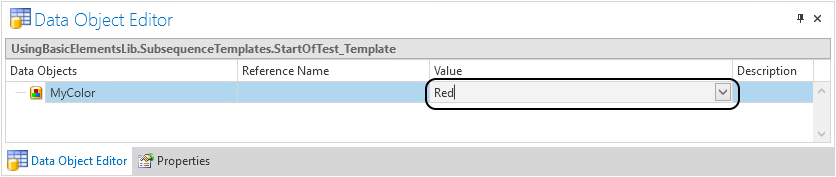
In the Data Object Editor, select the Color data object and press F2 to rename the data object to
MyColor.In the Value edit field of the MyColor data object, select Red from the provided list of colors.
In the Sequence Builder, select the PrintStartOfTest block.
The block is marked with a red frame. The block's parameterization is displayed in the Data Object Editor.
In the Data Object Editor, enter
MyColorin the Reference name edit field of the Color data object.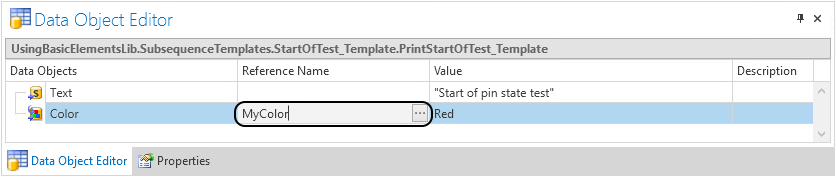
A value Red is displayed in the Value column of the Color data object, which is the value of the referenced data object.
Continue with next part
Because the interface of the template is modified, an execution of the UsingBlockTemplates sequence would terminate with an error message. You have to synchronize the sequence with its linked templates in the custom library.
Part 3: To synchronize a sequence in the Project Manager
In the Project Manager, select the UsingBlockTemplates sequence.
On the Library ribbon, click Library Link - Synchronize to activate the update mechanism for the sequence.
What's next
You changed the interface of a subsequence template that was dynamically linked to a sequence and then you synchronized the sequence.
For a summary of the lesson's exercises, refer to Results of Lesson 5.