Step 3: How to Use Sequence Templates
Introduction
In this step, you reuse the sequence that you implemented in the previous lessons for analyzing an electronic device with 8-bit digital outputs.
The template of this sequence provides data objects to parameterize the number of groups and channels. With these, an instance of its sequence template can also be used to analyze other digital interfaces, for example, one with a 16-bit output.
In the sequence template, the representation of the digital output is the two-dimensional list named PinStatesUnderTest, which is addressed via the _AD_ alias. To specify a 16-bit variant of this list, a project-specific data object with the same name is needed. It is located in the same folder as the new instance of the sequence.
Part 1: To create the project-specific list that represents a 16-bit output
In the Project Manager, from the context menu of the UsingTemplates folder, select New Data Object - List to create a new data object of list type.
The new data object is displayed in the folder.
Rename the new data object to
PinStatesUnderTest.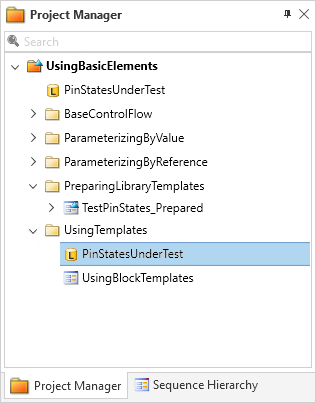
Double-click the PinStatesUnderTest data object to open it in the Value Editor.
In the Value edit field, replace the
[]with the following two-dimensional list:[[0, 1, 0, 1, 1, 0, 1, 0], [1, 1, 0, 0, 1, 0, 1, 1]]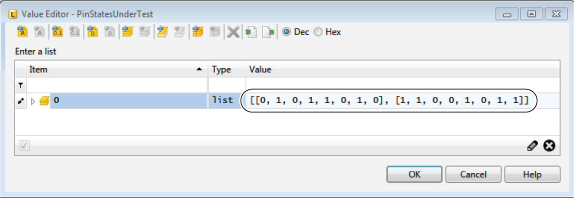
Click OK to close the Value Editor.
Continue with the next part
You created the list that represents the 16-bit digital output.
In the next part, you create the new sequence for analyzing the list and parametrize the new sequence with the new number of groups and channels.
Part 2: To create a new sequence using a sequence template
From the UsingBasicElementsLib custom library, drag the TestPinStates_Template sequence template to the UsingTemplates folder in the Project Manager.
A new sequence with the same name as its sequence template is added to the folder. The
 icon extension of the sequence indicates that it is linked dynamically to its template in the Custom Library.
Rename the new sequence to
TestPinStates.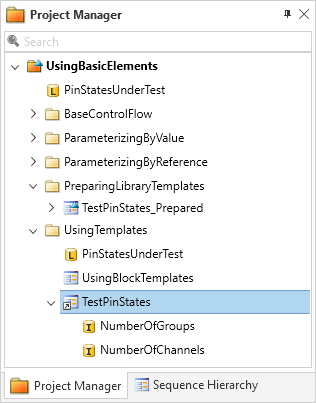
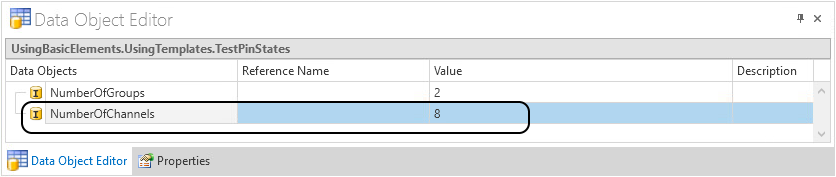
In the Data Object Editor, change the Value of the NumberOfChannels data object to 8.
Executing the sequence
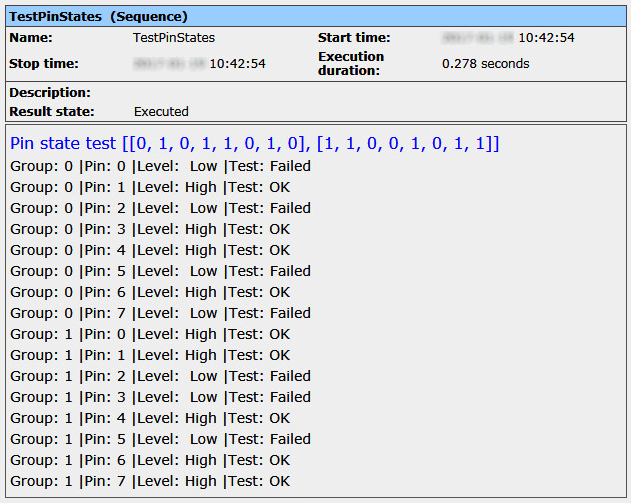
When you execute this sequence, the control flow as implemented in the template is processed. Due to the parameterization of the data objects in the sequence's interface, the analysis is performed for the complete 16-bit digital output as show in the report below.
What's next
You created and parameterized an instance of a sequence template.
Until the automation blocks of a sequence are linked to the corresponding library element, you can synchronize the automation blocks after modifying library elements. The next step will describe how to do this.