Step 5: How to Create a Sequence Template
Introduction
For a reusable sequence template, it is helpful, to gather the data objects that are required for parameterization in the template's interface. In your project, this applies to NumberOfGroups and NumberOfChannels.
Method: To create a sequence template
In the Project Manager, keep the Ctrl button pressed while you select the data objects NumberOfGroups and NumberOfChannels in the PreparingLibraryTemplates folder.
Drag the multi-selected data objects to the TestPinStates_Prepared sequence in the Project Manager.
This changes the location of the data objects in the project's hierarchy.

The data objects now represent the interface of the sequence.
In the Library Browser, create a library folder in your custom library and rename it to
SequenceTemplates.In the Project Manager, select the TestPinStates_Prepared sequence and drag it to the SequenceTemplates library folder in the UsingBasicElementsLib library.

The new TestPinStates_Prepared sequence template is displayed in the library.
In the Library Browser, rename the new template to
TestPinStates_Template.This is not mandatory, but descriptive naming makes it easier to distinguish templates from their prototypes.
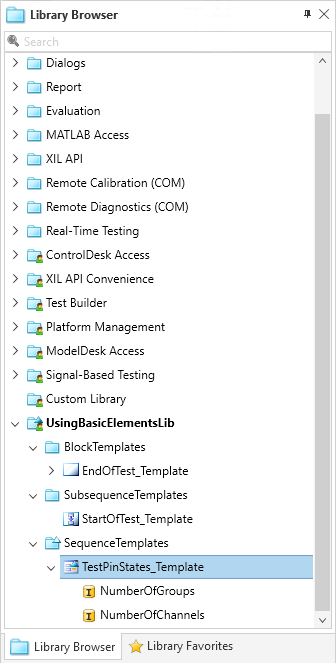
Right-click the UsingBasicElementsLib custom library node and choose Save from the context menu.
Your modifications of the custom library are saved.
Result
If you open the TestPinStates_Template sequence template, you will see that both set and referenced data objects remain in the template sequence.
Note
All new elements of the custom library nodes, for example, custom library folders or custom automation blocks, are inserted only temporarily if you do not save them.
When you exit AutomationDesk you are prompted to save modifications of the custom libraries.
What's next
The next step shows how to make your custom library available to your colleagues.