Step 4: How to Create a Subsequence Template
Introduction
If you can identify reusable subsequences in your automation task, it is possible to save them in your custom library folder. The new subsequence template contains each of the specified subordinated automation blocks.
In your project, the StartOfTest Serial block can be used as a standard action to indicate the start of a test. If you save this subsequence in your custom library, you can use it in other sequences without implementing it each time.
Method: To create a subsequence template
Open the TestPinStates_Prepared sequence in the Sequence Builder.
If not already present, the TestPinStates_Prepared sequence is displayed in the Sequence Hierarchy Browser.
In the Library Browser, create a library folder in your custom library and rename it to
SubsequenceTemplates.In the Sequence Hierarchy Browser, select the StartOfTest Serial block.
Drag the block from the Sequence Hierarchy Browser to the SubsequenceTemplates library folder in the UsingBasicElementsLib library.

The new StartOfTest subsequence template is displayed in the library.
In the Library Browser, rename the new template to
StartOfTest_Template.This is not mandatory, but descriptive naming makes it easier to distinguish templates from their prototypes.
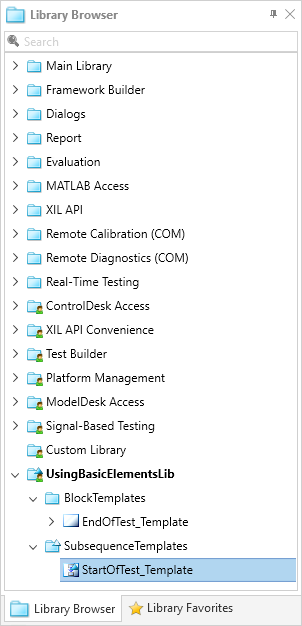
Result
If you open the StartOfTest_Template subsequence template, you can see that its parameterization is the same as the parameterization of the PrintStartOfTest prototype serial.
What's next
You can also create templates from complete sequences in the next step.