Step 2: How to Create a New Custom Library
Introduction
The Library Bowser contains a custom library node by default.
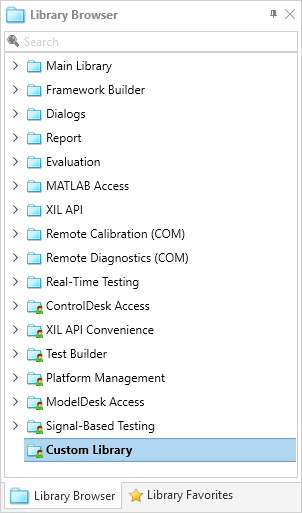
You can fill the default custom library with your custom automation blocks and sequences, or you can create additional custom libraries to improve organization.
In this step, we create a new custom library, fill it with a new library folder, and save the changes.
Part 1: To create a new custom library
On the Library ribbon, click Custom Library - New to open the Create Custom Library dialog.
Navigate to your working folder, for example,
<DocumentsFolder>\MyWorkingFolder.Type
UsingBasicElementsLibin the File name edit field and click Create.The new custom library is displayed in the Library Browser.
Continue with next part
Now there is a new custom library named UsingBasicElementsLib in the Library Browser.
To create library folders for your new custom library, continue with the next part.
Part 2: To create library folders in the new custom library
Right‑click the UsingBasicElementsLib node and select New Library Folder from the context menu.
A new library folder named LibraryFolder is displayed in the Library Browser.
Select the new library folder, press F2, and rename it to
BlockTemplates.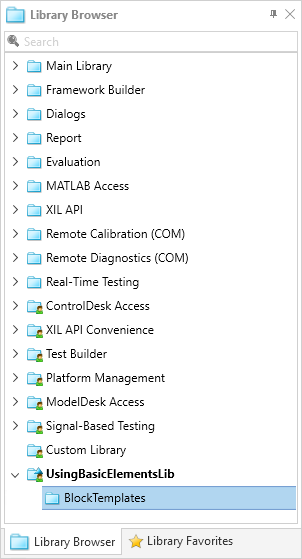
Continue with next part
You created a new library folder.
Note
All new elements of the custom library nodes, for example, custom library folders or custom automation blocks, are inserted only temporarily if you do not save them.
When you exit AutomationDesk you are prompted to save modifications of the custom libraries.
In the next part, you save the new library.
Part 3: To save a custom library
In the Library Browser, from the custom library's context menu select Save.
What's next
You created a new custom library.
Now you can add reusable templates to it. The next step shows how to do this for a parameterized automation block.