Step 2: How to Specify Report Parameters
Introduction
If you want to generate a report from an execution result, you have to specify some report parameters beforehand.
Output formats
A report is based on the result data stored in XML format. Depending on the style sheet used, you can generate the report in HTML or PDF format.
Available style sheets
The standard style sheets provide a default layout of the reports. If you want to use a different layout, you can use a custom style sheet. Examples of custom style sheets can be found at <DocumentsFolder>\Custom Report Stylesheets. You can change the alignment of the logo and replace the default logo with another no matter which style sheet is selected.
Report attributes
The report can contain predefined information data, such as the name of the reported element. These data are called attributes. There are standard attributes, which are provided by the execution result for a sequence, and additional attributes. With the additional attributes you can add the following information to a report:
Project and folder information
Content of report blocks in the executed sequence (project, folder, sequence)
Descriptions of all elements included in the report
Result states of all elements included in the report (passed, failed, undefined, executed)
Report parameters
The above report parameters can be specified on the Report page of the AutomationDesk Options dialog. They are used the next time a report is generated.
Method: To specify report parameters
On the File ribbon, click Options to open the AutomationDesk Options dialog.

Switch to the Report page of the AutomationDesk Options dialog.
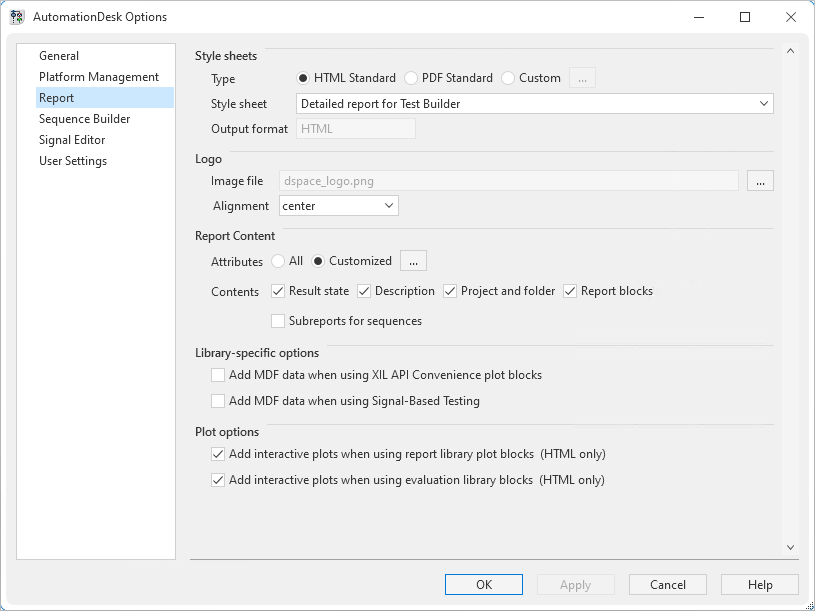
Select the HTML Standard style sheet type to generate reports with the AutomationDesk standard layout in HTML format.
Select Classic report as the style sheet for the report.
In the Report Content frame, select the Customized option and click the … Browse button.
The Define Report Header dialog opens.
In the Available Attributes list, select the StopTime attribute and click the Shift Right button (
 ) to move it to the Visible Attributes list.
In the same way, move the LibraryLink attribute to the Available Attributes list using the Shift Left button (
 ).
).If you generate a report, the specified Visible Attributes will now be displayed in it.
Select the ExecutionDuration attribute in the Visible Attributes list and click the Shift Down button (
 ) until it is displayed at the bottom of the list.
This setting specifies the order of the attributes in the report.
Click OK to close the dialog.
In the Contents group of the Report Content frame, select the Description checkbox .
The descriptions which you have entered in the Properties pane for a Project, Folder and Sequence are added to the report.
The default options for the attributes remain unchanged.
You have specified the report parameters. These settings are used for the next report generation.
What’s next
You can now start the report generation in the next step.