Step 6: How to Access the Value of Data Objects via the _AD_ Alias
Introduction
To access the value of a data object in a Python expression, you can prefix the name of the data object with the _AD_ alias that is provided by AutomationDesk.
Specifying conditions
In this step, you will learn how to specify the condition of an IfThenElse block. The condition has to be defined as a Python expression.
In our automation sequence, the condition of the IfThenElse block involves checking if the current output signal is of high level. The value we have to check is defined by its position in the list array. The position is specified by the current counters of the two for-loops.
Part 1: To specify the condition of the IfThenElse block


Open the TestPinStates_ByReference sequence in the Sequence Builder.
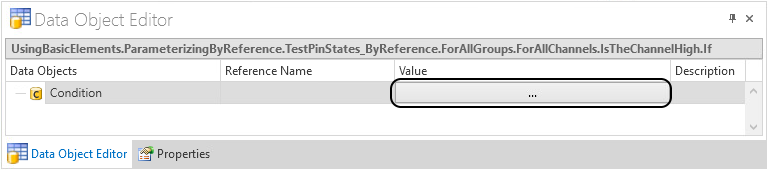
Select the If branch of the IsTheChannelHigh block to show its data objects in the Data Object Editor.
Click the Browse button in the Value column of the Condition data object to open the Condition Editor.
In the Condition Editor, replace
Falseby the following Python expression:_AD_.PinStatesUnderTest [int(_AD_.CurrentGroup)-1] [int(_AD_.CurrentChannel)-1] == 1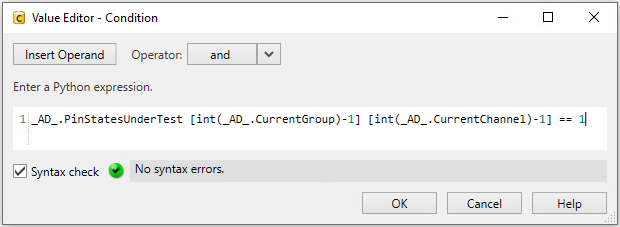
The project-specific two-dimensional list
PinStatesUnderTestrepresents the actual pin states. The indices to access the list are determined by the current values of the nested for-loops. The variables are accessed via the _AD_ alias.Press OK to close the Condition Editor.
Continue with the next part
You specified the condition of the IfThenElse block. It checks whether the value at the current position in the two-dimensional list of the output channels is equal to 1, which represents a High level.
In the next part, you add blocks to the sequence, that report the found output level.
Part 2: To add blocks for reporting
In the Library Browser, select the AddText block in the Report library.
Drag an AddText block to the Sequence Builder and drop it to the Operation field of the If path of the IsTheChannelHigh block
Rename the new block to
ReportTestOK.Drag another AddText block to the Operation field of the Else path and rename it to
ReportTestFailed.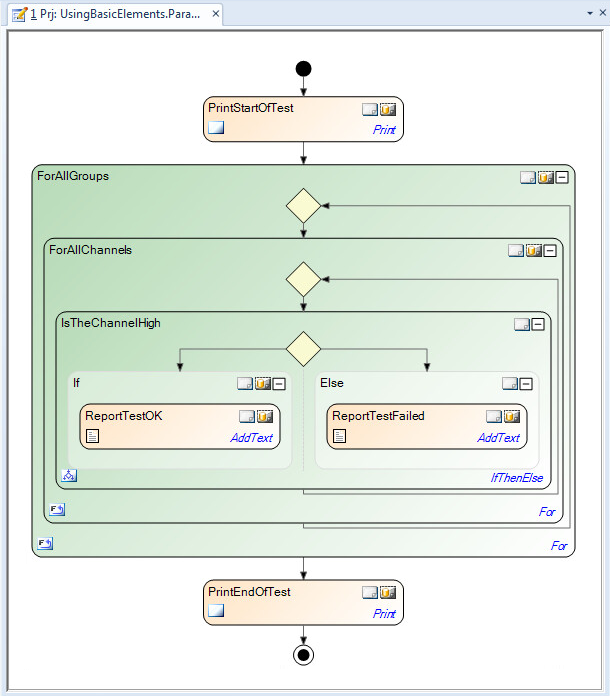
Continue with the next part
The sequence now contains the blocks for reporting.
In the next part, you specify the text to be reported via a Python expression with a format string. The current position in the two-dimensional list is determined via the _AD_ alias.
Part 3: To integrate data object values in a text
In the Sequence Builder, select the ReportTestOK block.
In the Data Object Editor, the parameterization of the selected block is displayed.
In the Data Object Editor, double-click the Data Objects column of the Text data object.
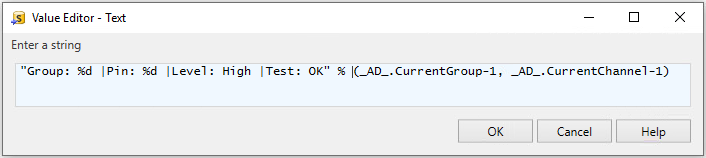
The Text data object is opened in the Value Editor
Enter the following Python expression and click OK:
"Group: %d |Pin: %d |Level: High |Test: OK" % (_AD_.CurrentGroup-1, _AD_.CurrentChannel-1)The text to be added to the report is formatted via a format string. The contained variables are accessed via the _AD_ alias.
In the same way, enter the following Python expression for the Text data object of the ReportTestFailed:
"Group: %d |Pin: %d |Level: Low |Test: Failed" % (_AD_.CurrentGroup-1, _AD_.CurrentChannel-1)
What’s next
In your sequence, you parameterized an automation block via Python expressions. The sequence is now ready to be executed.
To compare your work with the result you wanted to achieve, refer to Results of Lesson 2.