Step 2: How to Use an Existing Sequence
Introduction
This step explains how to use an existing sequence. You will generate a new project folder and copy an existing sequence into it.
Part 1: To add another folder to your project
In the Project Manager, click UsingBasicElements to select your project.
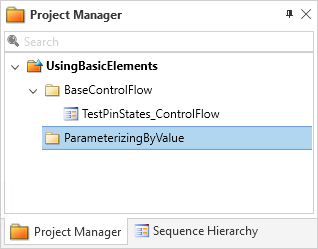
On the Home ribbon, click Insert - Folder. The new Folder element appears as a child of the project tree's root element in the Project Manager.
Select Folder, press F2 and overwrite the folder's name with
ParameterizingByValue.Press Enter to apply the new name.
Continue with next part
You added another folder to your project. You can now copy and rename the existing sequence in the next part.
Part 2: To copy an existing sequence to a folder
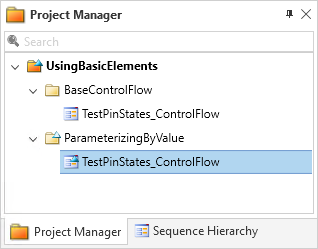
Select the TestPinStates_ControlFlow element in the Project Manager. Hold down the Ctrl key and drag the sequence from the BaseControlFlow folder to the ParameterizingByValue folder. The ParameterizingByValue folder now also contains the TestPinStates_ControlFlow sequence.
Tip
Alternatively, you can use the copy & paste shortcut keys to copy the sequence. Select TestPinStates_ControlFlow in the Project Manager. Press Ctrl+C to copy the sequence to the Clipboard. Select the ParameterizingByValue folder in the Project Manager. Press Ctrl+V to paste the sequence into the folder.
In the Project Manager, rename the sequence to
TestPinStates_ByValue.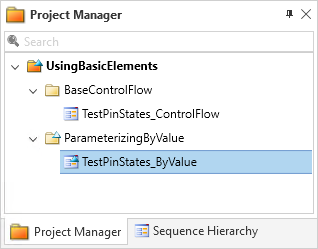
What’s next
You can modify the properties of an automation block in the next step.