Results of Lesson 1
Results
If you have performed all the steps in this lesson, your AutomationDesk project should look like this:
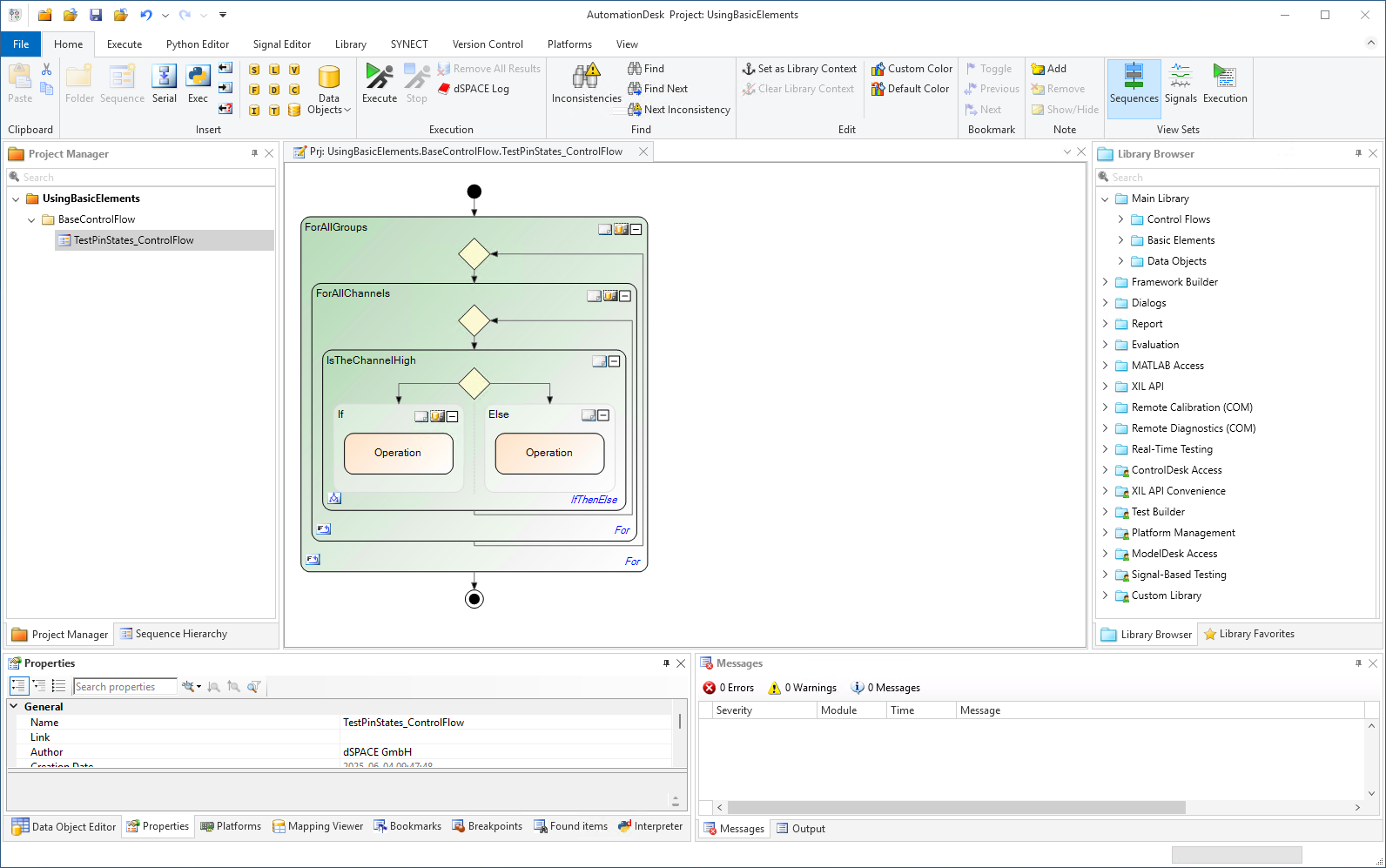
In this lesson, you learned how to create an AutomationDesk project. First you generate a new project. To structure it, you can add a new folder to it. Having created a new sequence, you edit the sequence. You build the control flow in the graphical editor Sequence Builder by dragging automation blocks from the Library Browser. To get an abstract or a detailed view of the sequence, you can collapse or expand subordinated elements. To keep your project available for further AutomationDesk sessions, you must save it. To complete your work, you close the project.
Prepared Demo
The result of this lesson is stored in the prepared demo project Tutorialdemo01.adpx. You can find the demo file at <DocumentsFolder>\Tutorial Demos.
Further information
For detailed information about the commands used, refer to Commands And Dialogs.
For detailed information about the automation blocks used, refer to Automation Blocks.
For information about basic principles of AutomationDesk and detailed descriptions for handling automation projects, refer to Managing Projects.
What’s next
The next lesson shows you how to parameterize your automation sequence.