Step 7: How to Close a Project
Introduction
This step shows you how to close a project. When it is closed, the project tree will disappear from the Project Manager. All related charts and views in the Sequence Builder will also be closed.
Tip
Before you close your project, you should compare your workings with the result of this lesson. Refer to Results of Lesson 1.
Method 1: To close a project
Select UsingBasicElemets in the Project Manager.
On the Quick Access Toolbar, click Close Project to close the active project.
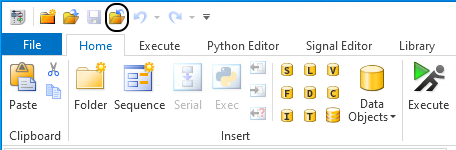
The active project and all its elements are closed.
Closing all open projects
AutomationDesk enables you to close all opened projects, both the active one and the nonactive ones in a single step.
Method 2: To close all projects
On the File ribbon, click Close All Projects to close all the opened projects in parallel.
What’s next
Now you can compare your work with the result you should have achieved. Refer to Results of Lesson 1.