Step 4: How to Edit a Sequence
Introduction
This step shows you how to open a newly created sequence and use AutomationDesk's Sequence Builder, which is the graphical editor for building automation sequences.
The typical functions needed to handle automation tasks are provided graphically in the form of automation blocks. Each block is placed in a structured library that can be managed via AutomationDesk's Library Browser. The Library Browser contains all the reusable automation steps stored in both predefined and user-defined libraries. You can find the Library Browser on the right side.
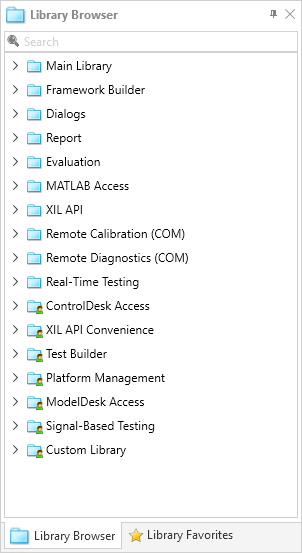
A control flow is created by dragging the required automation elements successively from the Library Browser to the Sequence Builder.
To design the base control flow for your first sequence, reconsider the task to be implemented: Eight digital output channels of an electronic device are to be tested whether they are high or low. The relevant pins are arranged in two groups of four bits each.
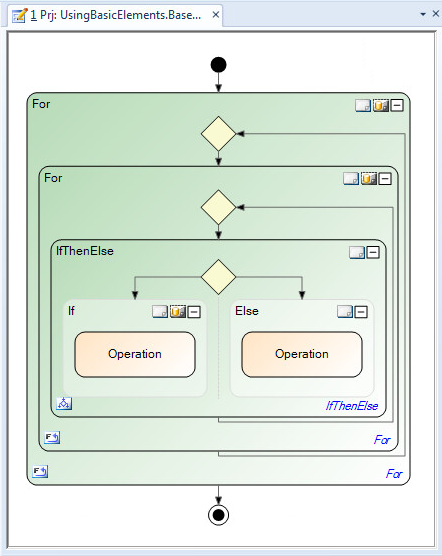
To implement this task, the appropriate control-flow consists of two nested for loops and a conditional part that depends on the pin state high or low.
You will now open the TestPinStates_ControlFlow sequence in the Sequence Builder and build this control-flow in your first automation sequence.
Part 1: To open a sequence
Double-click TestPinStates_ControlFlow in the Project Manager.
Tip
Alternatively, you can open the sequence in the Sequence Builder by right-clicking TestPinStates_ControlFlow in the Project Manager and selecting the Open Sequence Builder command.
Continue with next part
You opened the TestPinStates_ControlFlow. You can now build the base control-flow in the automation sequence.
Part 2: To build the base control-flow in the automation sequence
In the Library Browser, open the Control Flows folder of the Main Library and select the For automation block.
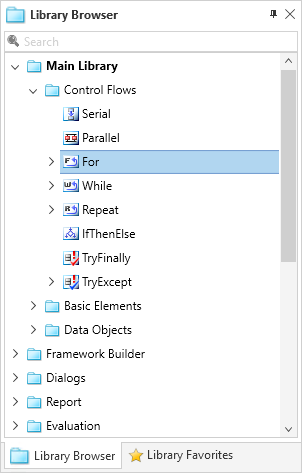


Drag the For block to the Sequence Builder. A new instance of the For block is displayed in the Sequence Builder.
This For block implements the for loop for the groups.
Tip
AutomationDesk indicates a valid drop position by a small red marker.
In the Library Browser, select the For block from the Control Flows folder and drag it to the Sequence Builder. Drop the block onto the Operation field of the already added For block.
The two For blocks are nested. The new inner For block implements the for loop for the pins within a group.
In the Library Browser, select the IfThenElse block from the Control Flows folder and drag it to the Sequence Builder.
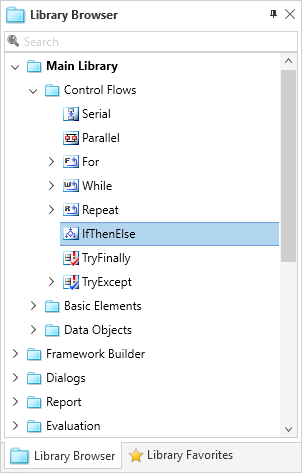
Drop the block onto the Operation field of the inner For block.
The IfThenElse block allows you to specify a condition that analyzes the value of the digital I/O pins. It provides two operation blocks that can be filled with other automation blocks. Which path is executed depends on whether or not the condition is met.
What’s next
You have built the base control-flow in the automation sequence.
You can navigate in the sequence in the next step.