Step 2: How to Structure a Project
Introduction
A project's hierarchical structure is built by adding project folders to the project tree and by renaming them.
In the first five lessons of this tutorial, we will successively implement a folder structure for your project that lets you reconstruct the main learning steps.
You will now add a folder named BaseControlFlow to your project.
Part 1: To add a new project folder to a project
In the Project Manager, click UsingBasicElements to select your project.
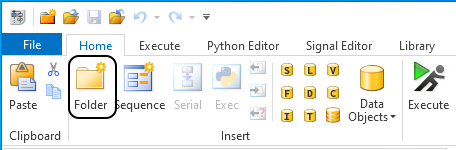
On the Home ribbon, click Insert - Folder to create a new folder.
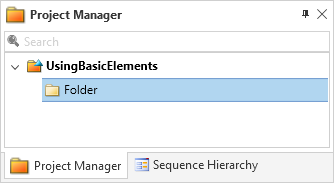
The new project folder is displayed as a child of the project tree's root element.
Continue with next part
You added a new folder to the project. In the next part, you rename the project folder.
Part 2: To rename a folder
Right-click Folder in the Project Manager to open the context menu of the new folder and choose View Properties.
If not already open, the Properties pane opens to display the properties of the new folder. By default, the Properties pane is located in the bottom left corner of the AutomatinDesk UI.
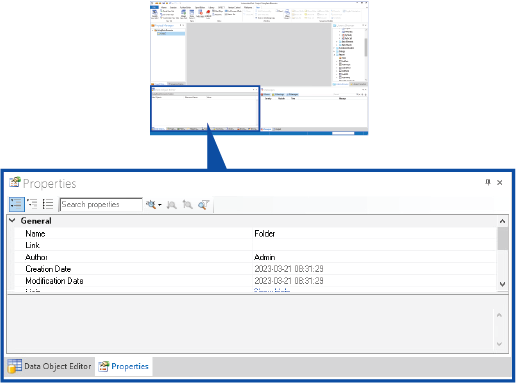
Adjust the size of the pane to display all properties.
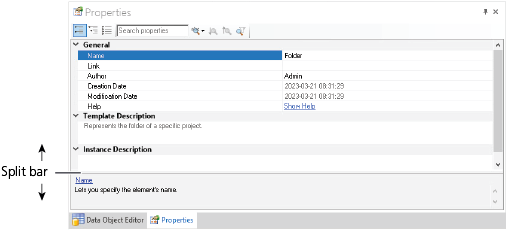
The Properties pane is divided horizontally into two parts. The upper part provides the properties grouped by categories. If you select a specific property here, a short description of the property is displayed in the lower part of the pane.
Tip
Via a split bar, you can adjust an appropriate partitioning of the pane.
In the Name edit field, type
BaseControlFlowto rename the folder.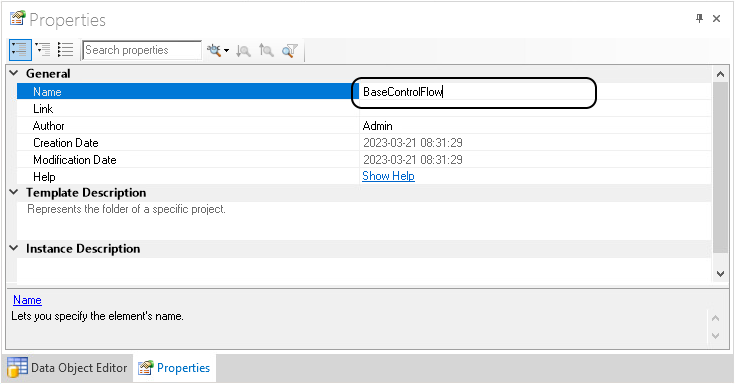
After you pressed Enter or changed the focus to another element the modified name displays in the Project Manager.
Alternative method
Tip
Alternatively, you can rename a project folder by selecting it in the Project Manager, pressing F2 and overwriting the existing name.
What’s next
You can add a new sequence to the project in the next step.