Step 1: How to Create a New Project
Introduction
An AutomationDesk project contains all the relevant parts and information that belong to an automation task. These are the project elements:
Automation sequences
Data objects
Structure elements
Execution results
Reports
All the elements are specified in the AutomationDesk project file (ADPX file) and its corresponding subfolder. AutomationDesk's Project Manager displays the contents of the project file and can be used to add new project elements and work with them.
Method: To create a new project
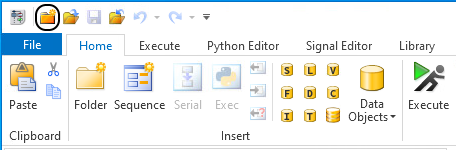
On the Quick Access Toolbar, click New Project to open the New Project dialog.
Tip
You can also open the New Project dialog. There are the following ways to do this:
In the Project Manager, right-click a blank field to open the context menu and select New Project.
On the AutomationDesk Start Page, select New Project.
On the File ribbon, select New - New Project.
In the New Project dialog, create a new folder on your local disk, such as
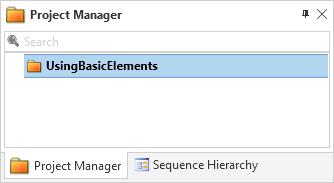
<DocumentsFolder>\MyWorkingFolder. Change to the folder and typeUsingBasicElements.adpxin the File name edit field, then click Create.The new project now is displayed as the root element of a project tree in the Project Manager.
What’s next
You can structure the project in the next step.