User Interface of AutomationDesk
Introduction
To work with AutomationDesk via its user interface, you must know its graphical components and the functionality they provide.
Basics
AutomationDesk provides its controls in several ribbons and panes. Some panes are arranged into view sets that match a task you want to perform. You can show or hide the different panes independently.
Independently of the panes, some AutomationDesk components open object-specific pages in the working area at the center of the screen.
For some object types, AutomationDesk provides specific edit dialogs.
For general information on handling the user interface and detailed instructions on customizing the screen layout, refer to Customizing AutomationDesk's User Interface.
Overview of the default view sets
By default, AutomationDesk provides the following task-specific view sets:
- Sequences view set
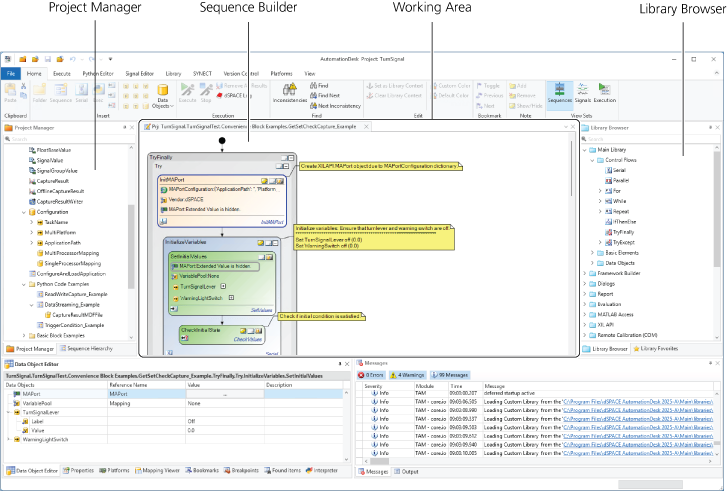
The Sequences view set is suitable for implementing and configuring automation tasks.
The following illustration shows the appearance of the Sequences view set when the Home ribbon is selected. The Project Manager displays the elements of an opened project and, in the working area, one of the project's sequences is open so it can be edited on a Sequence Builder page.
- Signals view set
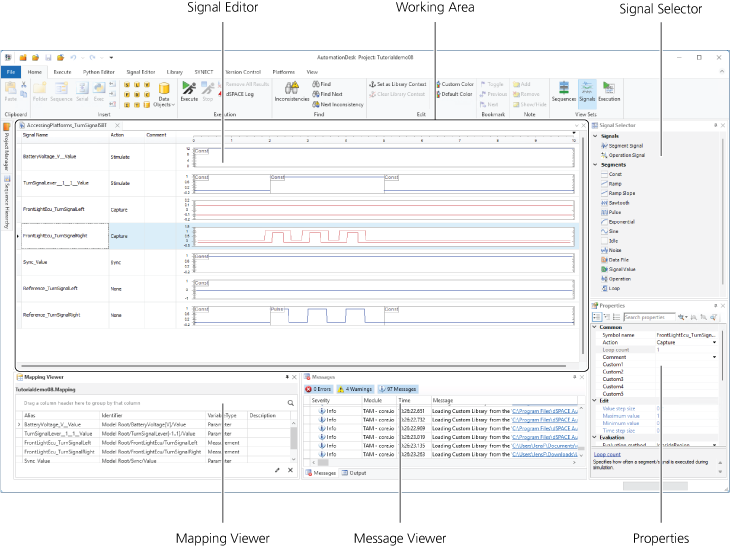
The Signals view set is suitable for configuring signal description sets.
The following illustration shows the appearance of the Signals view set when the Signal Editor ribbon is selected. In the working area, a signal description set is open so it can be edited on a Signal Editor page.
- Execution view set
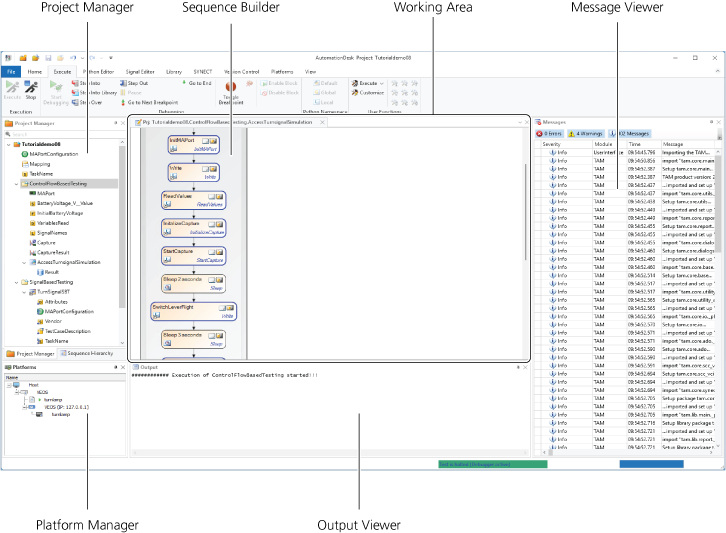
The Execution view set is suitable for running and debugging the procedures of your tests.
The following illustration shows the appearance of the Execution view set when the Execute ribbon is selected. In the working area, a sequence is open so it can be edited on a Sequence Builder page for debugging.
Panes for handling projects and implementing sequences
The following panes are provided to handle projects and implement sequences:
- Project Manager
The Project Manager is used to manage automation projects. You can:
Structure large projects by using folder elements
Create new automation sequences
A sequence contains an executable program flow.
Create project‑specific data objects
The project‑specific data objects are created in the Project Manager and can be referenced by other data objects, for example, by a local data object of an automation block.
Execute automation sequences, starting from different hierarchy levels
Change the execution order of the automation sequences
Edit the properties of projects, folders and sequences
View the results
Generate reports in HTML or PDF format
- Properties
In the Properties pane, you can view and edit the properties of an element that is selected in one of the other views, such as the Project Manager, the Sequence Builder, and the Signal Editor.
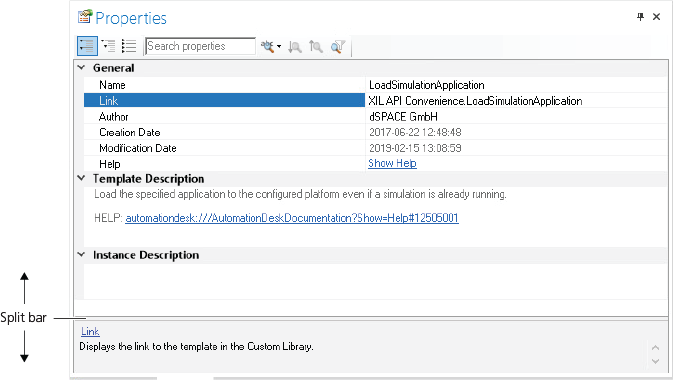
The pane is horizontally divided into two parts. The upper part shows the list of the properties with their names and values. Read-only values are shown in gray. Related properties are organized in categories that you can collapse and expand.
If you select a property in the list, a short explanation of the property's meaning is displayed in the lower part of the pane, together with the related link to the online documentation. You can adjust the size of the explanation pane with a split bar.
- Library Browser
The Library Browser provides a wide range of elements for automation tasks. There are automation blocks for creating control flows with basic elements, and data objects for defining project‑specific parameters and variables. Several standard libraries are included for accessing a platform, accessing the serial interface, or working with diagnostic tools. You can create your own custom libraries to integrate user‑defined library elements.
- Sequence Builder
The Sequence Builder is used to build an automation sequence. You can:
Create automation sequences using the drag & drop mechanism
Edit properties of an automation block
Parameterize data objects of an automation block
- Bookmarks Viewer
In the Bookmarks Viewer pane, you can see the bookmarks that you specified in the sequences of the open project. By clicking the entries, you can navigate to the selected automation blocks.
- Found Items Viewer
In the Found Items Viewer, you can see the search results found by the Find command.
- Sequence Hierarchy Browser
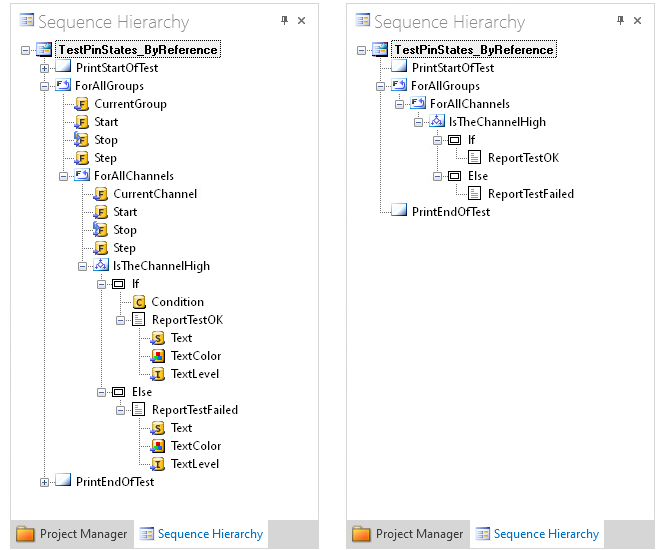
In the Sequence Hierarchy Browser, you can see the structure of the sequence that is open in the Sequence Builder. Depending on the settings on the General page of the AutomationDesk Options dialog, the Sequence Hierarchy Browser contains the structure of the selected sequence with the blocks' data objects displayed or hidden. The left of the following illustrations shows a sequence with displayed data objects and the right illustration shows the same sequence with hidden data objects.
You can use the Sequence Hierarchy Browser to do tasks such as:
Expand and collapse the sequence tree by clicking the tree nodes.
The automation blocks in the Sequence Builder are collapsed or expanded simultaneously.
Rename, move, and delete automation blocks.
Create custom library elements by dragging a sequence element to the custom library folder of the Library Browser.
- Sequence Overview
The Sequence Overview shows a reduced-scale view of the currently active sequence in the Sequence Builder´s working area. It supports zooming into the sequence and moving the view.
- Library Favorites
In the Library Favorites, you can see your individual collection of library elements that you often use. You can create this collection to avoid repeated searching in the Library Browser.
- Variables
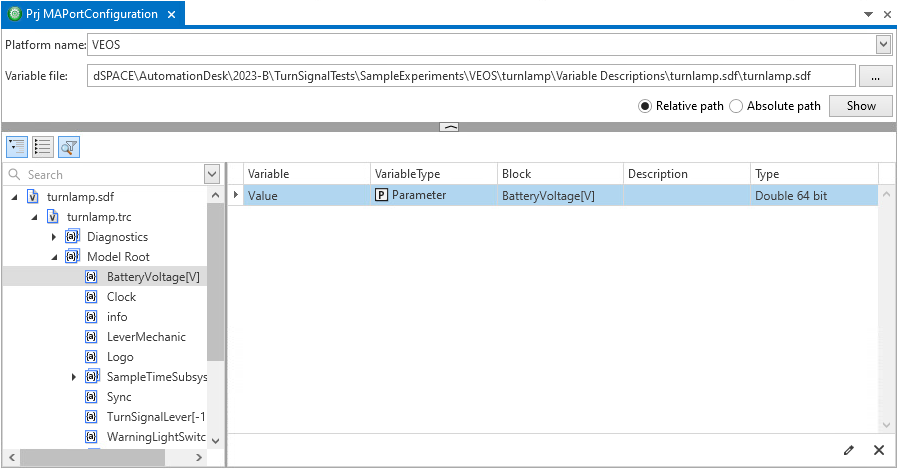
In the Variables pane, you can configure the access to a platform via an MAPortConfiguration data object. You can specify a platform type and a variable description file to browse through the model tree.
You can add a variable to a variable mapping in the Project Manager or add a signal to a signal description set in the Signal Editor via drag & drop.
Panes for parameterizing projects and sequences
The following panes are used to parameterize or reference data objects in projects and sequences:
- Data Object Editor
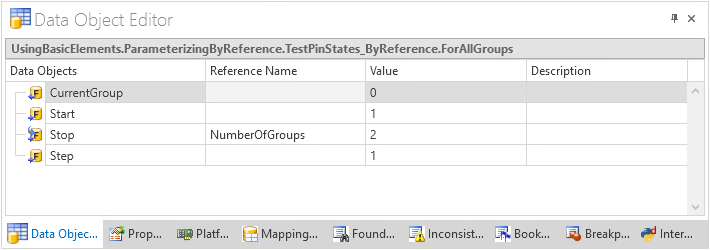
With the Data Object Editor, you can view and edit the data objects of a selected element. It is activated by the View Data Objects command. The content of the Data Object Editor is automatically synchronized with the currently selected project element or automation block. The data objects are displayed immediately.
- Value Editor
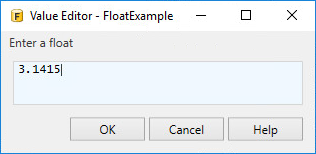
If you want to specify a data object by a value, you can double-click it to start the Value Editor. The appearance of the Value Editor depends on the type of data object that you edit:
Integer, float, string
The Value Editor provides one edit field:
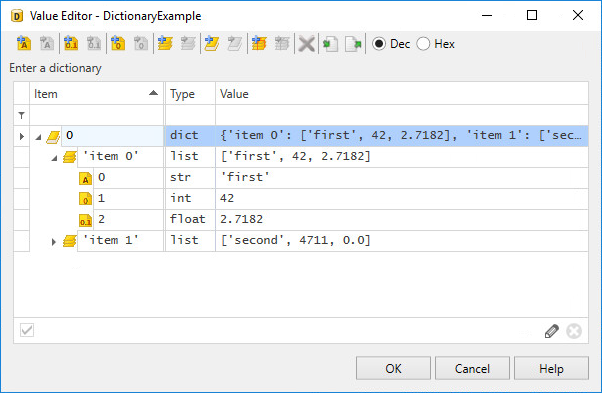
Tuple, list, dictionary
This dialog lets you edit each data element of a tuple, list, or dictionary in a separate row.
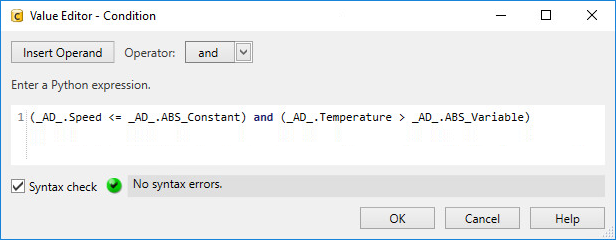
Condition, Python expression
You can use the Value Editor as a Condition Editor to specify a Python expression for a condition as used by an IfThenElse automation block, for example. You can open the Condition Editor by double-clicking the Condition data object.
- Data Object Selector
If you want to specify a data object by reference, you can open the Data Object Editor and click the button in the Reference Name field to open the Data Object Selector. This displays a filtered view of the project with the data objects that you can use for the selected automation block. Select a data object and click OK to reference it in the Data Object Editor. The available data objects are displayed in a tree structure.
Note
If you want to search for data objects which contain a specific string, you can enter this string as a filter string in the Search field. The filtering is immediately active and the Data Object Selector displays the filtered elements within their hierarchy paths.
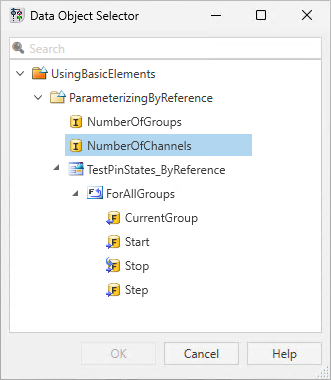
Furthermore, you can use the Data Object Selector to specify references to data objects in custom libraries and in projects by selection. This avoids typing errors. To provide the additional tree structure in the Data Object Selector, you can set the library or project as the current library context.
Note
If you specified a data object with the same name on different hierarchy levels, you can select only the data object from the nearest hierarchy level.
- Mapping Viewer
With the Mapping Viewer, you can see which alias a model path of a simulation application is mapped to.
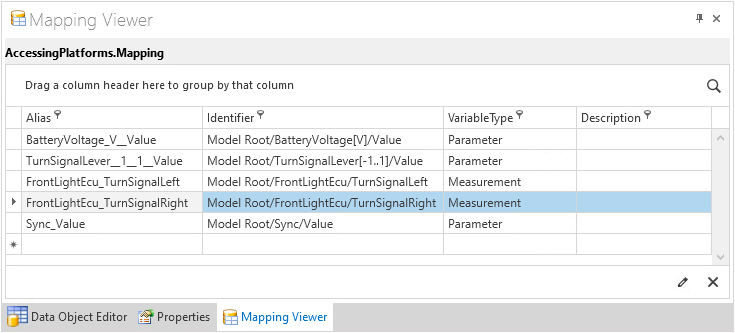
Via drag & drop, you can add variable items to a variable mapping or create the related signals in a signal description set.
If an XIL API Framework is initialized, the Mapping Viewer displays the mapping that is configured centrally in the framework configuration. You can edit the mapping by using the Mapping Editor.
If no framework is initialized, you can use the Mapping Viewer to edit the variable mapping, i.e., the contents of the project's Mapping data object.
Panes for parameterizing signal-based tests
For some object types, AutomationDesk provides the following dialogs so you can specify or display their values or references:
- Signal Editor
The Signal Editor is used to specify the shape of signals for stimulation and the conditions to evaluate captured signals. You can do the following:
Add signals and signal segments to a signal description set via drag & drop
Edit the properties of the signals and segments
- Signal Selector
The Signal Selector provides the signal and segment elements, which you can add via drag & drop to a signal description set in the Signal Editor.
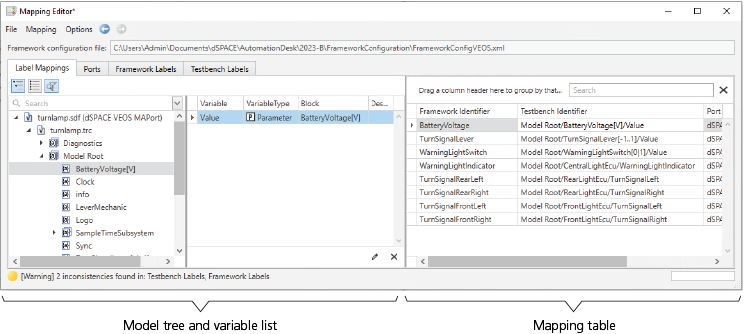
- Mapping Editor
In the Mapping Editor, you can edit the configuration of an XIL API Framework. This includes the port configuration and the variable mapping to access a simulation application.
The configuration information is organized in pages. For example, the Label Mappings page contains the variable mapping. The available variable paths are provided by the model tree and the variable list. The mapping of paths to variable aliases is contained in the mapping table.
Panes for executing and debugging projects and sequences
The following panes are used to execute or debug projects, sequences, and blocks:
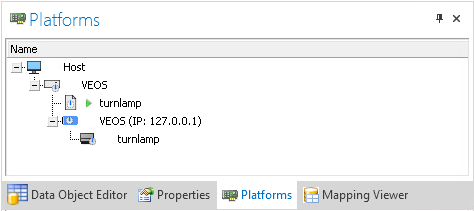
- Platform Manager
The Platform Manager displays the registered platforms with their components and running applications. It provides functions for registering a platform and managing the recent platform configuration. These functions are also available on the Platform ribbon. Additionally, the items of a displayed platform in the Platform Manager provide specific commands and Properties dialogs.
- Message Viewer
In the Message Viewer, you can see AutomationDesk's log messages, such as, information, warnings, and error messages.
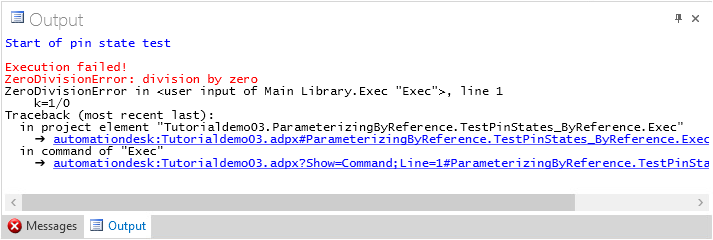
- Output Viewer
In the Output Viewer, you can see the specified output from print commands and error messages of the Python interpreter. It can contain colored text and hyperlinks. This can be used for debugging purposes, for example.
Tip
If an AutomationDesk error message is displayed, you can click the related hyperlink to open the sequence with the focus on the erroneous block.
If this is an Exec block, its script opens in the Python Editor with the cursor positioned on the exception causing statement.
- User Function Output Viewer
In the User Function Output Viewer, you can see the output of external functions that you integrated into AutomationDesk before.
- Breakpoints Viewer
In the Breakpoints Viewer, you can see the breakpoints that you specified in the sequences of the opened project. The breakpoints are used when a sequence is executed in debug mode.
- Inconsistencies Viewer
In the Inconsistencies Viewer, you can see the inconsistencies found by the Find Inconsistencies command.