Step 2: How to Load a Simulation Application to Your Platform and Start It
Introduction
Once the platform is registered, you can load a simulation application to it.
You can specify the simulation application to be loaded by its variable description file (SDF). This file is created when you build the simulation application. It contains information on the executable file, for example, a *.rta file, and the variables that you can access during the execution of the simulation application.
AutomationDesk provides the following libraries to start a simulation application and access its variables:
XIL API
This is a built-in library providing data objects and blocks according to the MAPort definition in the ASAM XIL API standard.
XIL API Convenience
This is a custom library providing convenience blocks that are based on the XIL API library. These blocks facilitate platform access and are recommended for common use cases.
The XIL API library provides the MAPortConfiguration object type to store the configuration of the simulation application to access. It contains the name of the registered platform and the path and file name of the variable description file (SDF) that specifies the simulation application.
A demo simulation application is available with AutomationDesk. It represents a turn signal control in a car. Because the build process depends on the platform type used, you can find platform-specific simulation applications at <DocumentsFolder>\TurnSignalTests\SampleExperiments\<Platform Type>. Each of these simulation applications is configured to start the execution of the simulation application automatically after loading.
The included CDP files are ControlDesk project files that you can use with ControlDesk to perform experiments.
Part 1: To configure the platform access
In the Project Manager, create a project named
AccessingPlatforms.Select the AccessingPlatforms project and click Home – Insert – Data Objects - MAPortConfiguration to create a data object to store the model access port configuration.
Double-click the MAPortConfiguration data object to open the Variables pane.
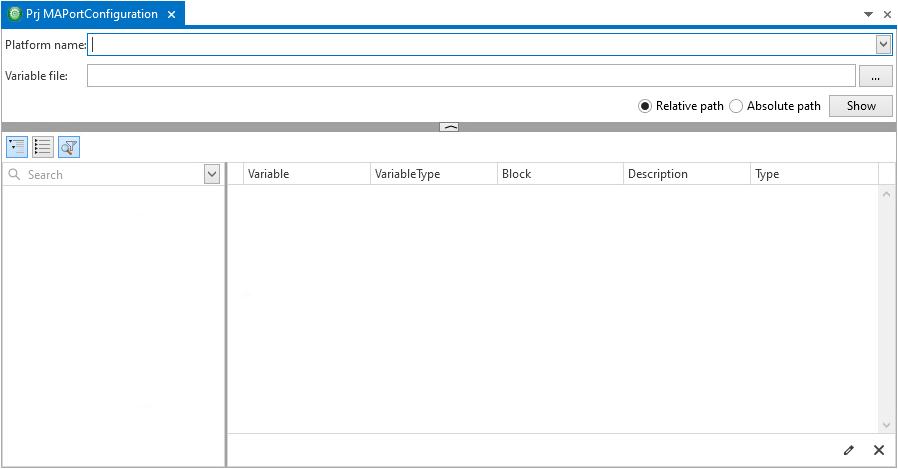
From the Platform name list, select VEOS to assign the name of the registered platform to the platform access configuration.
Click the Browse button of the Variable file edit field to specify the variable description file (SDF). This must be the turnlamp.sdf file that belongs to the loaded simulation application. You will find it in
<DocumentsFolder>\TurnSignalTests\SampleExperiments\VEOS\turnlamp\VariableDescriptions\turnlamp.sdf.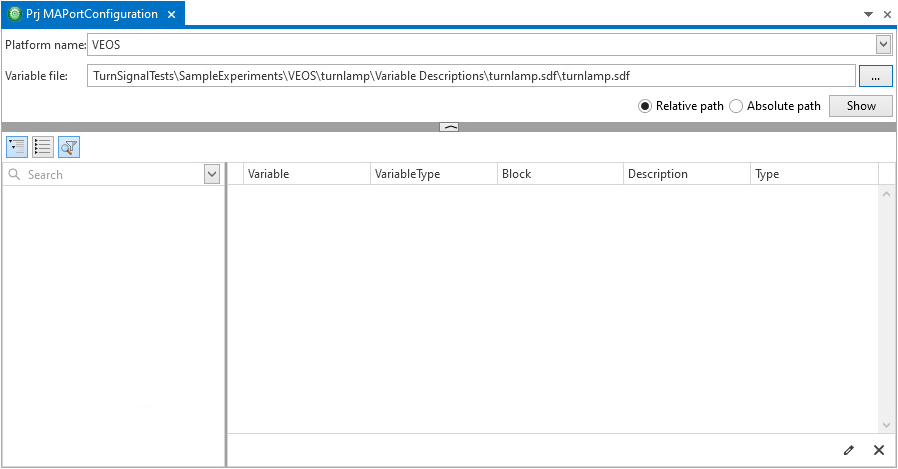
The MAPort is now configured. One of the next methods describes how to use the Variables pane to add variables to your AutomationDesk project.
Continue with next part
In the next part, you create the basic sequence to access your platform by automation blocks.
To make sure that the resources that you will add later are always released, the sequence is structured as a TryFinally block.
Part 2: To load a simulation application to your platform and to execute it
Add a new folder to your tutorial project and rename it to
ControlFlowBasedTesting.In the ControlFlowBasedTesting folder, create a new sequence and rename it to
AccessTurnsignalSimulation.Double-click the new sequence to open it in the Sequence Builder.
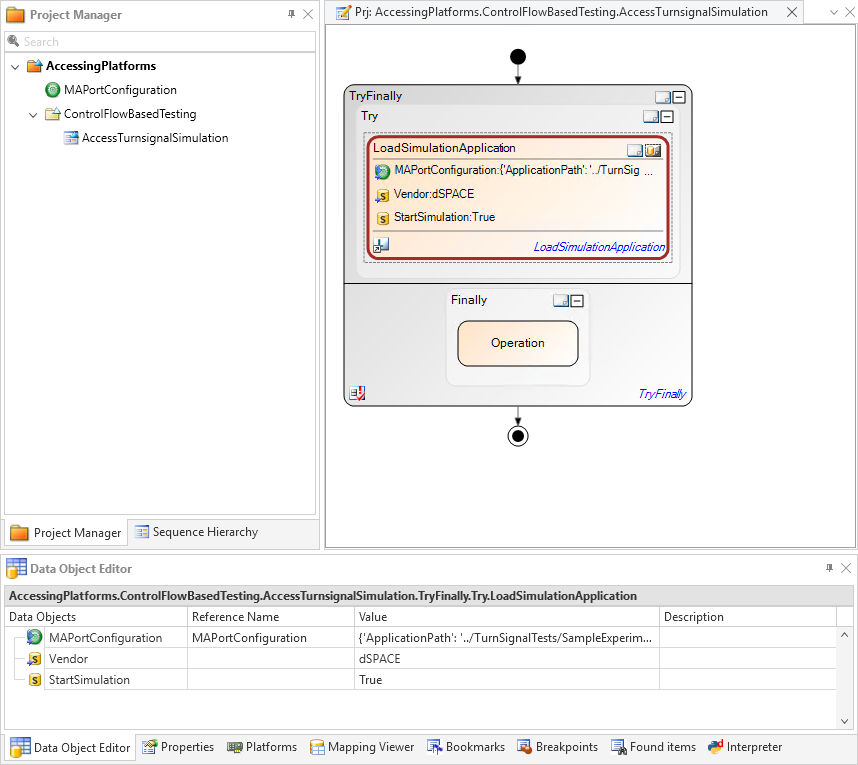
From the Main Library, drag a Control Flows - TryFinally block to the Sequence Builder.
A termination procedure will be implemented later in the Finally path. It will be executed if an exception occurs in the Try path.
From the XIL API Convenience library, drag an Model Access Port - SimulationApplication - LoadSimulationApplication block to the Try path of the TryFinally block.
The data objects of the LoadSimulationApplication block are left at their default values:
By auto-referencing, the project-specific MAPortConfiguration data object is set as the reference for the block's data object of the same name to specify the platform and the simulation application.
The Vendor String data object is set to
dSPACEto specify the XIL API implementation.The StartSimulation String data object is set to
Trueto specify that the simulation application starts automatically after it is loaded to the platform.
The Finally path of the TryFinally block is left unchanged.
Result
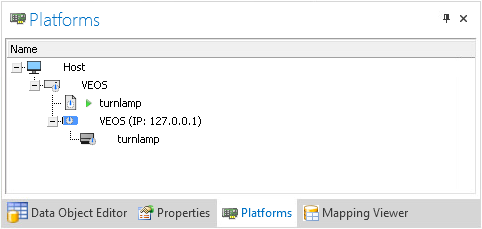
When you execute the sequence, AutomationDesk's demo simulation application is loaded to the platform and then started. In the Platform Manager, the green triangle ( ) indicates that the simulation application is running.
What’s next
Now you can access variables of the running simulation application. The next step describes how to do this.