Step 1: How to Configure Variable Access
Introduction
For signal-based testing, you use already coded, standardized test scenarios that you parameterize via data objects. In the first step, you create and configure these data objects.
- Configuring platform access
The variable access during a signal-based test is configured in the same way as for the control-flow-based testing that is describes in the previous lesson.
You must configure which platform and which simulation application is to be accessed on the platform in a MAPortConfiguration data object.
You must configure a variable mapping in a Mapping data object that contains the mappings of the aliases of each variable to the variable's model path.
In a String data object, you must configure the name of the task in the simulation application that is used to perform the data capturing on the platform.
- Configuring the synchronization variable
Only one additional variable is required for configuring a signal-based test. It must be writable and is used during the test to synchronize the start of stimulation and capturing of the other variables.
First, configure the platform and the simulation application to be accessed. You can skip this part, if you created and configured the project-specific MAPortConfiguration data object in the previous lesson.
Part 1: To configure the platform and the simulation application to be accessed
On the Home ribbon, click View Sets - Sequences to activate the panes suitable for editing sequences.
In the Project Manager, select your project element and click Home – Insert – Data Objects – MAPortConfiguration to create a data object to store the model access port configuration.
Double-click the MAPortConfiguration data object to open the Variables pane.
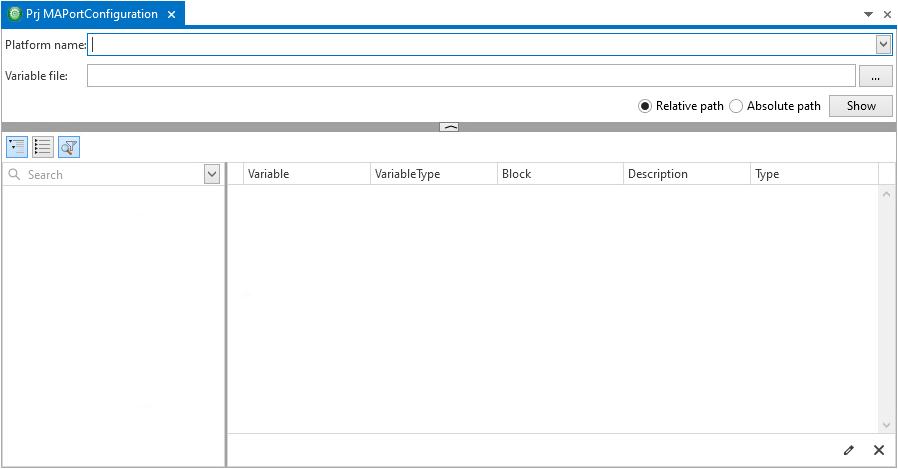
From the Platform name list, select VEOS to assign the name of the registered platform to the platform access configuration.
The platform name depends on the used platform type. For more information, refer to Using other platforms.
Click the Browse button of the Variable file edit field to specify the variable description file (SDF). This must be the turnlamp.sdf file that belongs to the loaded simulation application. You will find it in
<DocumentsFolder>\TurnSignalTests\SampleExperiments\VEOS\VariableDescriptions\turnlamp.sdf.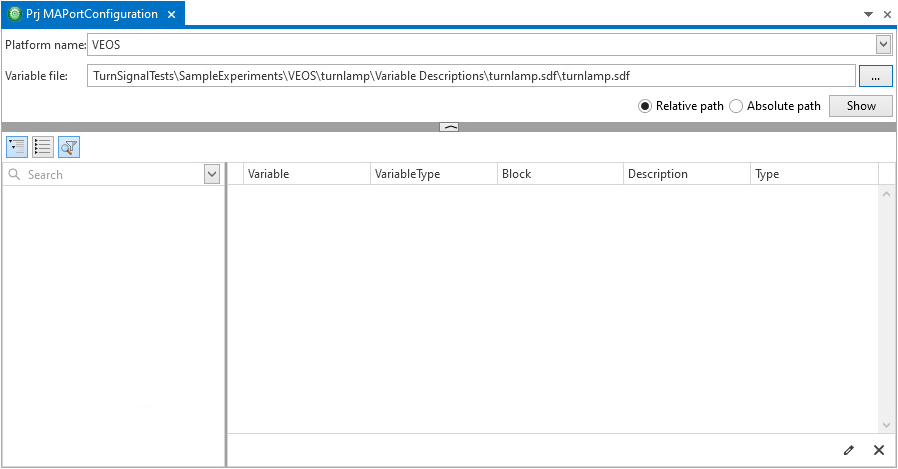
Continue with next part
You configured which platform and which simulation application is to be accessed on the platform.
Now you can map the variable aliases to the variables model paths in a variable mapping that you implement by using a Mapping data object.
You can skip this part, if you created and configured the project-specific Mapping data object in the previous lesson.
Part 2: To configure a variable mapping
In the Project Manager, select your project element and click Home – Insert – Data Objects – Mapping to create a Mapping data object.
Double-click the Mapping data object to open it in the Mapping Viewer.
An empty mapping table is displayed.
Drag the Mapping Viewer by its title bar and place it in the working area so that both the Variables pane and the Mapping Viewer are displayed without auto-hiding.
In the model tree of the Variables pane, navigate to turnlamp.sdf/turnlamp.trc/Model Root/BatteryVoltage[V].
Drag the Value variable from the variable list of the Variables pane to the mapping table of the Mapping Viewer.

A mapping of the variable path to an automatically generated alias is added to the mapping table.
In the variable tree, navigate to turnlamp.sdf/turnlamp.trc/Model Root/TurnSignalLever[-1..1] and drag the Value variable to the mapping table.
Navigate to turnlamp.sdf/turnlamp.trc/Model Root/FrontLightEcu and drag the TurnSignalLeft and the TurnSignalRight variable to the mapping table.
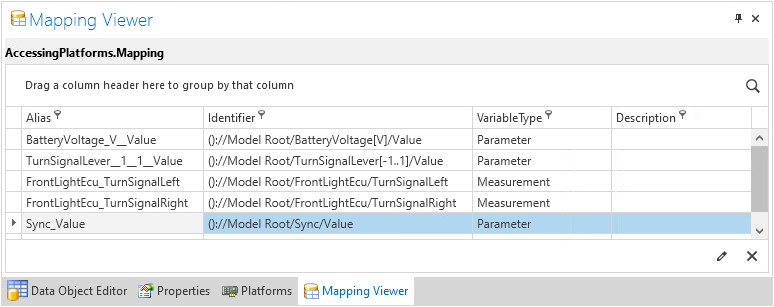
The mappings of the variable aliases to the related model paths are displayed in the Mapping Viewer.
Continue with next part
You configured a variable mapping that contains the mapping of the variable's alias to its model path for each accessed simulator variable in a Mapping data object.
Now you can configure the name of the task in the simulation application that is used to perform the capturing on the simulator platform.
You can skip this method, if you created and configured the project-specific TaskName String data object in the previous lesson.
Part 3: To configure the task that is used for capturing
In the Project Manager, add a String data object to your project and rename it to
TaskName.Double-click TaskName to open the Value Editor and enter
Periodic Task 1to specify the name of the task within the simulation application to be used for data capturing.The task name depends on the used platform type. For more information, refer to Using other platforms.
Continue with next part
You configured the platform access as common when using automation blocks of the XIL API Convenience library.
With the following method, you configure the variable that is used for synchronizing variable stimulation and capturing during the test.
Part 4: To configure the synchronization variable
In the model tree of the Variables pane, navigate to turnlamp.sdf/turnlamp.trc/Model Root/Sync.
Drag the Value variable from the variable list to the mapping table in the Mapping Viewer.
The Sync_Value String data object that contains the variable's model path is added to the variable mapping.
This simulator variable is used to synchronize the start of stimulating and capturing the other variables during the test.
Result
You added the data objects that configure the signal-based test to your project.
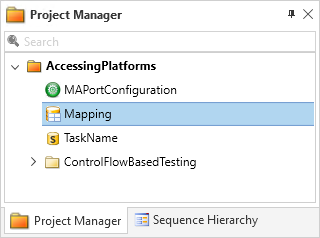
In the variable mapping in the Mapping data object, you configured the variable access during the test, including the variable that is used for the synchronization of variable stimulation and capturing.
What’s next
You can now add and parameterize the sequence that implements the standardized test scenario. The next step describes how to do this.