Step 4: How to Capture Variable Values for a Specified Duration
Introduction
In contrast to reading a variable value, capturing a variable means reading the variable value not only once but repeatedly for a specified duration.
The repeated reading of variables is controlled via the tasks implemented in the simulation application. To configure a Capture data object, you must therefore specify the task to be used. You find a table with the task names for the different platforms at the end of this lesson. Further capture settings specify the variables to be captured, the downsampling and the default duration if no other stop conditions are configured.
Part 1: To initialize a capture process
In the Project Manager, add a String data object to the AccessingPlatforms project and rename it to
TaskName.Double-click TaskName to open the Value Editor and enter
Periodic Task 1to specify the name of the task within the simulation application to be used for data capturing.Note
The task name to be specified depends on the registered platform. For information on the task names used by other platforms, refer to Results of Lesson 7.
Add a List data object to the ControlFlowBasedTesting folder and rename it to
SignalNames. This is to hold the signal names to be captured and plotted.In the Mapping Viewer, multiselect all contained variables and drop them on the SignalNames List data object to specify the list of signals to be captured.
You can verify the contents of the SignalNames data object by moving the cursor to its icon or name in the Project Manager. It contains the following value:
[u'BatteryVoltage_V__Value', u'TurnSignalLever_1_1__Value', u'FrontLightEcu_TurnSignalLeft', u'FrontLightEcu_TurnSignalRight']Select the ControlFlowBasedTesting folder and click Home – Insert – Data Objects - Capture to create a data object to store the configuration of the capture process.
From the XIL API Convenience library, drag a Model Access Port - Capture - InitializeCapture block to the end of the Try path.
By auto-referencing, the project-specific MAPort and Capture data objects are set as the references for the block's data objects that have the same names.
Specify the project-specific TaskName data object as the reference for the block's data object of the same name.
Specify the project-specific Mapping data object as the reference for the block's VariablePool data object.
Specify the project-specific SignalNames data object as the reference for the block's Variables data object. This data object stores the signal names.
The following data objects of the InitializeCapture block are left at their default values:
Downsampling is set to
1to capture every value the task generates.DefaultDuration is set to
10.0to limit the default duration of the capture to ten seconds.
From the XIL API Convenience library, drag a Model Access Port - Capture - ReleaseCapture block to the beginning of the Finally path.
By auto-referencing, the project-specific Capture data object is set as the reference for the block's data object of the same name.
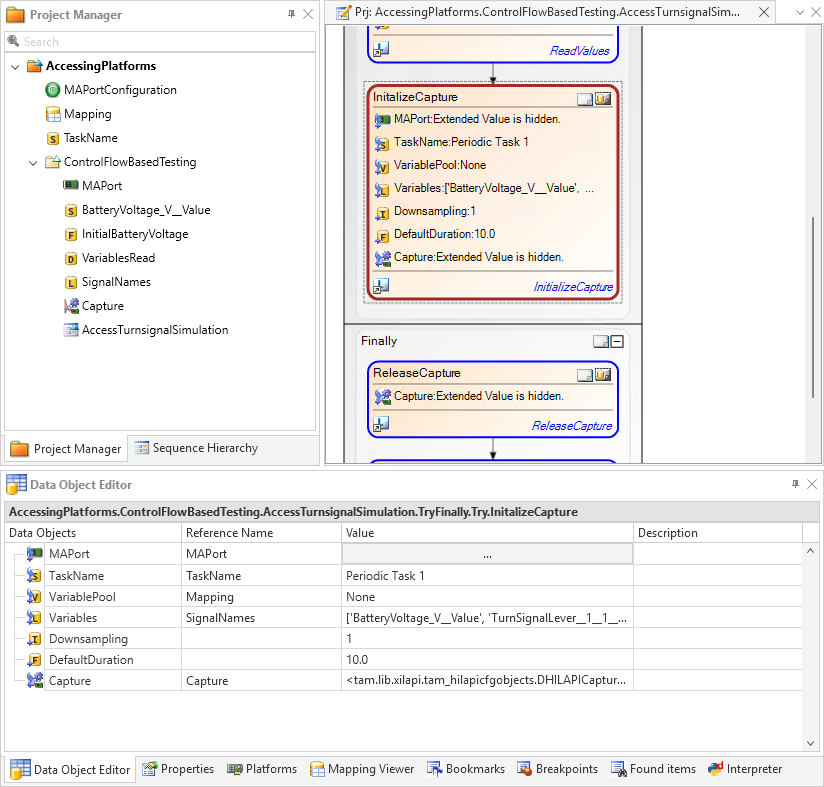
You have initialized the capture.
Continue with next part
In the next part, you specify the scenario for the capturing process.
To see the reactions to changed variable values in the capture result, the position of the turn-signal lever is changed while the capture is running. The durations between the value changes are specified with Sleep blocks.
No stop conditions have been implemented in this scenario. The capture process is therefore terminated after the default duration of ten seconds.
Part 2: To specify the scenario for the capturing process
From the XIL API Convenience library, drag a Model Access Port - Capture - StartCapture block to the end of the Try path.
By auto-referencing, the project-specific Capture data object is set as the reference for the block's data object of the same name.
The block's optional CaptureResultWriter data object is left unchanged to specify that the capture is stored at the host PC's memory.
From the Main Library, drag a Basic Elements - Sleep block to the Try path.
Via this and the following automation blocks, you implement the changes of the turn-signal level over time. By using Sleep blocks, you specify, how long the lever position is held.
From the XIL API Convenience library, drag a Model Access Port - Write block to the Try path.
By using Write blocks, you parameterize the position of the turn-signal lever. The value 0 represents a turn-signal lever that is switched off, the value 1 represents the lever switched to the right.
By auto-referencing, the project-specific MAPort data object is set as the reference for the block's data object of the same name.
In the Object Editor, click the Browse button in the Reference name column of the Variable data object.
The Data Object Selector opens.
In the Data Object Selector, select AccessingPlatforms - Mapping - LabelMapping - TurnSignalLever_1_1_Value - Identifier.
This specifies the variable that represents the state of the turn-signal lever.
Multi-select the Write and the Sleep block and press Ctrl+C to copy the blocks to the Clipboard.
Select the Try path and press Ctrl+V to append the copied blocks from the Clipboard.
Rename the first Sleep block to
Sleep2Secondsand set its Time data object to2.0.Rename the first Write block to
SwitchLeverRightand set its Value data object to1.Rename the second Sleep block to
Sleep3Secondsand set its Time data object to3.0.Rename the second Write block to
SwitchLeverZeroand set its Value data object to0.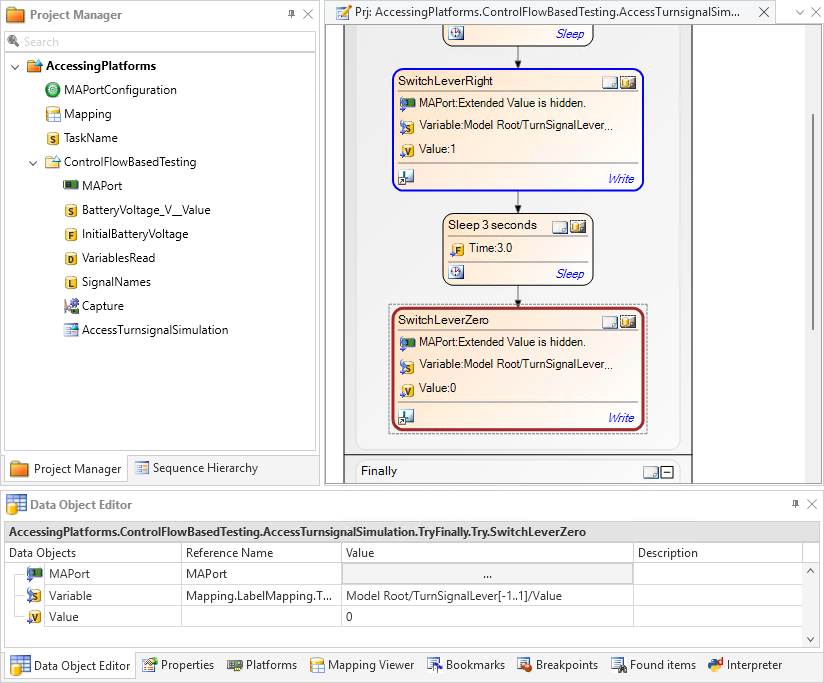
You specified the scenario for the capturing process.
Continue with next part
In the next part, you access the result of the capturing process and add plots of it to the sequence's report.
To access the data which is captured during a capturing process, the XIL API library provides the CaptureResult data object. The CaptureResult is plotted to the report and does not need to be stored in the AutomationDesk project. Clearing its values after plotting minimizes the size of the AutomationDesk project.
Part 3: To add plots of the capture result to the report
In the Project Manager, select the ControlFlowBasedTesting folder and click Home – Insert – Data Objects - CaptureResult to create a data object to store the configuration of the capture process.
From the XIL API Convenience library, drag a Model Access Port - Capture - GetCaptureResult block to the end of the Try path.
By auto-referencing, the project-specific Capture and CaptureResult data objects are set as the references for the block's data objects that have the same names.
The block's StopCapturing Integer data object is left at its default value
1.In the Data Object Editor, parameterize the block's WhenFinished Integer data object with
1.Leave the block's CaptureResultMetaData, OfflineCaptureResult and OfflineCaptureResultMetaData default data objects unchanged.
From the XIL API Convenience library, drag a Model Access Port - Capture - AddCustomPlotsToReport block to the end of the Try path.
By auto-referencing, the project-specific CaptureResult data object is set as the reference for the block's data object with the same name.
In the Data Object Editor, specify the project-specific SignalNames data object as the reference for the block's data object of the same name.
Specify the project-specific Mapping data object as the reference for the block's VariablePool data object. This data object specifies which signals are to be plotted.
Double-click the blocks Title String data object to open the Value Editor. Enter
Turn Signal Plotto specify the title of the plot in the report.Leave the block's XYLabels data object unchanged.
From the Main Library, drag a Basic Elements - ClearValues block to the beginning of the Finally path.
In the Sequence Builder, select the ClearValues block and click Home – Insert – Data Objects - CaptureResult to specify the CaptureResult data object to be cleared.
Specify the project-specific CaptureResult data object as the reference for the block's data object of the same name.
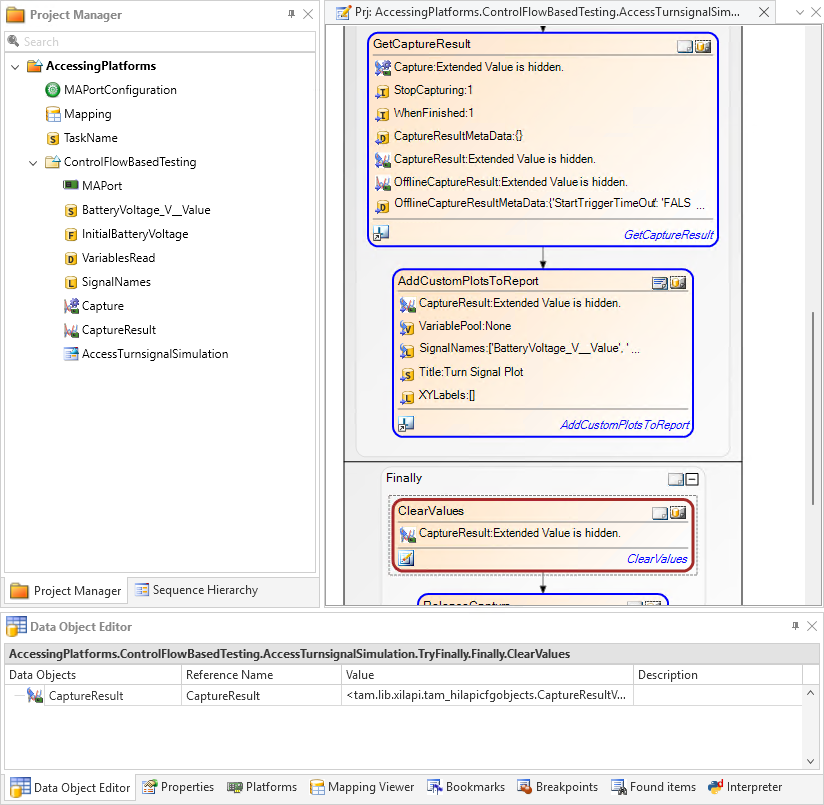
Result
You added plots of the capture result to the report.
What’s next
You created a sequence that captures variable values for the duration of a specified scenario and plots the result in the sequence report.
For a summary of the lesson's exercises, refer to Results of Lesson 7.