Step 1: How to Prepare Creating Library Elements
Introduction
In this step, you prepare elements of your project to use them as prototypes for new automation templates in your custom library.
One way to create templates is to drag these automation blocks, subsequences, or entire sequences from your project to a custom library. To optimize your work, you can place the Library Bowser next to the Project Manager or the Sequence Hierarchy Browser. For this you change the state of the pane. By default, the Library Browser pane is in the docking state. If you change the pane state to floating, you can place the Library Browser beside the Sequence Hierarchy Browser.
Part 1: To set a pane to docking or floating state
Double‑click the title bar of the pane.
Drag the Library Browser pane beside the Sequence Hierarchy Browser.
Continue with next part
You optimized your work by placing the Library Browser next to the Sequence Hierarchy Browser.
In the next part, you create a serial block in your sequence that is used later as a subsequence template. It gathers the initial activities that are performed before the start of the actual output channel analysis.
Part 2: To create a Serial block with initial test activities
In the Project Manager, duplicate the ParameterizingByReference folder and rename the new folder to
PreparingLibraryTemplatesand the contained sequence toTestPinStates_Prepared.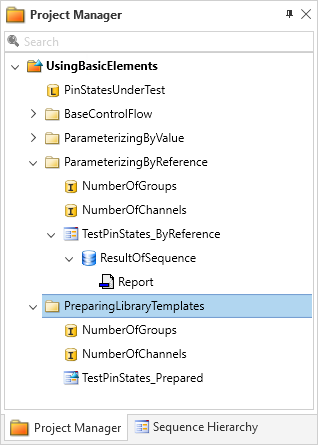
In the Project Manager, double-click the TestPinStates_Prepared sequence to open it in the Sequence Builder.
In the Library Browser, select the Serial block from the Control Flows folder in the Main Library and drag it to the Sequence Builder. Drop the block to the top of the sequence's control control flow.
A new Serial block is added to the sequence.
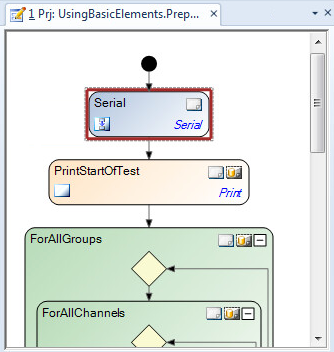
Rename the new block to
StartOfTest.Select the PrintStartOfTest block and move it to the StartOfTest block.
From the Report library, drag an AddText block to the StartOfTest block.
A new AddText block is added to the Serial block.
Rename the new block to
ReportStartOfTest.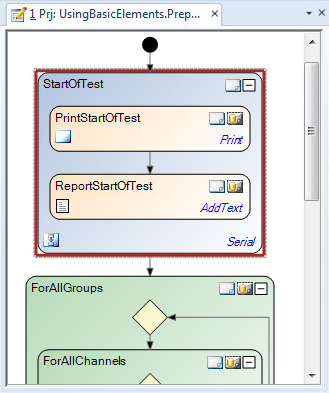
In the Data Object Editor, double-click the Text data object of the ReportStartOfTest block to open the Value Editor.
In the Value Editor, enter the following Python expression and press OK:
"Pin state test %s" % (_AD_.PinStatesUnderTest)The contents of the list with the actual pin states
PinStatesUnderTestis accessed via the _AD_ alias.
What's next
You prepared a Serial block in your project to use it as a prototype for building a subsequence template.
With the next step, you create the custom library to which you will add the new template.