Step 3: How to Configure the Involved Signals
Introduction
In this step, you create the file with the description of the signals that are involved in your signal-based test.
The simulator variables to be stimulated or captured during the test case are specified via the descriptions of the involved signals. These signal descriptions are gathered to a test case description that is stored in an STZ file. An STZ file is a ZIP file that contains the signal descriptions in the STI format. The STI format is defined by the ASAM AE XIL API standard.
You can also add the descriptions of reference signals that are used for result evaluation to a test case description.
To edit a test case description, AutomationDesk provides the Signal Editor.
- Signal Editor
You can open one test case description in one Signal Editor page. The signals that are contained in the test case description are displayed in a signal table. In the last column of the signal table, the shape of the signal is displayed.
- Signals and Segments
Signals can consist of a sequence of segments. A segment is characterized by its type, i.e., by its basic shape. For example, there are Const segments that represent a straight line or Pulse segments that represent a square wave.
One way to add signals to a test case description is to drag variables from the variable mapping to the Signal Editor. The name of the signal created in this way is the same as the variable alias. Thus, the signal is mapped to the simulator variable for signal-based testing.
Another way to add signals to a test case description is to drag a signal symbol from the Signal Selector to the Signal Editor. By dragging and dropping segment symbols, you can add segments to a segment signal.
- Properties
Signals and segments are configured via their properties. In the Properties pane, you can edit the properties of the signal or segment that is currently selected in the Signal Editor. For example, you can change the duration of a selected segment.
You can define the shape of a segment signal by configuring the sequence of its segments and by specifying the values of the segments' properties.
- Action
The Action property of a signal specifies how a signal is treated during a signal-based test.
The following table shows the provided Action values.
Action
Description
Stimulate
This signal is generated by a signal generator to stimulate the mapped model variable during the run time of the simulation application.
Capture
The values of the variable that are mapped to this signal are captured during the run time of the simulation application. The data is stored in an MDF file (ASAM Common MDF Version 4.1, file name extension: MF4) that is added to the signal as a DataFile segment.
Sync
This signal is used to synchronize the stimulation and capturing during the run time of the simulation application. It defines the start of the Stimulate signals and the start and end of the specified captures.
None
This signal does not interact with the simulation application. It is used for reference signals of evaluation methods, for example.
- Evaluation method
You can specify the captured signals to be compared to expected reference signals at the end of the signal-based test. To do this, you can select one of the following methods:
Evaluation Method
Description
Checks whether the values of the evaluated signal are equal to the specified reference signal.
Checks whether the values of the evaluated signal are not equal to the specified reference signal.
Checks whether the values of the evaluated signal are above the specified bound signal.
Checks whether the values of the evaluated signal are below the specified bound signal.
Checks whether the values of the evaluated signal are inside the range that is specified by the upper bound and the lower bound signals.
Checks whether the values of the evaluated signal are outside the range that is specified by the upper bound and the lower bound signal.
Checks whether the values of the evaluated signal are inside a region that is specified by the reference signal and absolute tolerances.
Checks whether the values of the evaluated signal are inside a region that is specified by the reference signal and absolute and relative tolerances.
None
No evaluation is performed.
Depending on the selected evaluation method, you must specify reference signals, tolerances, and bounds.
The shapes of the reference signals are edited in the same way as the signals that are used for stimulation, except for the Action property, which is set to None.
Part 1: To configure the test case description file
In the Project Manager, double-click the TestCaseDescription data object of the TurnSignalSBT sequence. This data object holds the name and the path of the file that contains the signal descriptions for configuring the test.
The Create or Open SignalGenerator file dialog opens. In the File name edit field,
AccessingPlatforms_TurnSignalSBT.stzis displayed as the default file name for the test case description.Click OK to open the specified STZ file that stores the descriptions of the signals that are involved in the test.
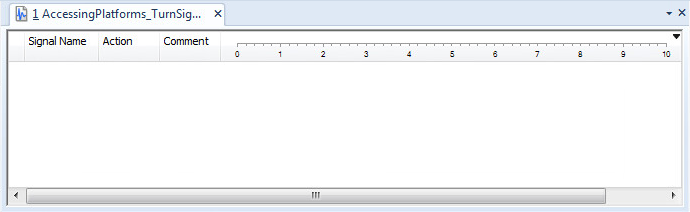
In the working area, the test case description opens in a Signal Editor page. It shows an empty signal table.
Continue with next part
You configured the test case description file that stores the involved signal descriptions.
In the following part, you add signal descriptions to the empty test case description.
Part 2: To add signals that are mapped to simulator variables

In the Mapping Viewer, select all the variables contained in the variable mapping and drag them to the Signal Editor.
For each variable, a signal description is added to the signal table in the Signal Editor. Via their signal names, the signals are mapped to simulator variables' aliases.
By default, the Action property of the signals that relate to variables of the Parameter type is set to Stimulate. The Action property of the signals that relate to variables of the Measurement type is set to Capture.
For the Sync_Value signal, select Sync as the Action property.
This variable is used to synchronize the starting and stopping of variable stimulation and data capturing.
Continue with next part
You have added empty signals to the test case description that are mapped to simulator variables.
Except for the capturing signals, you have to configure the signals for stimulating, the synchronization signal, and the reference signals.
In the next part, you specify the shape of the stimulating signals by adding segments to the signals and specifying the segments' properties.
Part 3: To configure the stimulating signals
On the Signal Editor ribbon, click View Sets - Signals to activate the panes suitable for editing signals.
Configure the shape of the signal that specifies a constant battery voltage of
12.3volts for the entire duration of the test, i.e., for10seconds.From the Signal Selector, drag a Const segment to the BatteryVoltage_V__Value signal. The added segment is parameterized with default properties and displayed in the Signal Editor.
Select the new Const segment, and in the Properties pane, set the Duration - Duration property to
10seconds.Set the Value -Type property to
Constantand Value - Value to12.3volt.
Now configure the shape of the signal that specifies the turn-signal lever state. The value
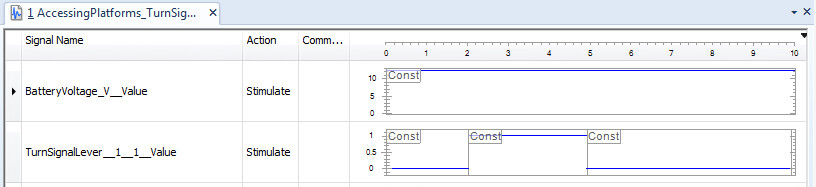
0represents a turn-signal lever that is switched off, the value1represents the lever switched to the right.In the test scenario, a turn signal that is switched off is switched to the right after two seconds for a duration of three seconds and then switched to off again.
To implement this sequence of turn-signal lever states, drag three times a Const segment from the Signal Selector to the TurnSignalLever_1_1__Value signal.
Parameterize the three Const segments as previously described with the following properties:
Segment
Duration - Duration
Value - Type
Value - Value
1
2
Constant
0
2
3
Constant
1
3
5
Constant
0
The shapes of the stimulating signals that you configured are displayed in the Signal Editor.
Continue with next part
You have specified the shape of the stimulating signals.
In the next part, you specify the shape of the signal that is used for synchronizing the stimulating and capturing.
Each test case description must contain exactly one synchronization signal that consists of Const segments not equal to zero and that has no zero crossing.
Part 4: To configure the synchronization signal
From the Signal Selector, drag a Const segment to the Sync_Value signal. The added segment is parameterized with default properties and displayed in the Signal Editor.
Select the new Const segment, and in the Properties pane, set the Duration - Duration property to
10seconds.The resulting signal shape is displayed in the Signal Editor.
The shapes of the stimulating signals that you configured are displayed in the Signal Editor.

Continue with next part
You have specified the shape of the synchronization signal.
In the next part, you add reference signals to the test case description and specify their shapes. These signals are used later to evaluate the captured signals.
Part 5: To add and configure the reference signals
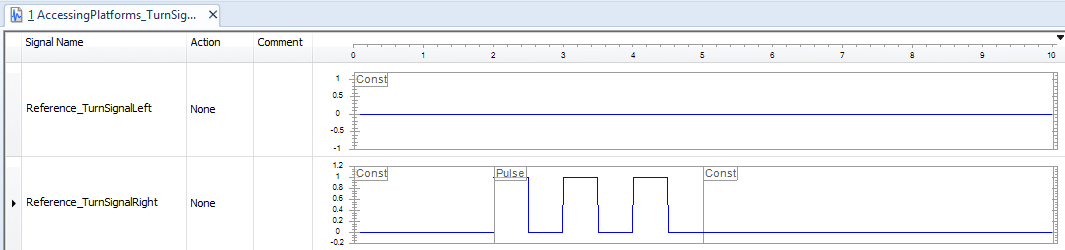
Create a reference signal for the state of the left turn signal.
From the Signal Selector's Signals group, drag a Segment Signal symbol to the Signal Editor.
An empty segment signal is added to the signal list.
In the Signal Name column, rename the new signal to
Reference_TurnSignalLeft.The shape of the signals that represents the state of the left turn signal is expected to be constantly zero.
From the Signal Selector's Segments group, drag a Const symbol to the new signal's last column in the signal list.
A default Const segment is added and shown in the signal's shape display.
Select the new segment, and in the Properties pane, set Value - Type to
Constant, Value - Value to0, and Duration - Duration to10seconds.The displayed Const segment changes accordingly.
Then create a reference signal for the state of the right turn signal. The state oft the right turn signal is expected to be a square pulse as long as the turn-signal lever is switched to the right. You can create the base of the reference signal via copy & paste.
In the Signal Editor, select the TurnSignalLever_1_1__Value signal by clicking the signal's first cell in the signal list.
The signal's description is highlighted.
Via copy & paste, duplicate the selected signal description.
An identical signal with three segments is added to the test case description. The signal name of the new signals is postfixed with _1.
In the Signal Name column, rename the new signal to
Reference_TurnSignalRight.Select the second segment of the Reference_TurnSignalRight signal and from its context menu select Convert Segment - Pulse.
The second Const segment is converted to a Pulse segment.
In the Action column, set the value for the Reference_TurnSignalLeft and Reference_TurnSignalRight signals to
None.The shapes of the reference signals that you configured are displayed in the Signal Editor.
Continue with next part
You configured the reference signals that are used for evaluation.
In the next part, you specify how the captured signals are compared to the reference signals.
Part 6: To configure the evaluation method
In the Signal Editor, select the FrontLightEcu_TurnSignalLeft signal by clicking the signal's first cell in the signal list.
The signal's description is highlighted and the signal's properties are shown in the Properties pane.
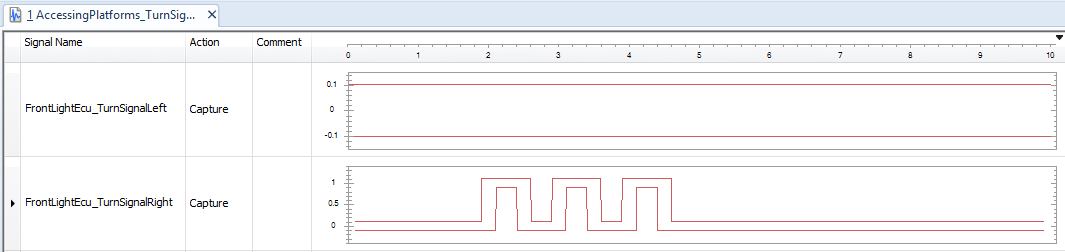
In the Properties pane, set the Evaluation - Evaluation method property to
IsEqual.This configures the evaluation to check whether the deviation of the captured data in the direction of the x-axis is within a specified tolerance.
The method-specific properties Reference, Signal and Tolerance appear in the Properties pane.
Set the Evaluation - Reference property to Reference_TurnSignalLeft.
This configures the signal that is used as the reference for the evaluation method.
Set the Evaluation - Tolerance property to
0.1.In the display of the FrontLightEcu_TurnSignalLeft signal, two parallels that represent the borders of the tolerated values are shown.
In the Signal Editor, select the FrontLightEcu_TurnSignalRight signal to configure the evaluation method for this signal.
The signal's description is highlighted and the signal's properties are shown in the Properties pane.
In the Properties Pane, set the Evaluation - Evaluation method property to
IsInsideRegion.This configures the evaluation to check whether the deviation of the captured data in the direction of the x-axis and the y-axis is within a specified region.
The method-specific properties appear on the Properties pane.
Set the Evaluation - Reference property to Reference_TurnSignalRight.
This configures which signal is used as the reference for the evaluation method.
In the display of the FrontLightEcu_TurnSignalRight signal, the borders of the region that is used for evaluation is shown.
On the Signal Editor ribbon, click Signal Description Set - Save Signal Set.
You configured the evaluation method and the complete test case description is saved to the specified STZ file.
Result
You specified all signals that are involved in the signal-based test.
What’s next
You can now execute the completely configured signal-based test. The next step describes how to do this.