Step 3: How to Access Variable Values of the Running Simulation Application
Introduction
Once the simulation application is running, you can access the values of its variables via a model access port (MAPort) that is provided by the XIL API library.
A model access port is handled by using an MAPort data object that is created in your project. It is configured by the MAPortConfiguration data object and initialized and released by automation blocks of the XIL API Convenience library.
Part 1: To create a model access port for variable access
In the Project Manager, select the ControlFlowBasedTesting folder and click Home – Insert – Data Objects – MAPort to create a data object to handle the MAPort instance.
By creating the MAPort data object in the project before you add the related automation blocks, you enable AutomationDesk's auto-referencing feature.
From the XIL API Convenience library, drag an Model Access Port - InitMAPort block to the Try path of the TryFinally block.
The following data objects of the InitMAPort block are left at their default values:
By auto-referencing, the project-specific MAPortConfiguration data object is set as the reference for the block's data object of the same name to specify the platform and the simulation application.
The Vendor String data object is set to
dSPACEto specify the XIL API implementation.By auto-referencing, the project-specific MAPort data object is set as the reference for the block's data object of the same name. It is used later to access the variable values.
From the XIL API Convenience library, drag a Model Access Port – ReleaseMAPort block to the Finally path of the TryFinally block.
By auto-referencing, the project-specific MAPort data object is set as the reference for the block's data object of the same name.
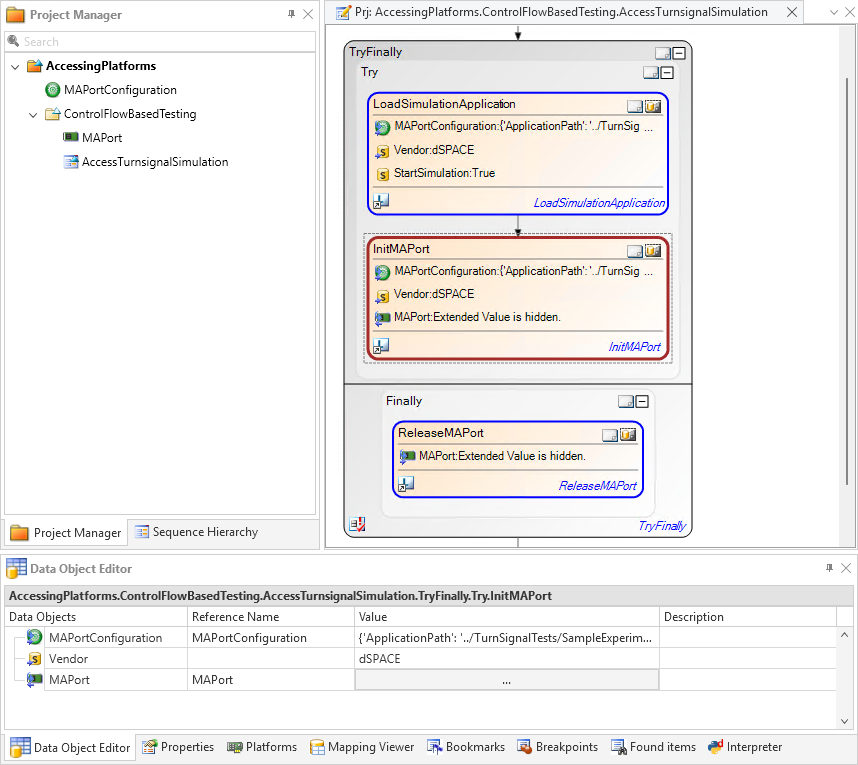
When you execute this sequence, the model access port to access variables is created.
Continue with next part
In the next part, you access a single variable value of the running simulation application and write a new value to the battery voltage of the turn signal model.
Part 2: To write a single variable value to the platform
Double-click the MAPortConfiguration object to open the Variables pane again.
In the Variables pane, click Show to display the variable tree.
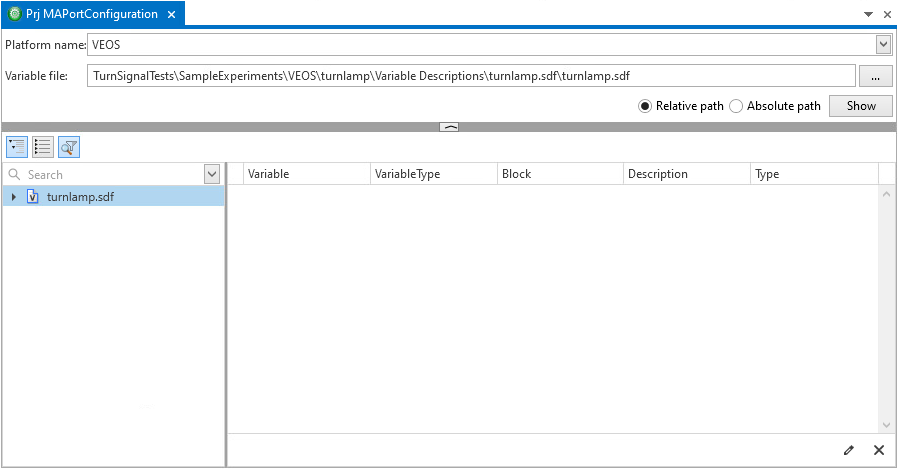
In the model tree, navigate to turnlamp.sdf/turnlamp.trc/Model Root/BatteryVoltage[V].
Drag the Value variable from the variable list and drop it on the ControlFlowBasedTesting folder.

A String data object named BatteryVoltage_V__Value is added to the folder. It contains the model path of the variable.
Add a Float data object to the ControlFlowBasedTesting folder and rename it to
InitialBatteryVoltage.Double-click the InitialBatteryVoltage data object to open the Value Editor and enter
12.3to specify the value you want to write to the battery voltage variable in the turn signal simulation application.Tip
The Data Object Editor provides a Description column to specify additional information to a data object. For example, if you want to specify
Vas the unit for the InitialBatteryVoltage data object, you can do it here.From the XIL API Convenience library, drag a Model Access Port - Write block to the end of the Try path.
By auto-referencing, the project-specific MAPort data object is set as the reference for the block's data object of the same name.
In the Data Object Editor, specify the project-specific BatteryVoltage_V__Value data object as the reference for the block's Variable data object. This data object specifies the model path of the battery voltage.
Specify the project-specific InitialBatteryVoltage data object as the reference for the block's Value data object. This data object stores the value of the battery voltage to be written to the running simulation application.
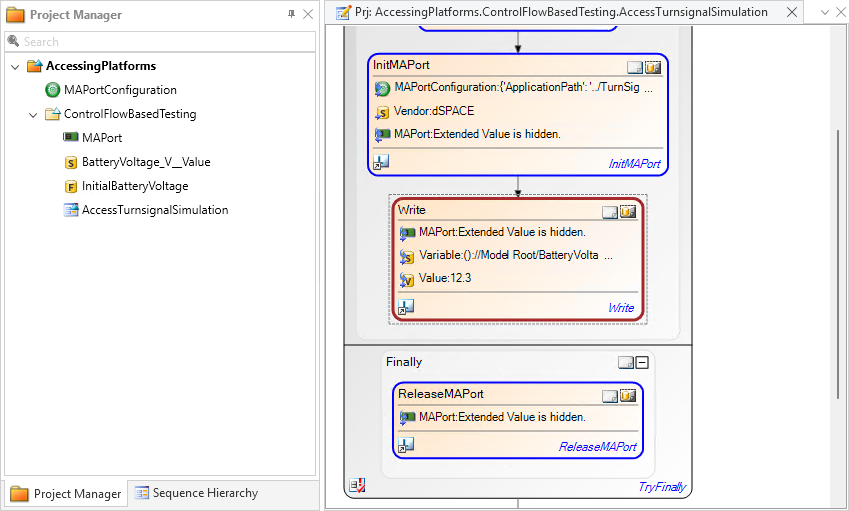
When you execute this sequence, the battery voltage will be set to 12.3 V.
Continue with next part
In the next part, you create a variable mapping in a Mapping data object, where variable aliases are mapped to variable model paths. Thus, you prepare to specify the access to simulator variables via their aliases.
Part 3: To specify a variable mapping
In the Project Manager, select the AccessingPlatforms project and click Home – Insert – Data Objects – Mapping to create a Mapping data object.
By creating the Mapping data object in the project before you add the related automation blocks, you enable AutomationDesk's auto-referencing feature.
Double-click the Mapping data object to open it in the Mapping Viewer.
An empty variable mapping is displayed.
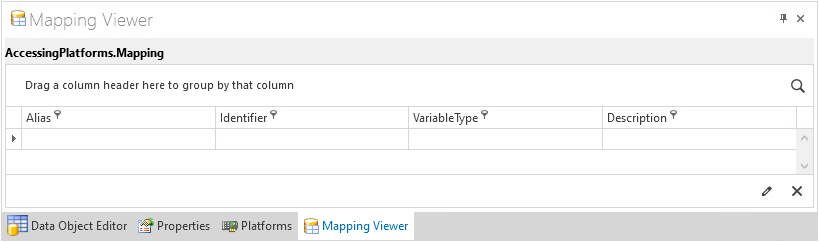
In the model tree of the Variables pane, navigate to turnlamp.sdf/turnlamp.trc/Model Root/BatteryVoltage[V].
Drag the Value variable from the variable list of the Variables pane to the mapping table of the Mapping Viewer.

A mapping of the variable path to an automatically generated alias is added to the mapping table.
In the variable tree, navigate to turnlamp.sdf/turnlamp.trc/Model Root/ TurnSignalLever[-1..1] and drag the Value variable to the mapping table.
Navigate to turnlamp.sdf/turnlamp.trc/ Model Root/FrontLightEcu and drag the TurnSignalLeft and the TurnSignalRight variable to the mapping table.
The mappings of the variable aliases to the related model paths are displayed in the Mapping Viewer.
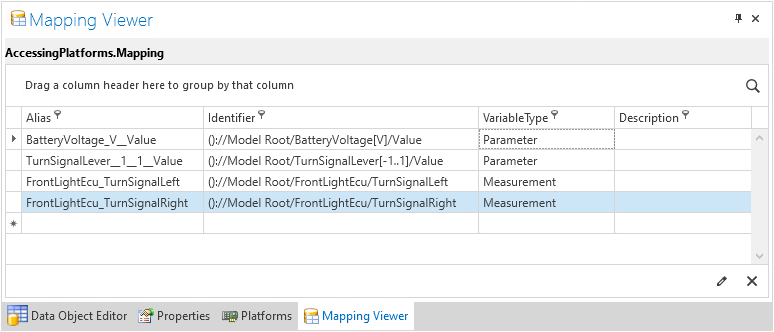
You specified a variable mapping.
Continue with next part
In the next part, you read the variable values you specified in the variable mapping.
The read values are stored in a Dictionary data object where the key of each value is the variable's alias in the variable mapping.
Part 4: To read the current values of several variables at once
Add a Dictionary data object to the ControlFlowBasedTesting folder and rename it to
VariablesRead. This is to store the variables and their values after they have been read from the platform.From the XIL API Convenience library, drag a Model Access Port - ReadValues block to the end of the Try path.
By auto-referencing, the project-specific MAPort data object is set as the reference for the block's data object of the same name.
Specify the project-specific Mapping data object as the reference for the block's VariablePool Variant data object. This data object contains the paths of the variables to be read.
Specify the project-specific VariablesRead data object as the reference for the block's Values data object.
This dictionary defines which variables are to be read and, later, stores the values of these variables. Because the dictionary is empty before the first execution of the sequence, all variables contained in the variable mapping will be read.
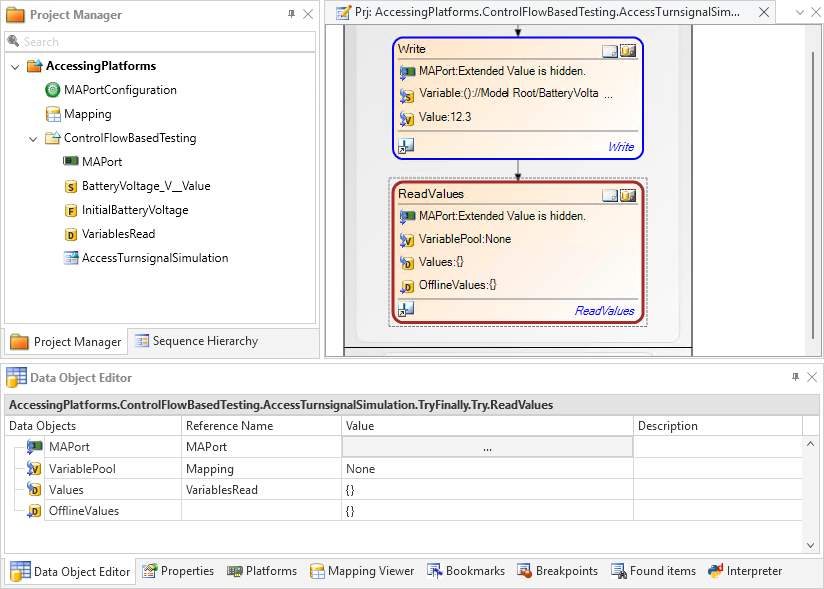
Result
When you execute the sequence, the ReadValues block reads the values for each variable contained in the Mapping data object and saves them to the VariablesRead Dictionary data object.
What’s next
Now you can capture the values of several variables for a specified duration. The next step describes how to do this.